
After installing the plugin, you will see a “Users Forms” button in the left sidebar. Click on this button to proceed.
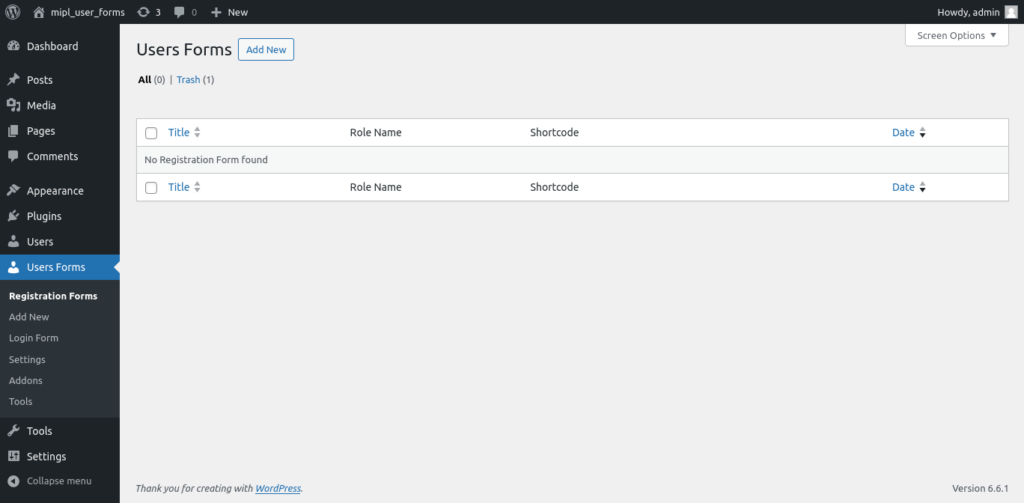
After clicking on the “Users Forms” button, a submenu will appear. Then, click on the “Settings” option within the submenu.
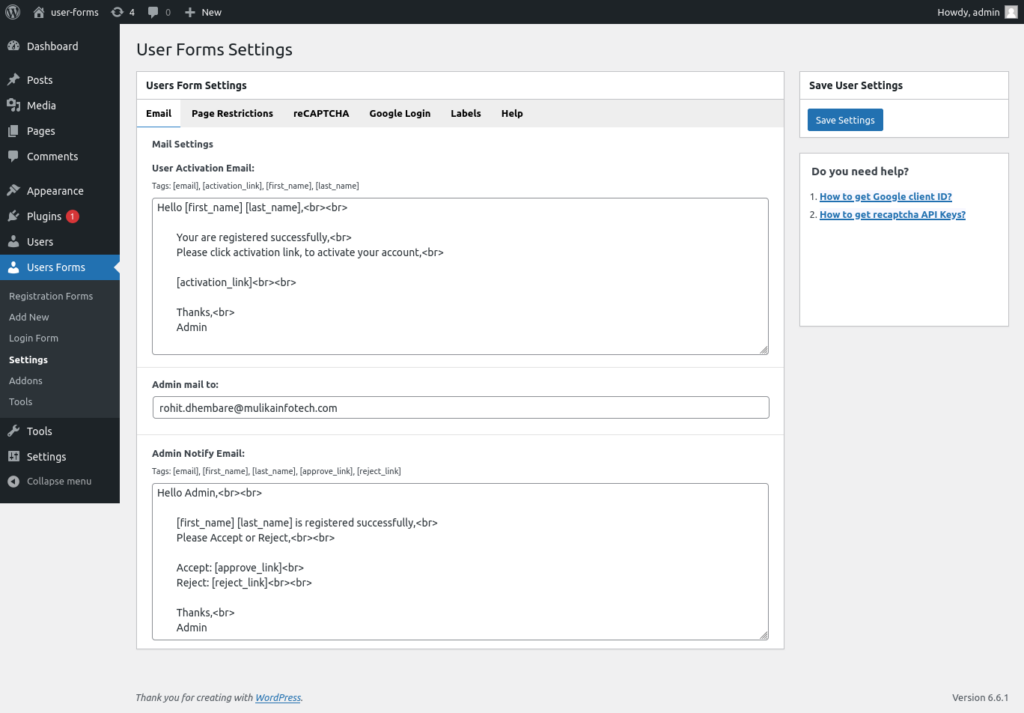
After saving all settings, click the “Add New” button to create a registration form.
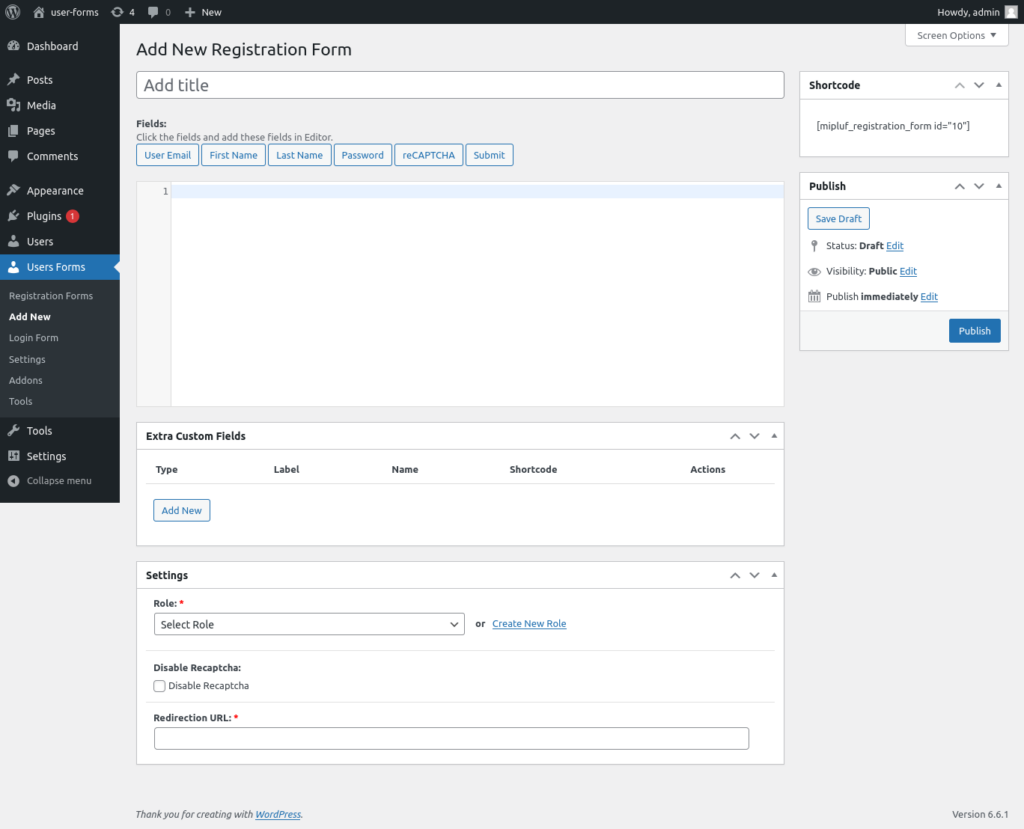
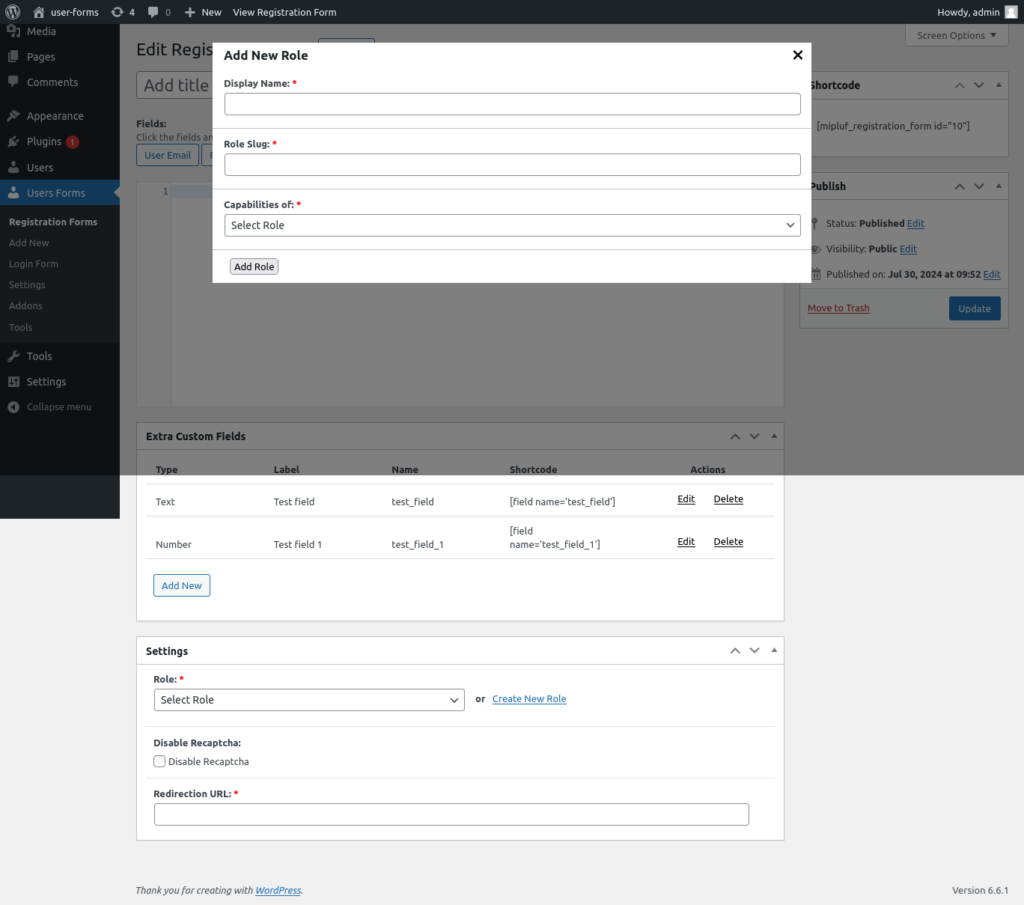
If you want to create custom fields for the registration form, click the “Add New” button inside the custom field meta box and create the custom fields as you want.
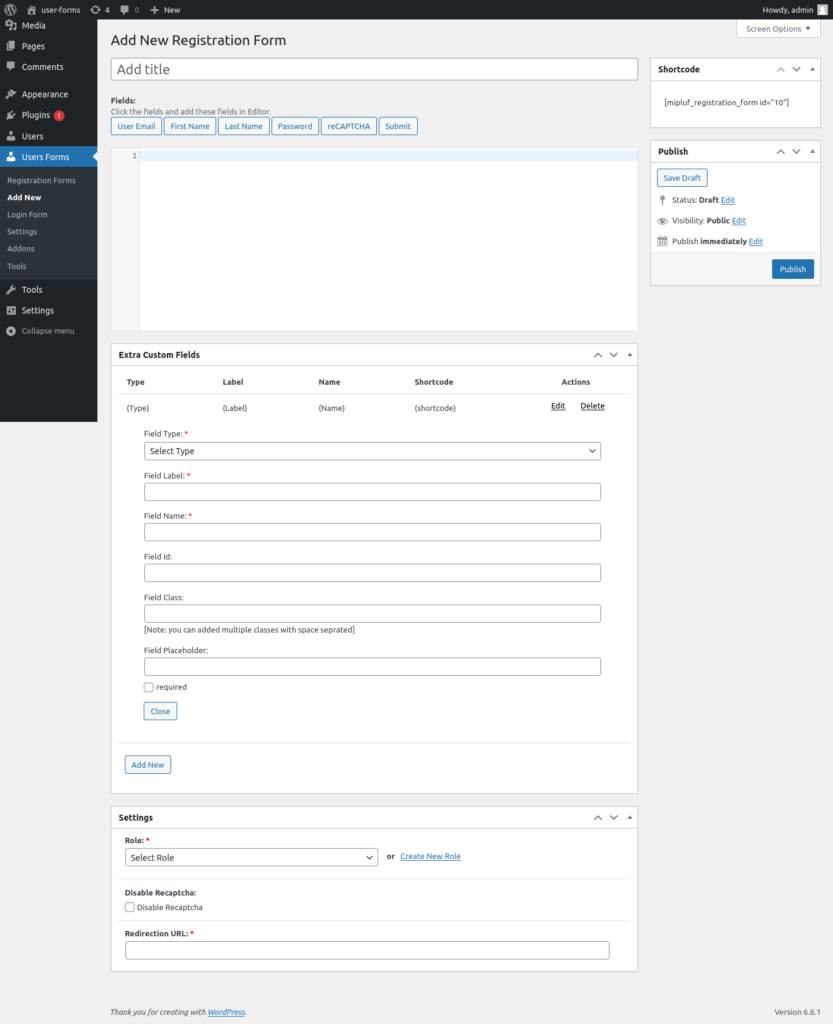
To save the form settings, click on the “Add New Role” button if you want to create a new role for the form, and then create the new role.
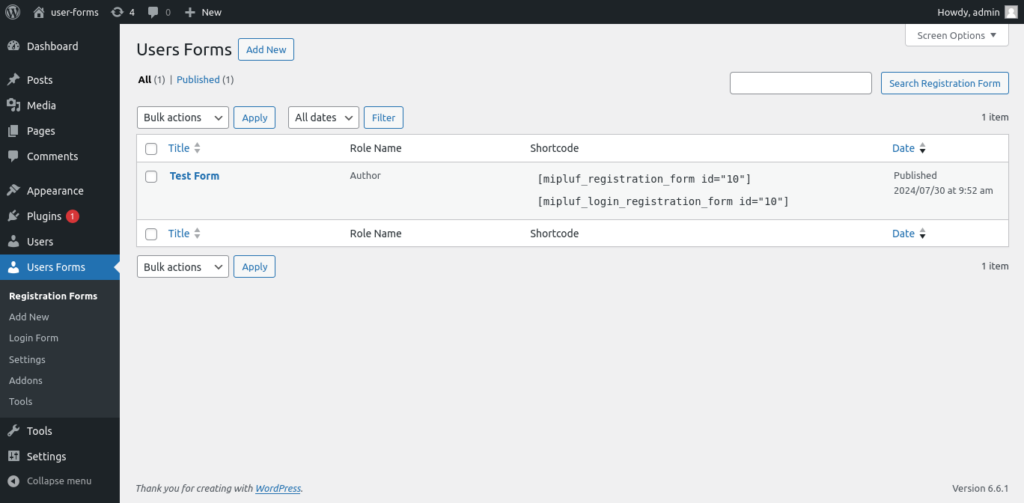
After creating the form, click the “Registration Forms” button to return to the forms listing. The shortcodes are available in the “Shortcode” column; copy the desired shortcode from there.
After copying the shortcode, click on the “Pages” option and open the page where you need to add the form. Insert the shortcode into that page and then update the page.
If you want additional shortcode options, please check the help section within the settings.