
Overview
Easily synchronize your WooCommerce stores and keep everything updated automatically! Whether you manage multiple online stores or a marketplace, this powerful plugin offers centralized, one-to-many store management for seamless synchronization of products, stock, orders, customers, coupons, and reviews across all connected WooCommerce stores.
Setup & Integration
1. Install & Activate Plugin
Important : The plugin is install only on the Main Store. The Main Store controls synchronization. Sub-Stores do not need the plugin install.
All sync actions are controlled from : Main Store → Admin → WooCommerce
Download and install MIPL Multistore Sync Pro. Activate the plugin from Plugins → Installed Plugins.
Menu Options
WooCommerce → Sync Stores
WooCommerce → Add Store
WooCommerce → Sync Tools
WooCommerce → Settings → Multistore Sync
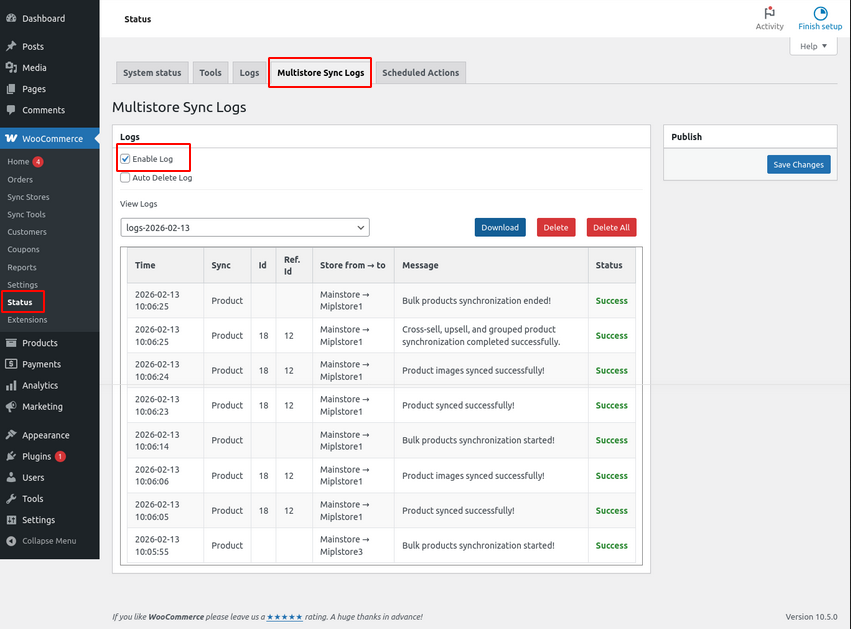
WooCommerce → Status → Multistore Sync Logs
2. Add Sync Stores
1. Connect Stores Automatic
- Go to WooCommerce → Sync Stores and click Add Store.
- Enter the Sub-Store Title.
- Enter the Sub-Store URL.
- Click Connect and Approve to establish the connection between the main store and the sub-store.
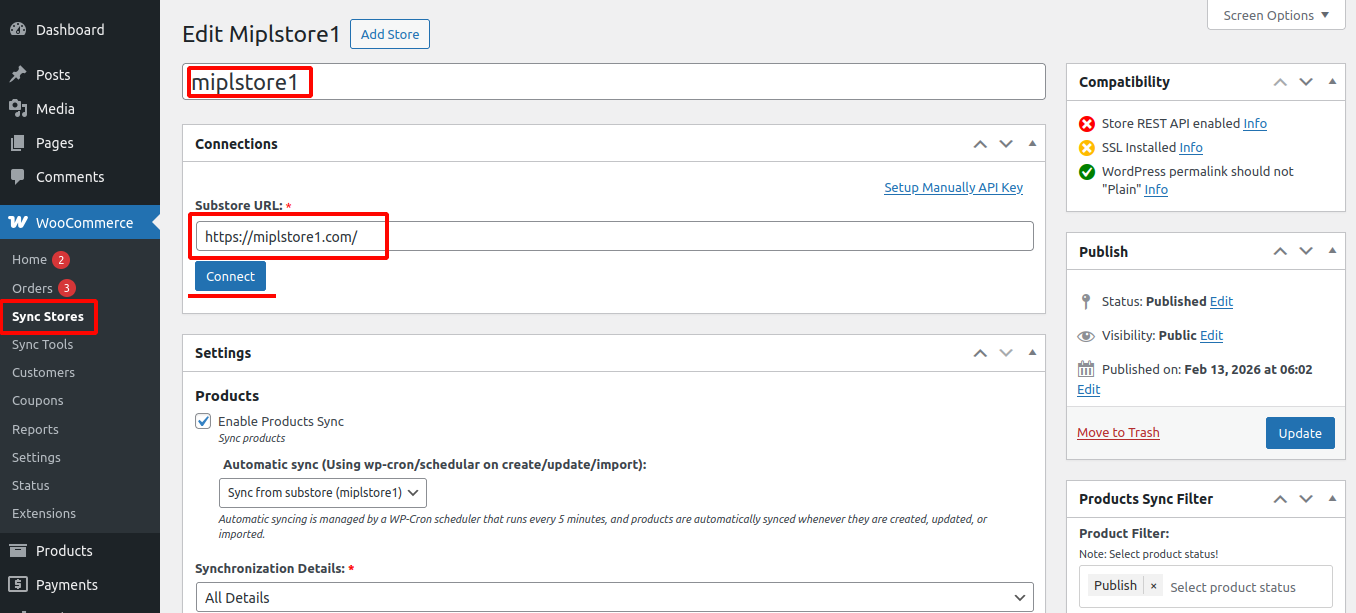
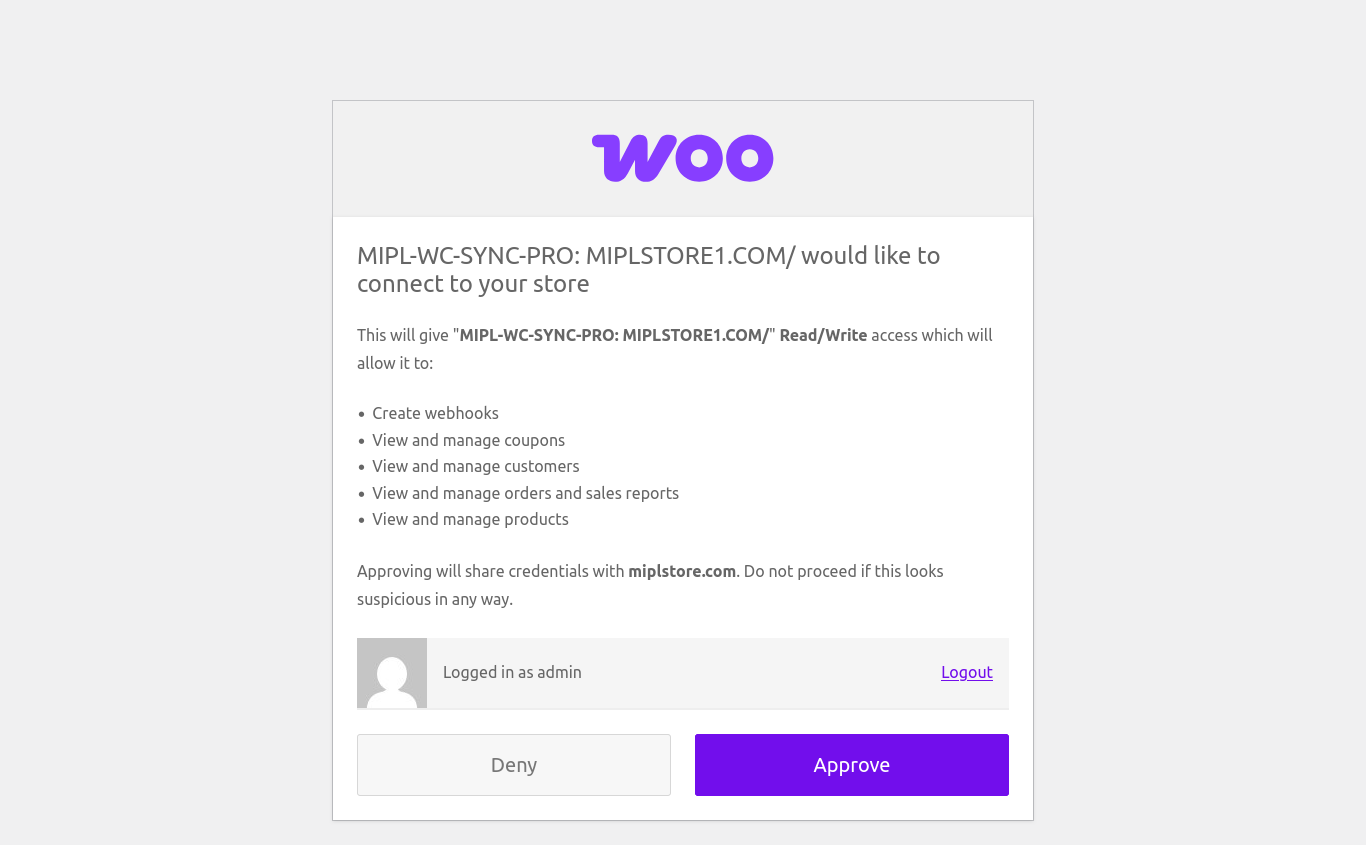
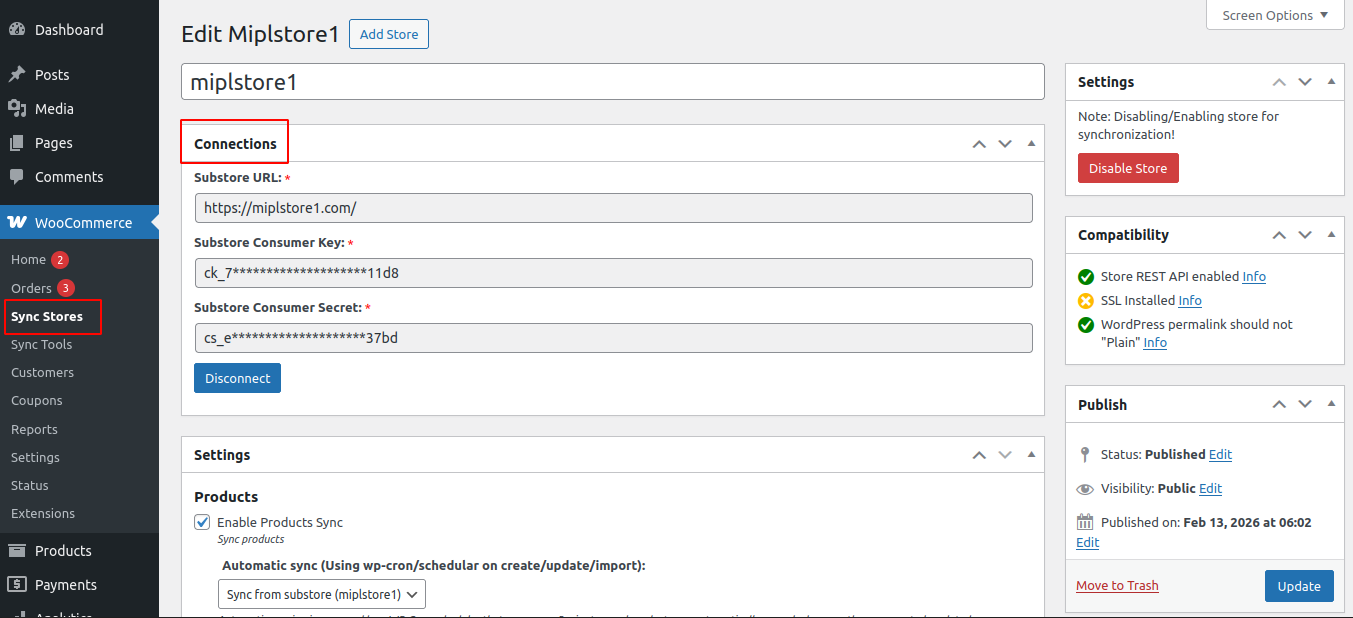
If Add Sync-Store Automatically is not working, you can use Add Sync-Store Manually (Using API Keys) to set it up manually. This method allows you to connect the sync-store by entering the Consumer Key and Consumer Secret generated from the sync-store.
2. Connect Stores Manually (Using API Keys)
Step 1: Add Sync Stores
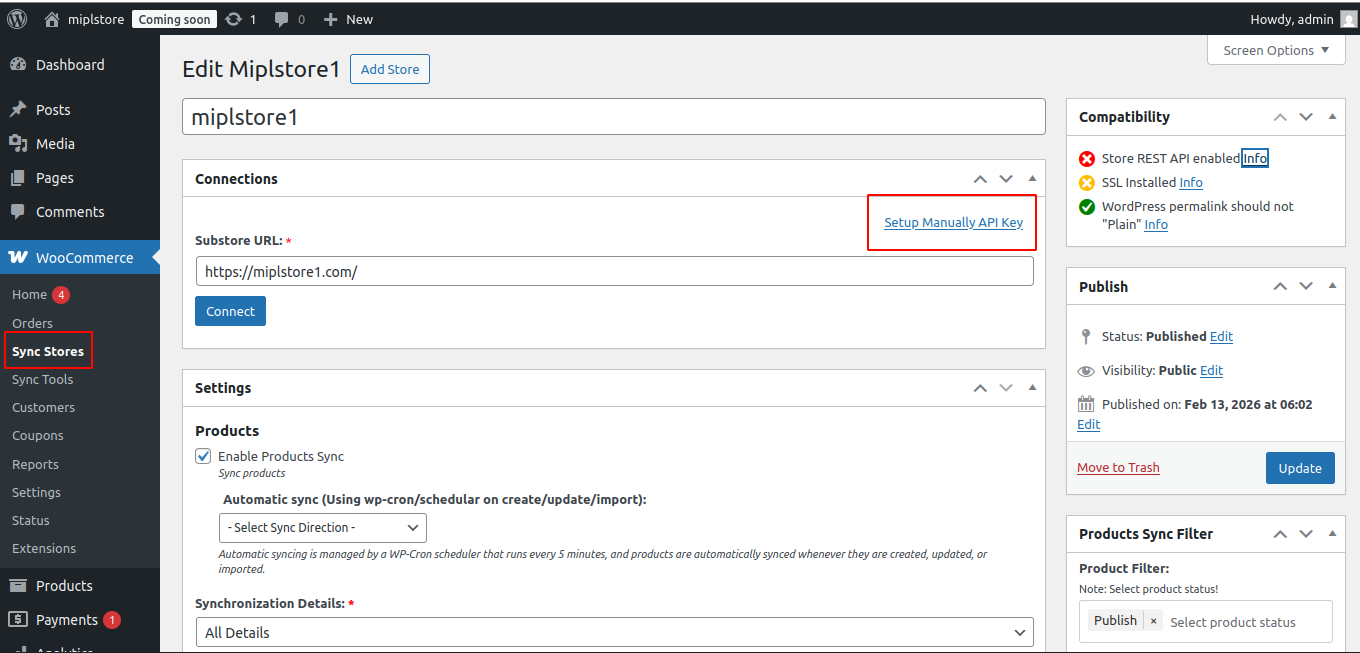
- Go to WooCommerce → Sync Stores
- Click Add Store
- Click Setup Manually (API Key)
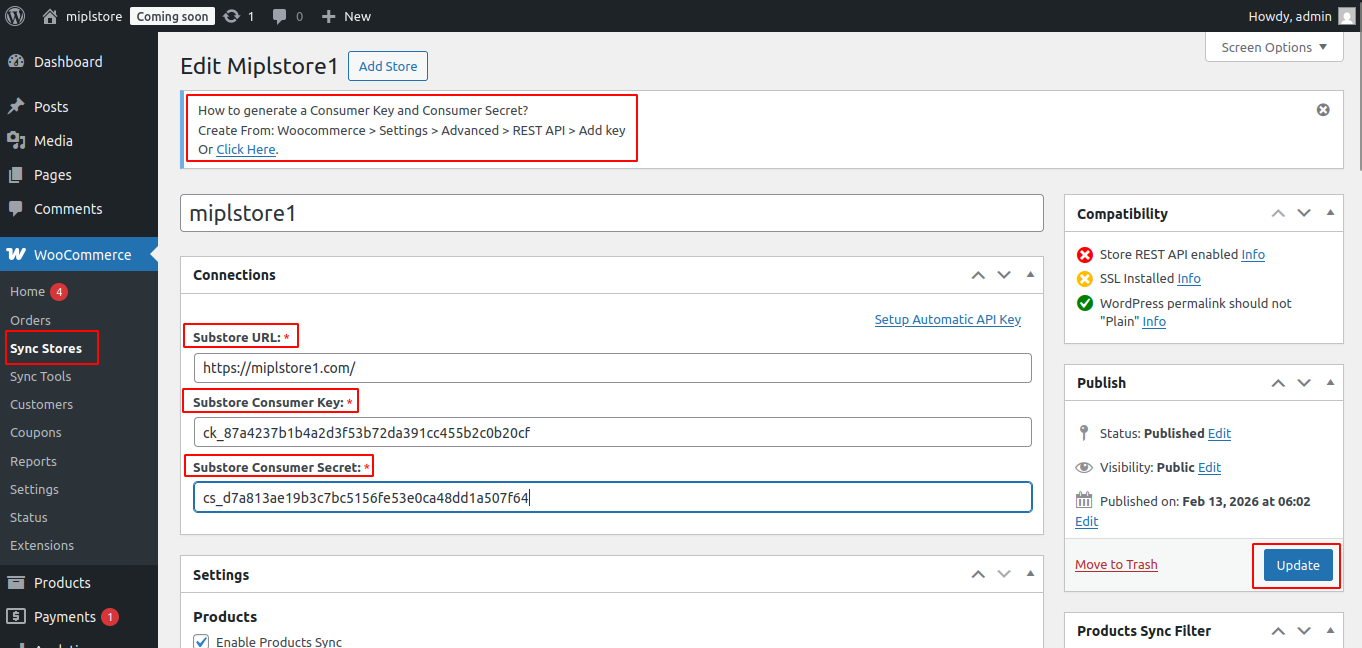
- Enter the following details:
- Sub-Store URL
- Sub-Store Consumer Key
- Sub-Store Consumer Secret
- Click Publish OR Update
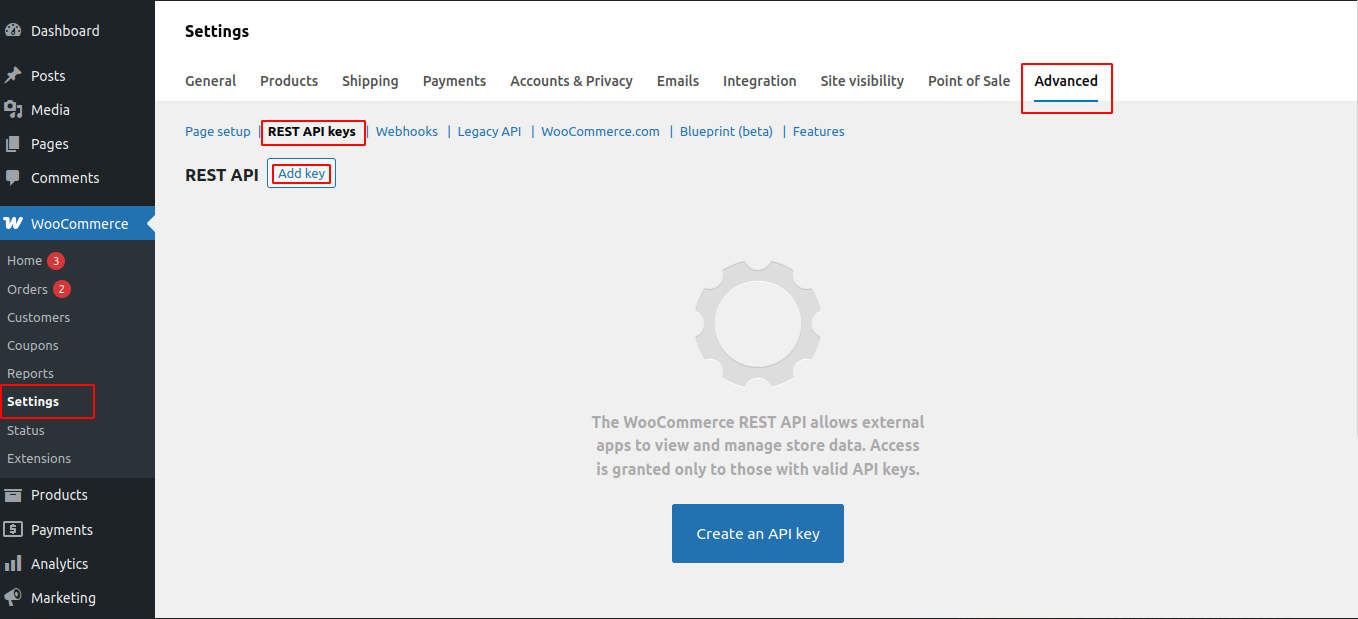
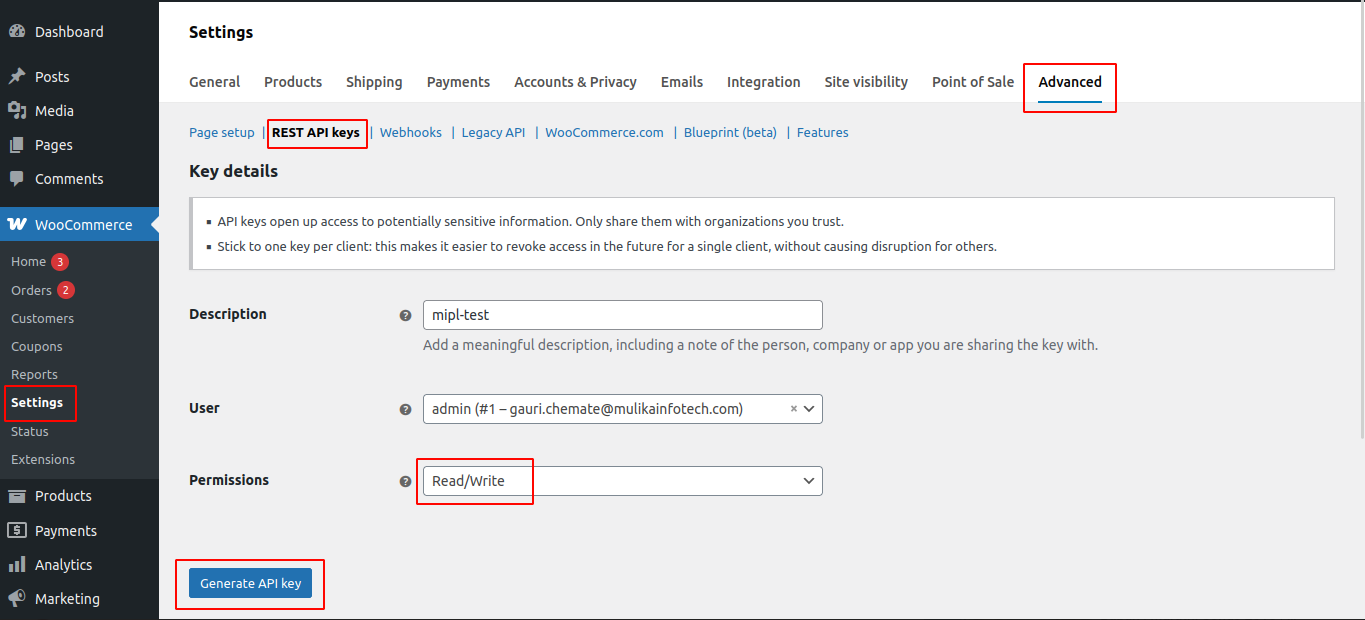
Step 2 : How to Generate Consumer Key & Consumer Secret On the Sub-store
The Consumer Key & Consumer Secret are generated on the Sub-store (not on the main store).
- Log in to your Sub-store WordPress Admin Panel.
- Go to WooCommerce → Settings → Advanced → REST API
- Click Add Key
- Set : Permissions: Read/Write
- Click Generate API Key
- Copy the Consumer Key and Consumer Secret
- Paste them into the Add Store Manually form on the main store
3. Sync Store Compatibility
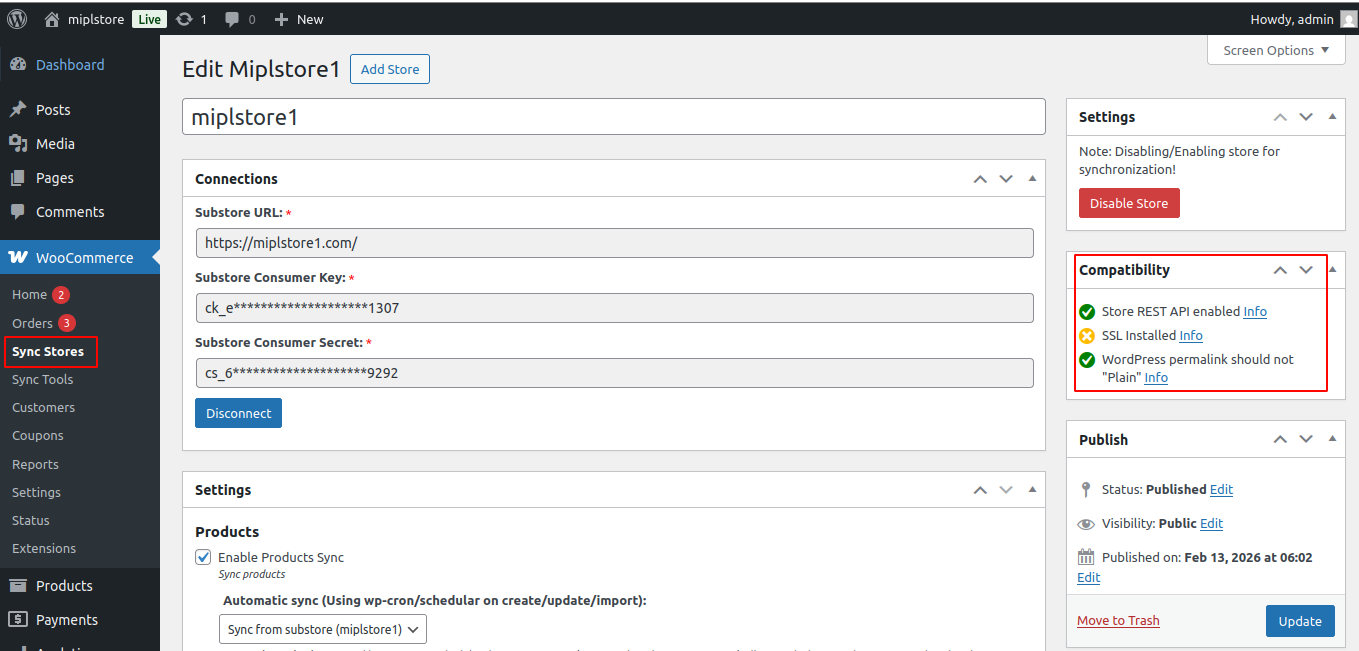
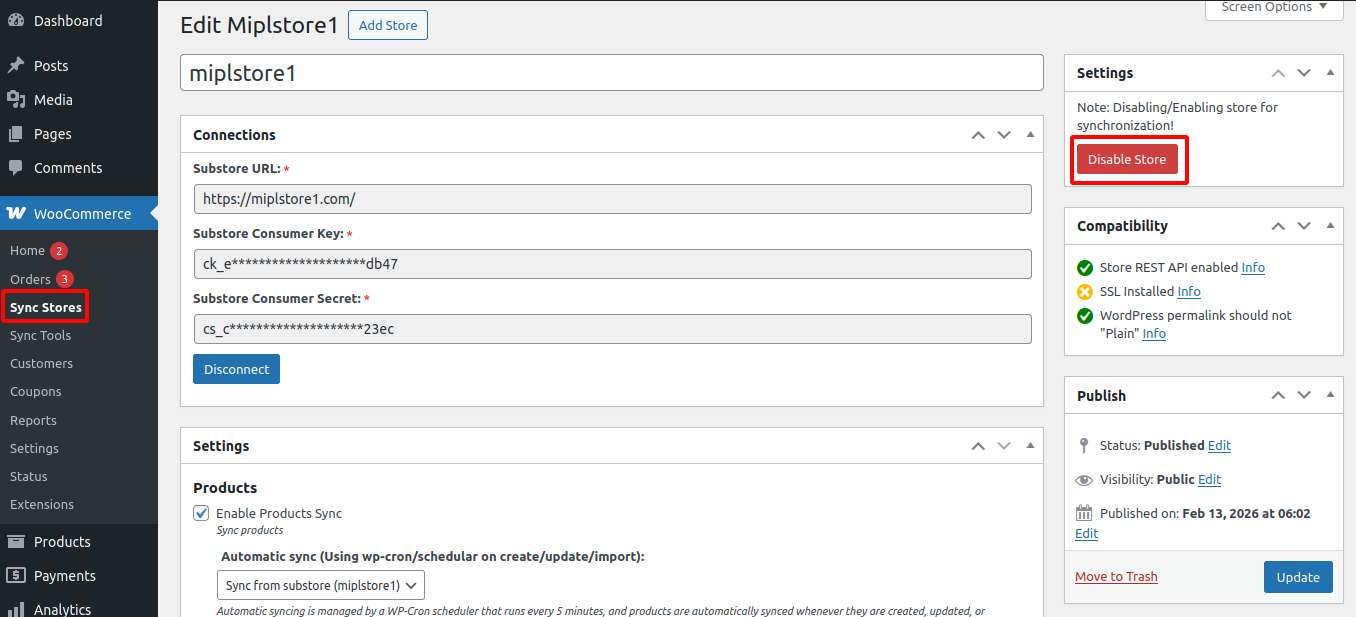
Before Syncing a Store – Check Compatibility. Make sure all compatibility checks show green before starting the sync.
- ✅ Store REST API is enabled – The API must be active for communication between stores.
- ✅ SSL is installed – The store must use HTTPS for secure data transfer.
- ✅ Permalink structure is not set to “Plain” – A proper permalink structure is required for the API to work correctly.
4. Configure Sync Settings
- Navigate to WooCommerce → Sync Stores.
- You will see a list of all connected stores.
- Click Edit on the store you want to configure.
- Scroll to the Settings section.
- Configure the required sync options (e.g., Products Sync, Orders Sync, Coupons Sync, etc.).
- Review the configuration.
- Click Update to save the changes.
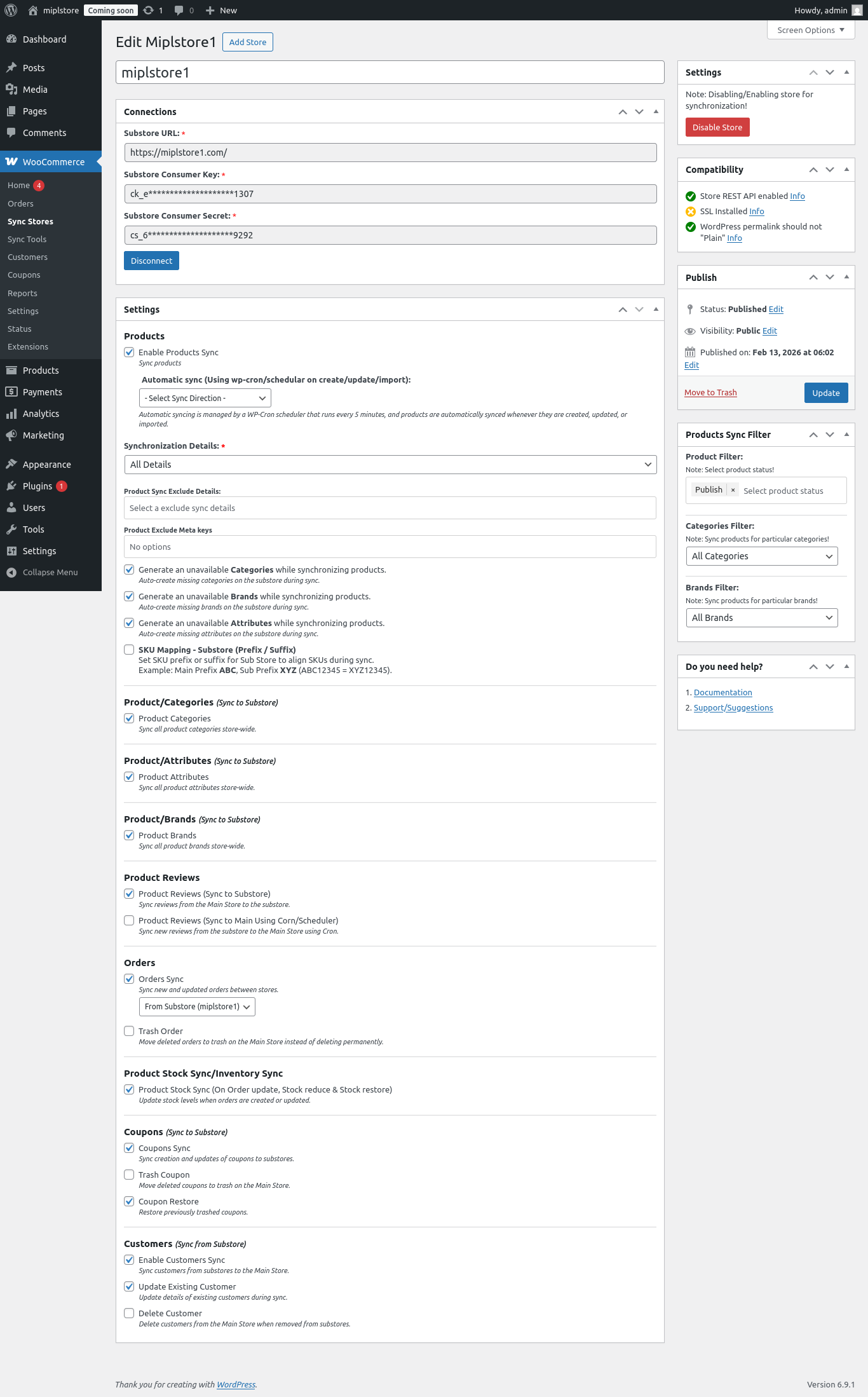
Configure Sync Settings
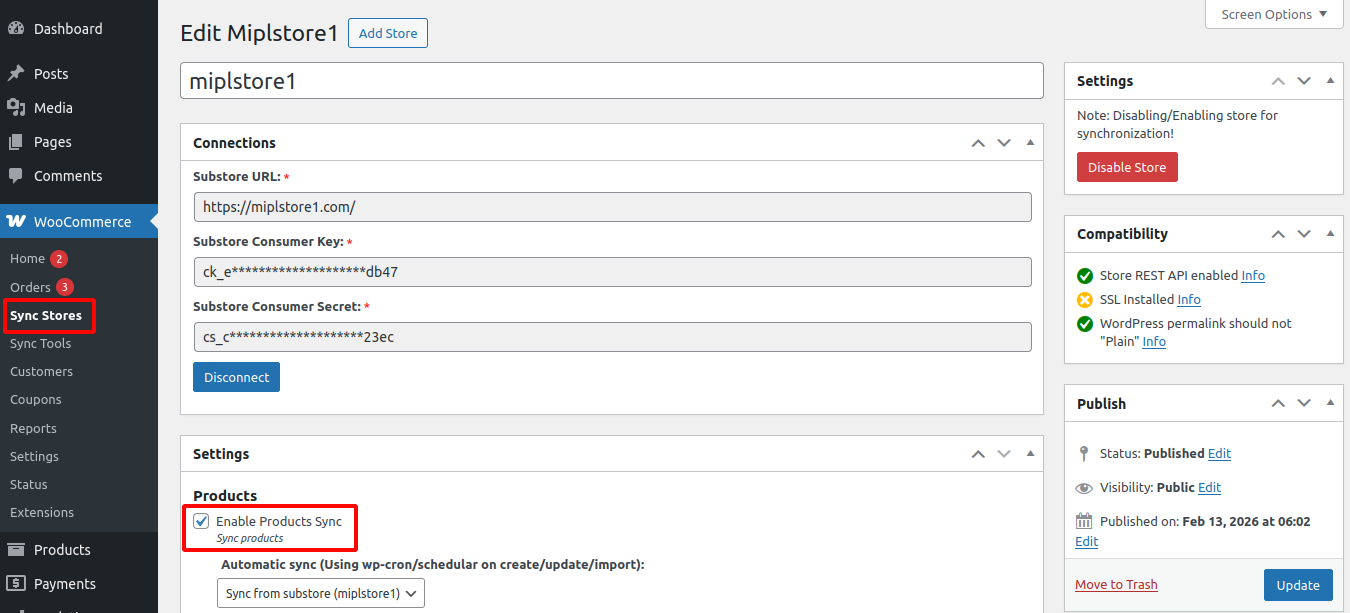
1 . Enable Products Sync : Automatically syncs products main-store to sub-store and sub-store to main-store when they are: Imported , Created , Updated. Sync to Substore – Automatically syncs products main-store to sub-store. Sync from Substore – Automatically syncs products sub-store to main-store .
To sync products between the main store and the substore, go to WooCommerce → Sync Stores and edit the store.
To enable automatic product synchronization, turn on the Automatic sync (Using wp-cron/scheduler on create/update/import) option.This setting is not applied during manual synchronization.
Go to WooCommerce → Sync Stores → Edit Store.
Under the Products section, enable products sync (Automatic sync).
Once enabled, products will automatically sync to the substore whenever they are created, updated, or imported.All sync settings are applied during automatic synchronization.
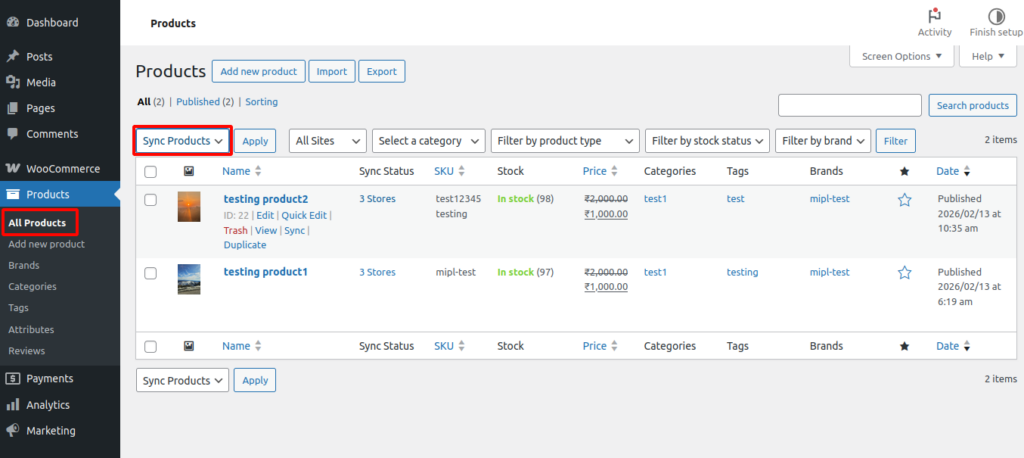
If Enable Products Sync is turned ON, you will see the Sync Products option in the Bulk Actions dropdown on the Products page.
If Enable Products Sync is turned OFF, the Sync Products option will NOT appear in the Bulk Actions dropdown.
2. Synchronization Details : Choose what product data should be synced: Specific options – Sync only selected data (price, stock, etc.) All Details – Syncs all product data.
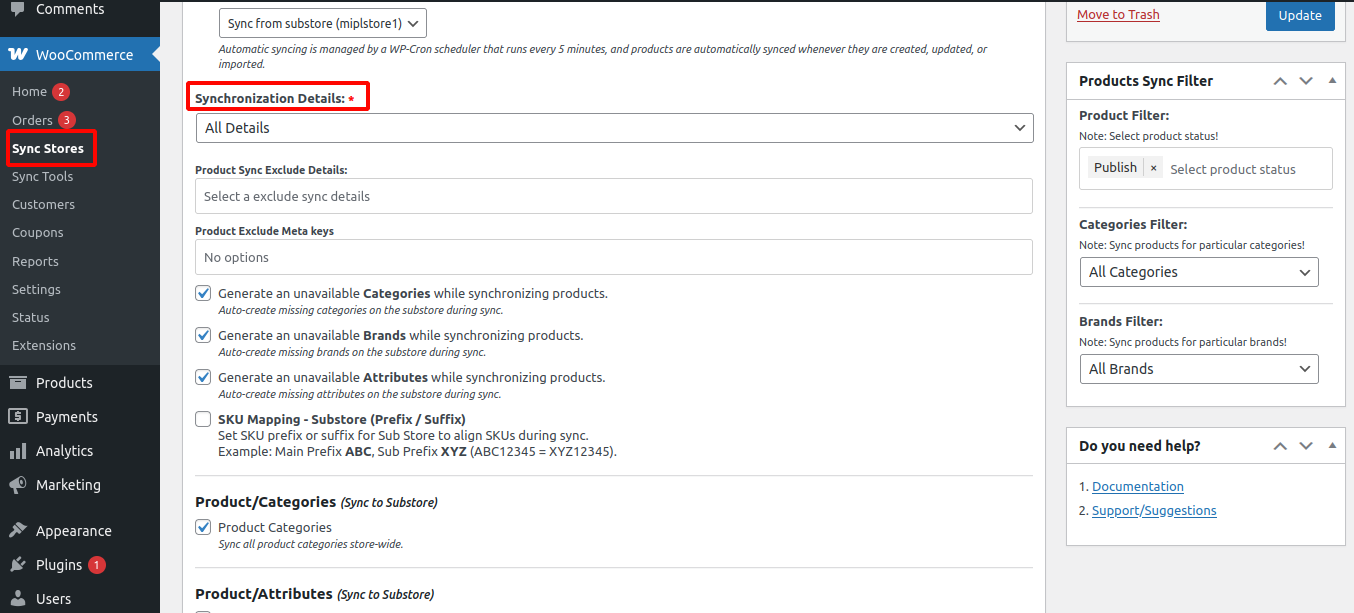
3. Product Sync Exclude Details : Select product data that should not be synced (for example: images or descriptions). This setting applies to Automatic syncronization, Bulk syncronization, and Manually syncronization.
Go to WooCommerce → Sync Stores → Edit Store →Synchronization Details → All Details →Sync Exclude Details
Under the Synchronization Details section, you can manage what product data should not be synced.
Exclude Product Meta Keys: Select the meta keys that should not be synchronized.
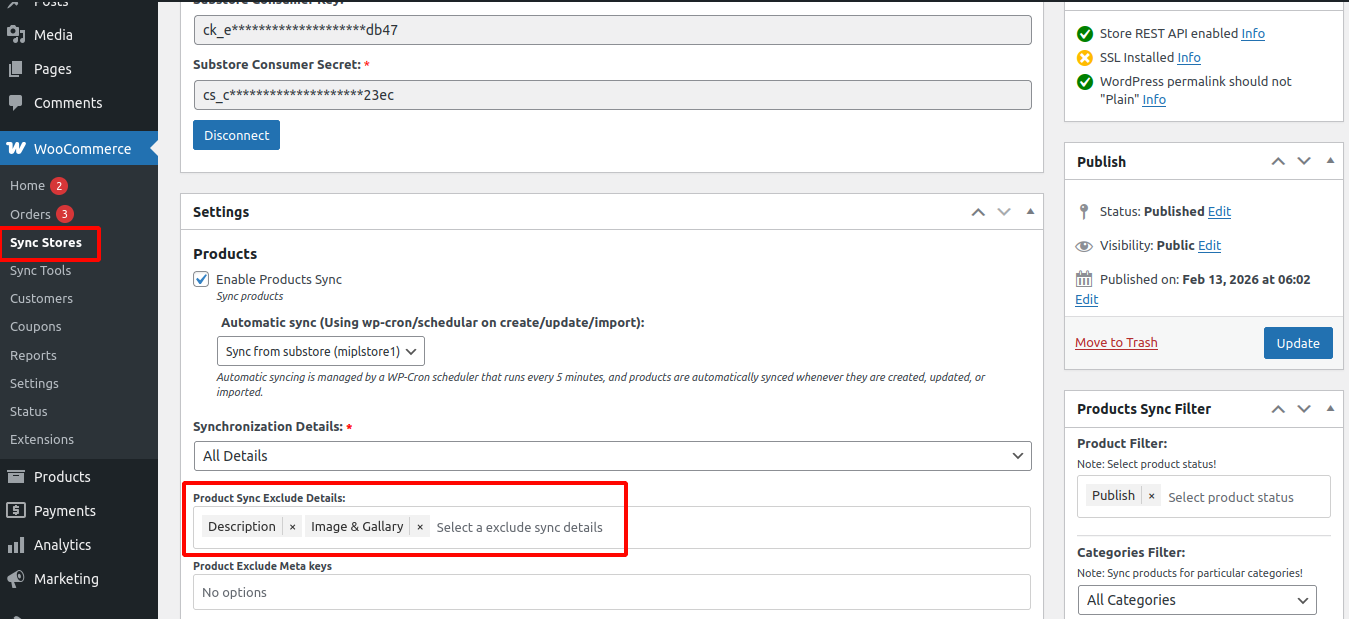
4. Product Sync Include Details : Use this setting to select specific product information to sync.
For example, if you select Price and Description, only the product price and description will be synchronized.
Go to WooCommerce → Sync Stores → Edit Store →Synchronization Details → Particular Details →Sync Include Details
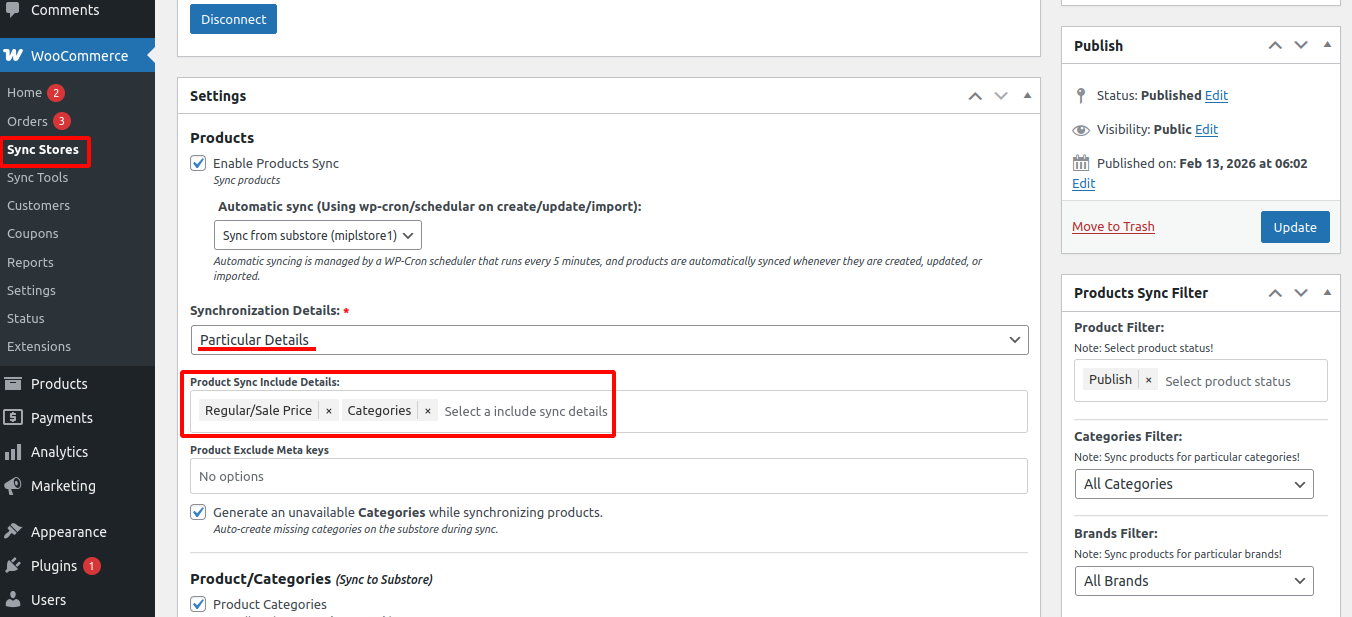
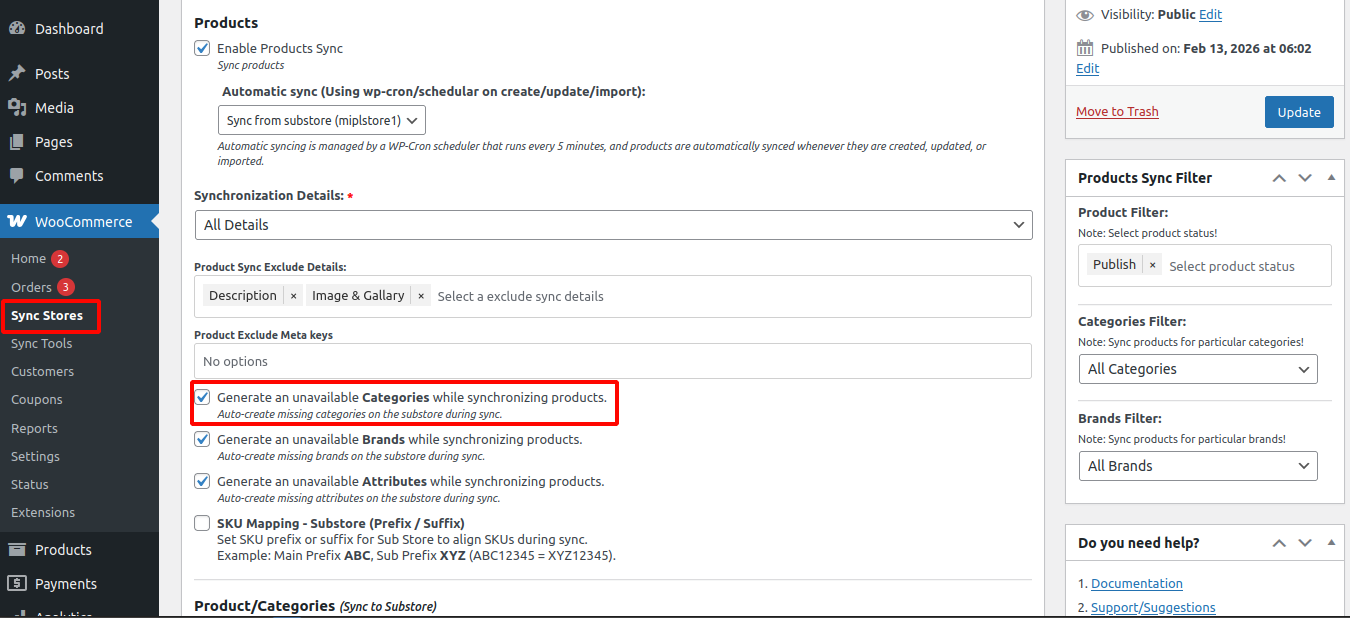
5. Generate Missing Categories : Automatically creates categories on the sub-store if they don’t exist during product syncronization
To enable this sync setting, follow these steps:
Go to WooCommerce → Sync Stores → Edit Store → Settings ->Generate Missing Categories.
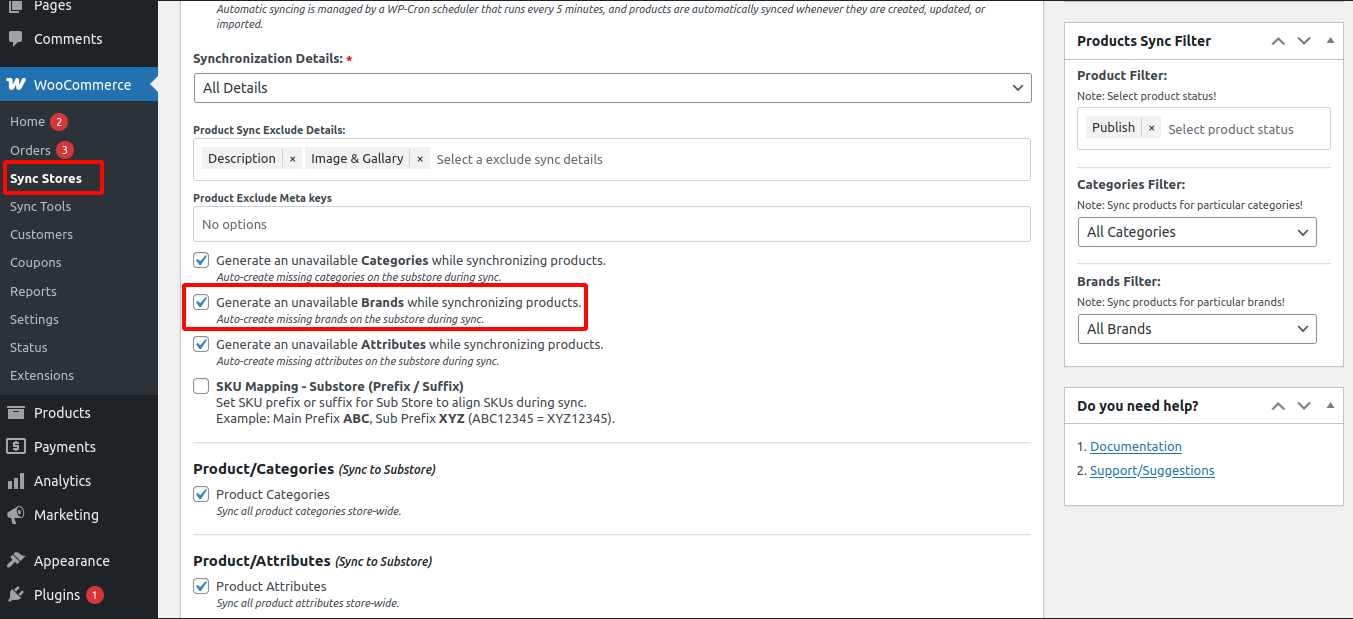
6. Generate Missing Brands : Automatically creates brands on the sub-store if they don’t exist during product sync.
To enable this sync setting, follow these steps: Go to WooCommerce → Sync Stores → Edit Store → Settings ->Generate Missing Brands.
7. Generate Missing Attributes : If a product attribute is not present on the sub-store, it will be created automatically during product synchronization.
To enable this sync setting, follow these steps: Go to WooCommerce → Sync Stores → Edit Store → settings ->Generate Missing Attributes.
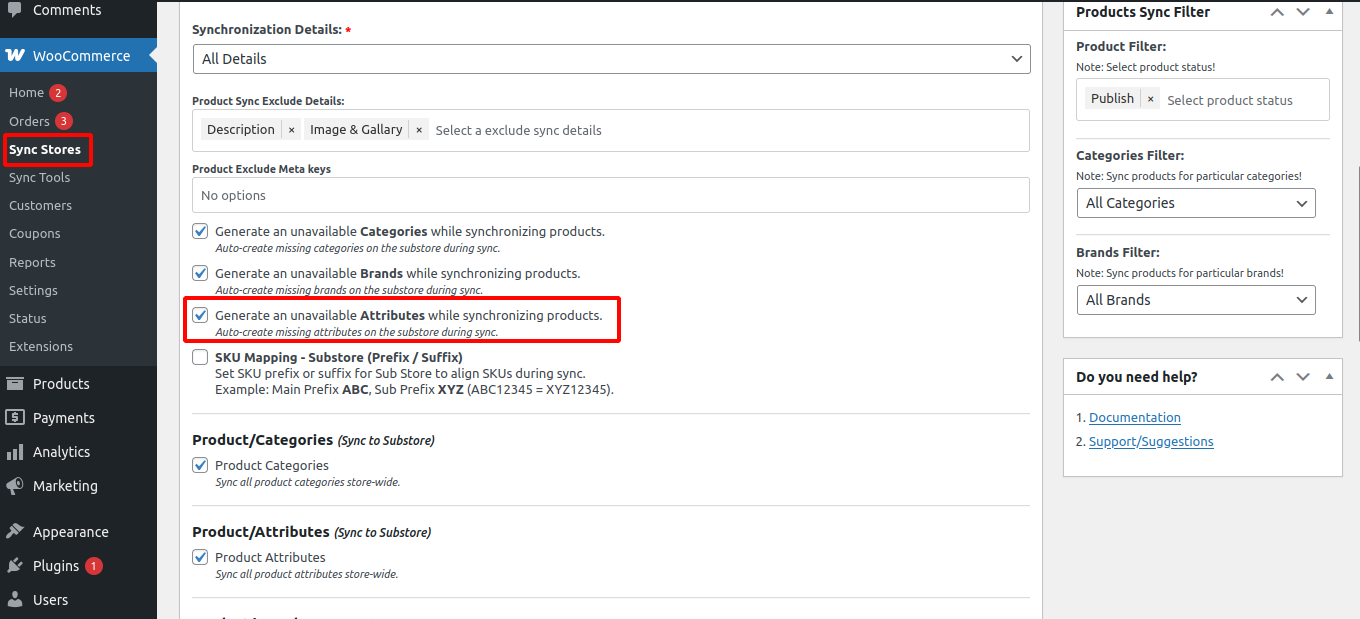
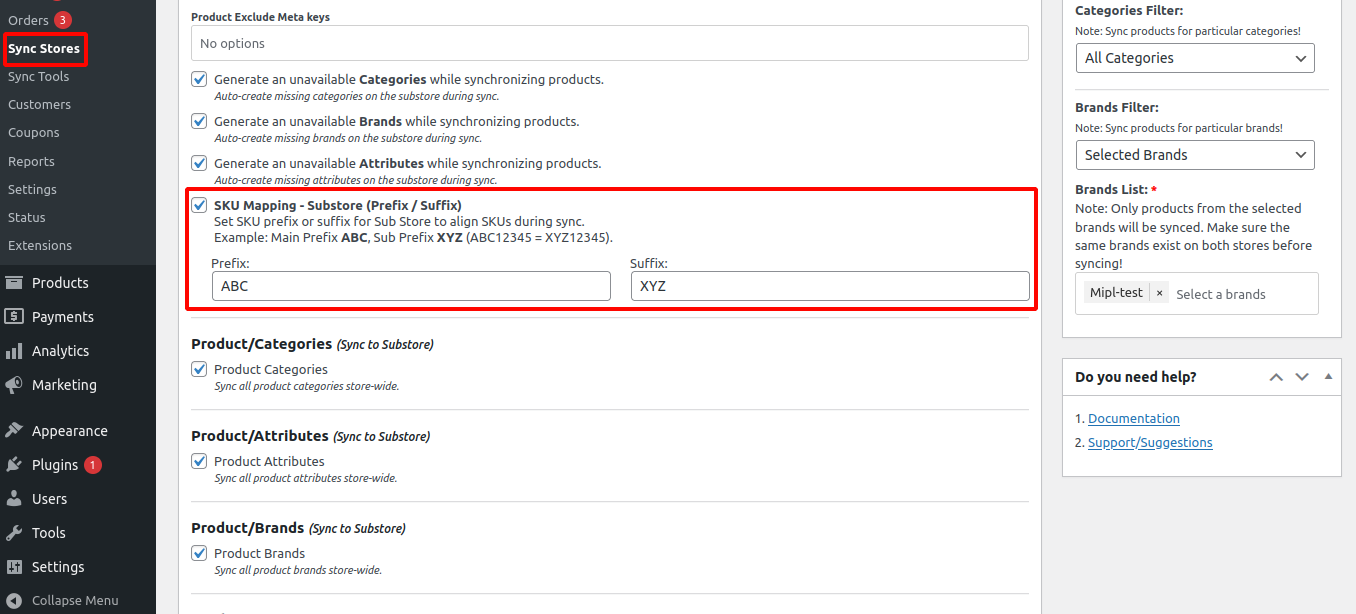
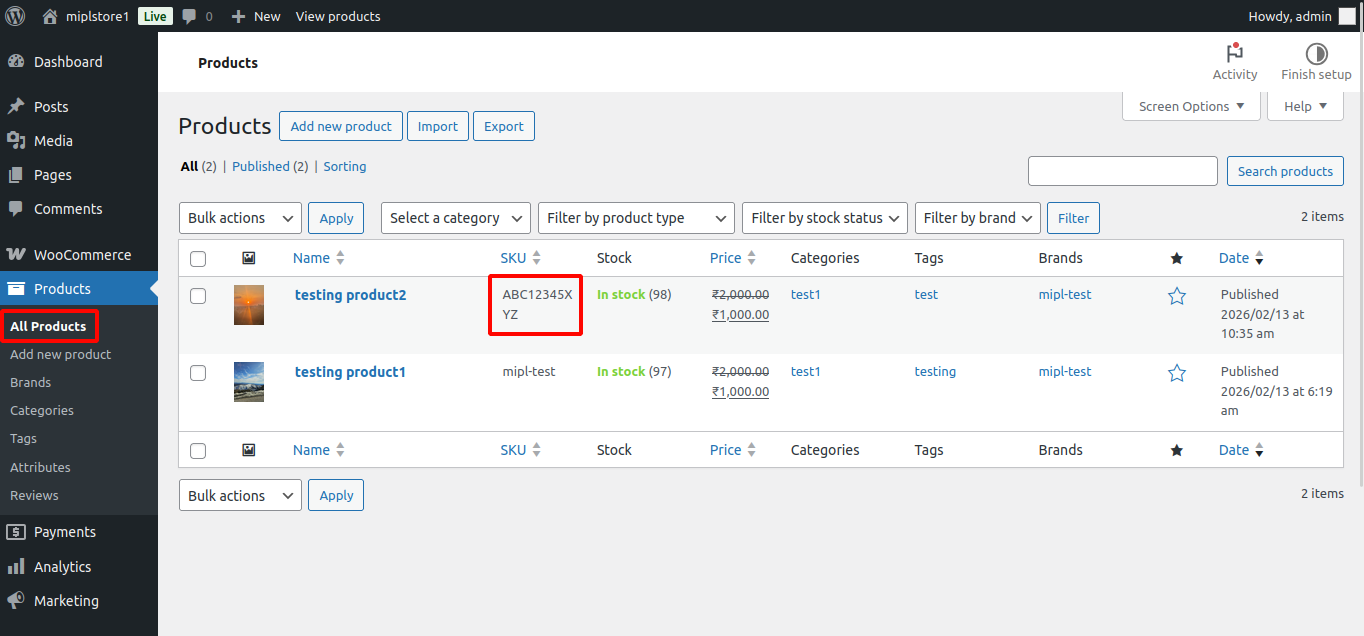
8. SKU Mapping – Substore (Prefix / Suffix) : Adds a prefix or suffix to SKUs on the sub-store to avoid SKU conflicts. Example : Set SKU prefix or suffix for Sub Store to align SKUs during sync.
Example: Main Prefix ABC, Sub Prefix XYZ (ABC12345 = XYZ12345).
To use SKU Mapping with Prefix and Suffix, you need to configure the settings in both the Main Store and the Substore.
First, enable SKU mapping for the substore:
Go to WooCommerce → Sync Stores → Edit Store → Settings → SKU Mapping – Substore (Prefix / Suffix).
Here, add the Prefix and Suffix for the substore.
For example:
- Prefix: ABC
- Suffix: XYZ
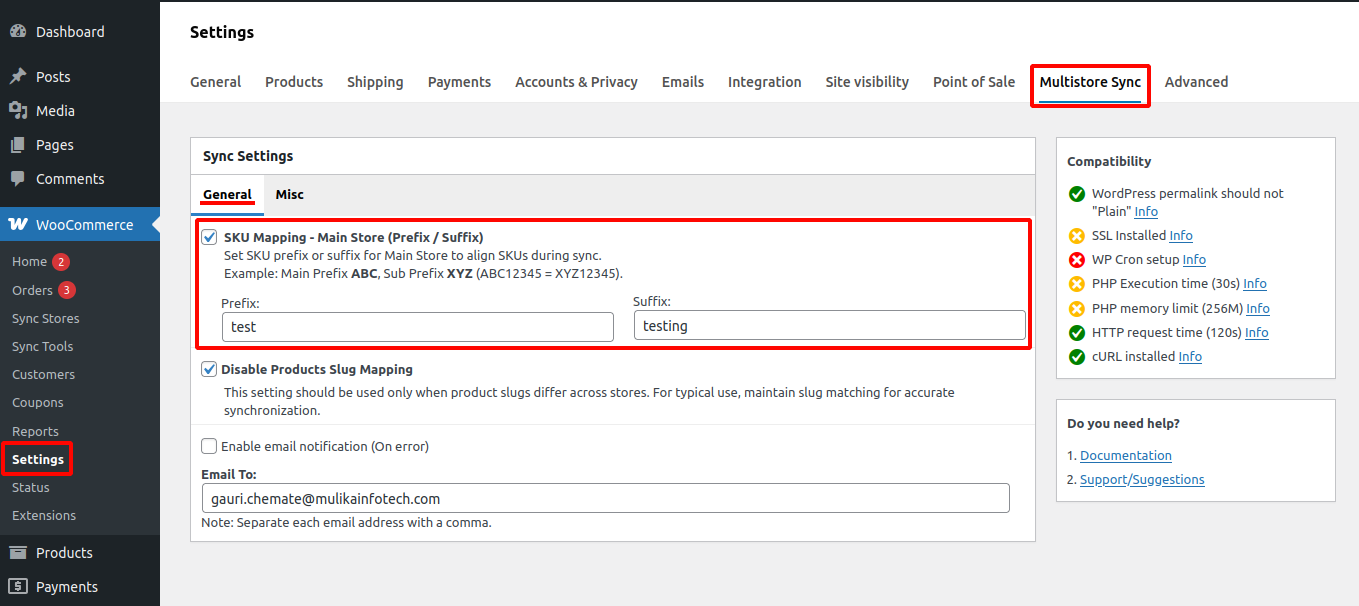
Next, enable SKU mapping for the main store:
Go to WooCommerce → Settings → Multistore Sync → General → SKU Mapping – Main Store (Prefix / Suffix).
Here, enter the main store’s Prefix and Suffix.
For example:
- Prefix: test
- Suffix: testing
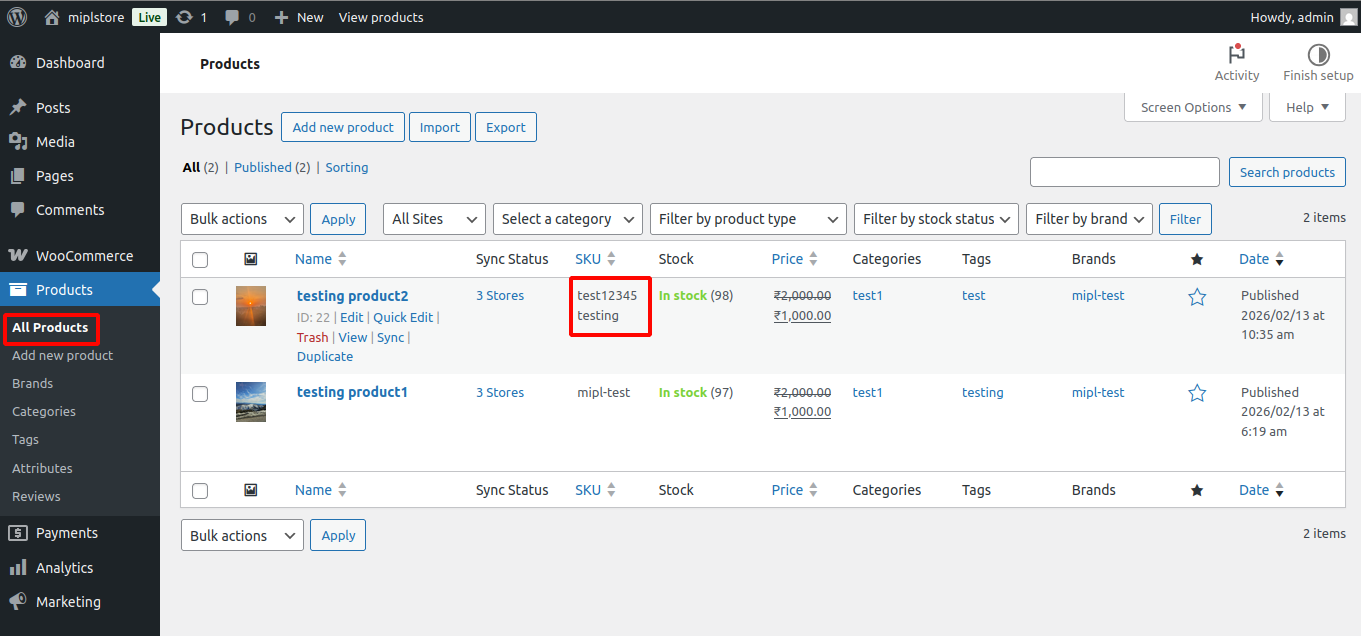
Now, when you create or edit a product in the main store and enter the SKU as:
test12345testing
After syncing the product to the substore, the SKU will automatically change based on the substore’s prefix and suffix settings.
So in the substore, the SKU will appear as:
ABC12345XYZ
This setting helps keep SKUs aligned between the main store and substore while using different prefixes and suffixes automatically during synchronization.
9. Product/Categories (Sync to Substore) : Syncs all product categories from the main store to the sub-store.
To enable this sync setting, follow these steps: Go to WooCommerce → Sync Stores → Edit Store → settings ->Product/Categories (Sync to Substore).
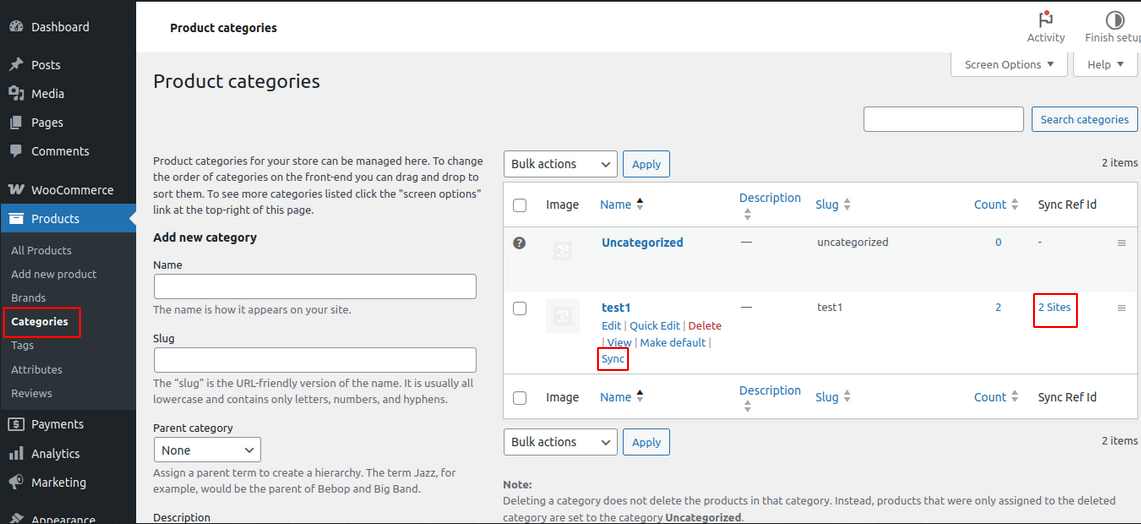
If the Product/Categories (Sync to Substore) setting is enabled, a Sync option will appear in the category row actions.
- Go to Products → Categories.
- Click the Sync link in the row actions.
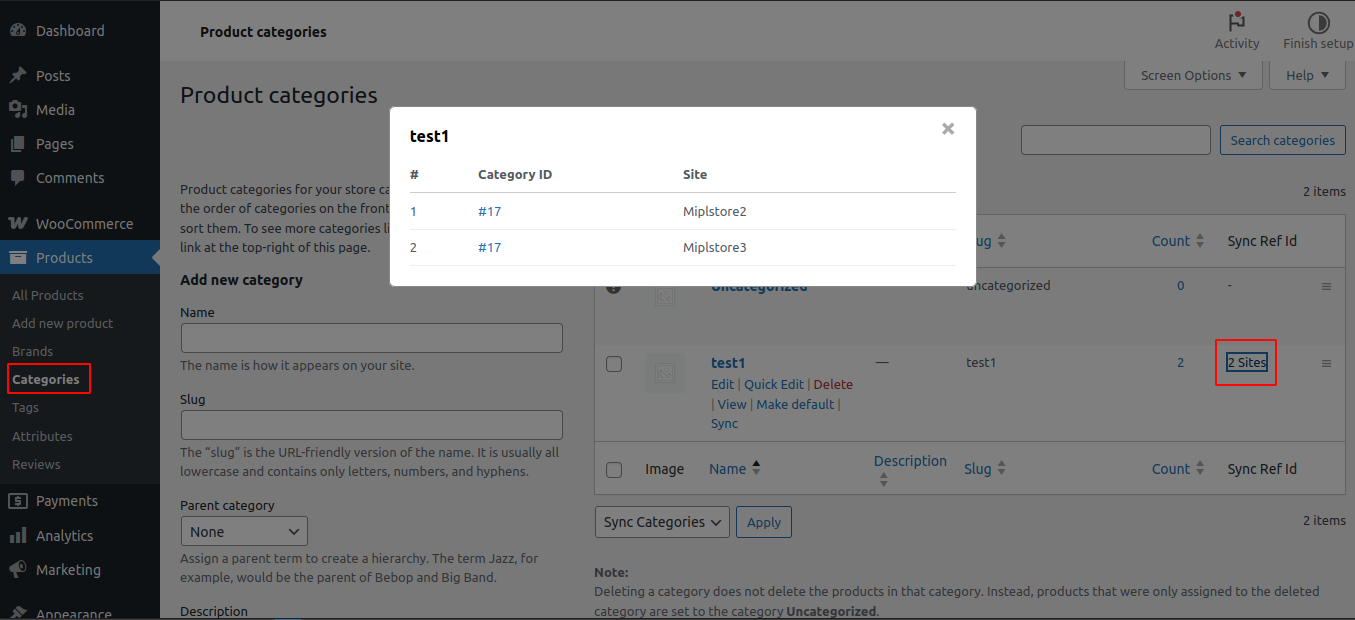
The Sync Ref ID column shows the synced Substore Category ID.
This ID is created in the substore after synchronization. You can use this ID to identify and track the synced item in the substore. In some cases, clicking the ID will open the related item directly in the substore.
After clicking the Sites link (for example, 2 Sites) in the Sync Ref ID column, a popup window will open showing the synced category details. In this popup, you can see the Substore Category ID and the corresponding Substore Name. This helps you easily identify which substores the category is synced with and view the related category ID for each store.
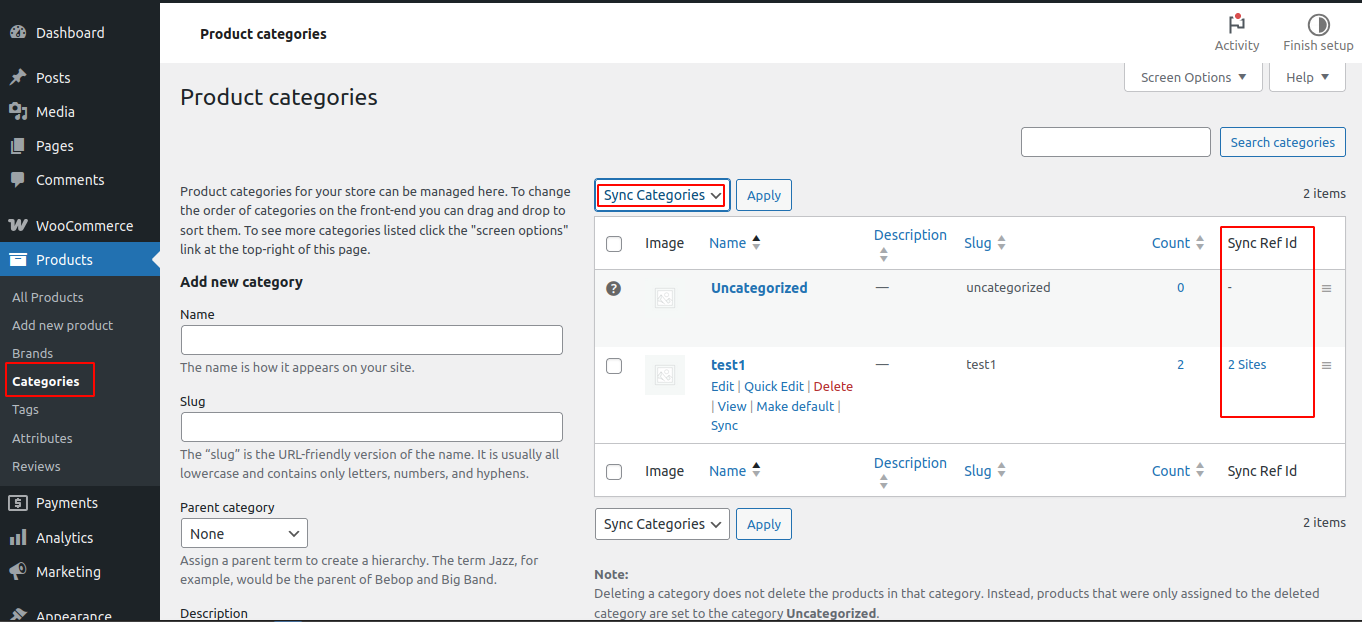
The Sync Categories bulk action allows you to sync multiple categories to the substore at the same time.
To use it:
- Go to Products → Categories.
- Select the categories using the checkboxes.
- Choose Sync Categories from the bulk actions dropdown.
- Click Apply.
This will sync all selected categories to the connected substore in one step.
The Sync Ref ID column shows the synced Substore Category ID. This ID is created in the substore after synchronization. You can use this ID to identify and track the synced item in the substore. In some cases, clicking the ID will open the related item directly in the substore.
After clicking the Sites link (for example, 2 Sites) in the Sync Ref ID column, a popup window will open showing the synced category details. In this popup, you can see the Substore Category ID and the corresponding Substore Name. This helps you easily identify which substores the category is synced with and view the related category ID for each store.
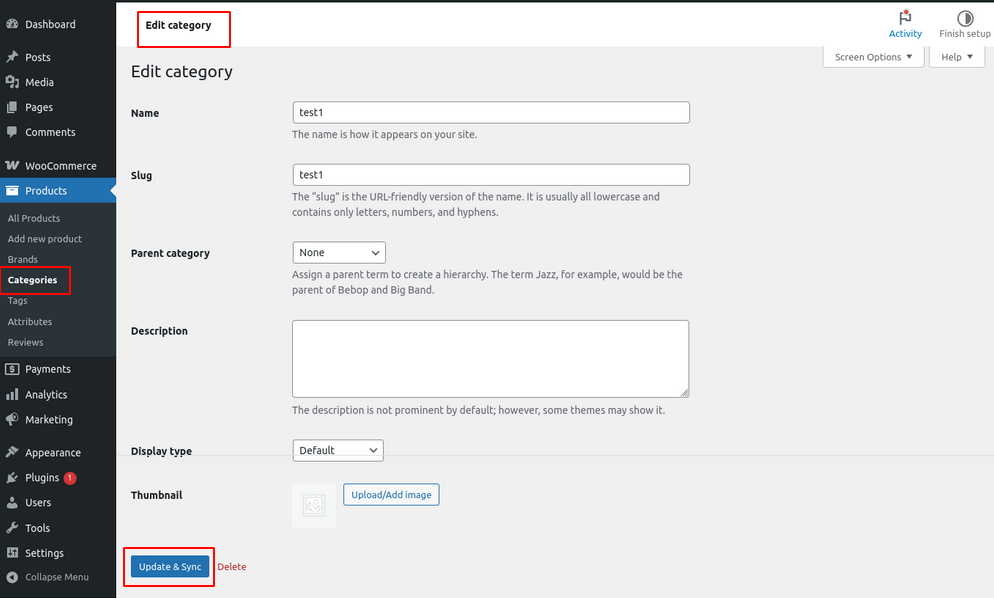
When you edit a category, the Update & Sync button will be enable. Clicking Update & Sync will save your changes and sync the updated category to all connected substore(s).
10. Product Attributes (Sync to Substore) : Syncs all product attributes from the main store to the sub-store.
To enable this sync setting, follow these steps: Go to WooCommerce → Sync Stores → Edit Store → settings ->Product Attributes (Sync to Substore).
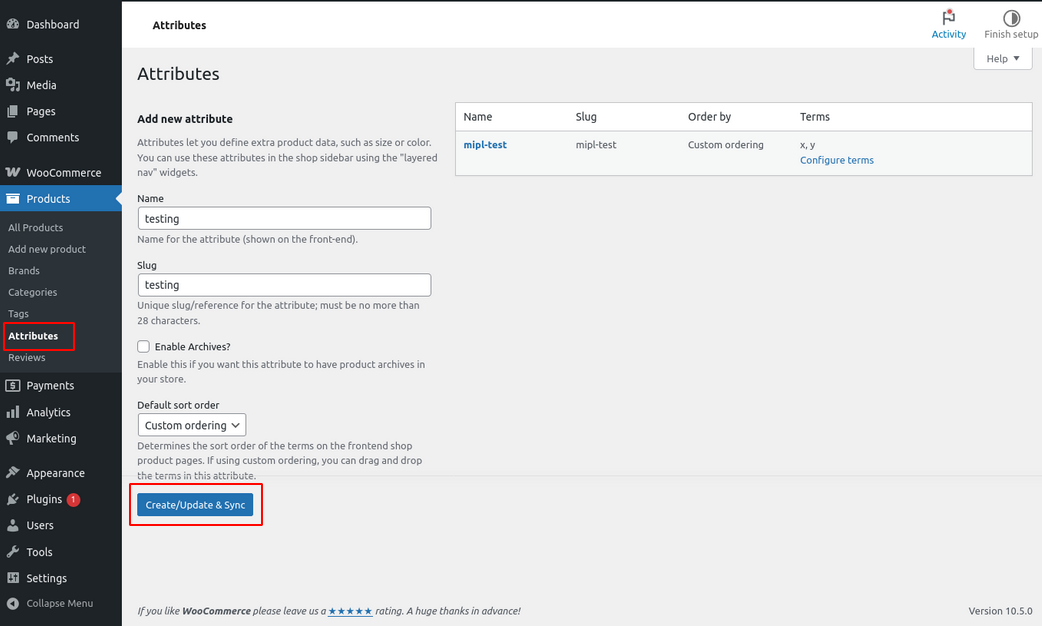
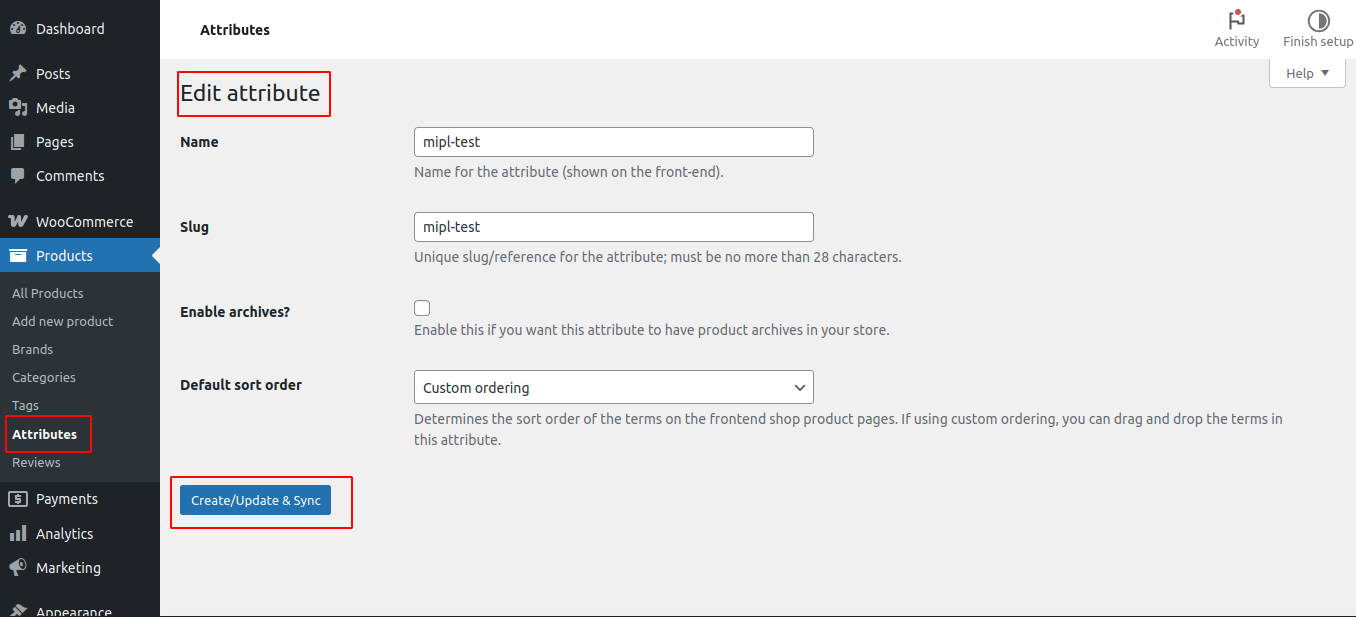
If the Product Attributes (Sync to Substore) setting is enabled, the Create/Update & Sync button will be available.
When you add a new attribute or edit an existing attribute, you will see the Create/Update & Sync button. Clicking this button will save the attribute and sync it to the connected substore(s).
11. Product/Brands (Sync to Sub-store) : Syncs product brands from the main store to the sub-store.
To enable this sync setting, follow these steps: Go to WooCommerce → Sync Stores → Edit Store → settings ->Product/Brands (Sync to Sub-store).
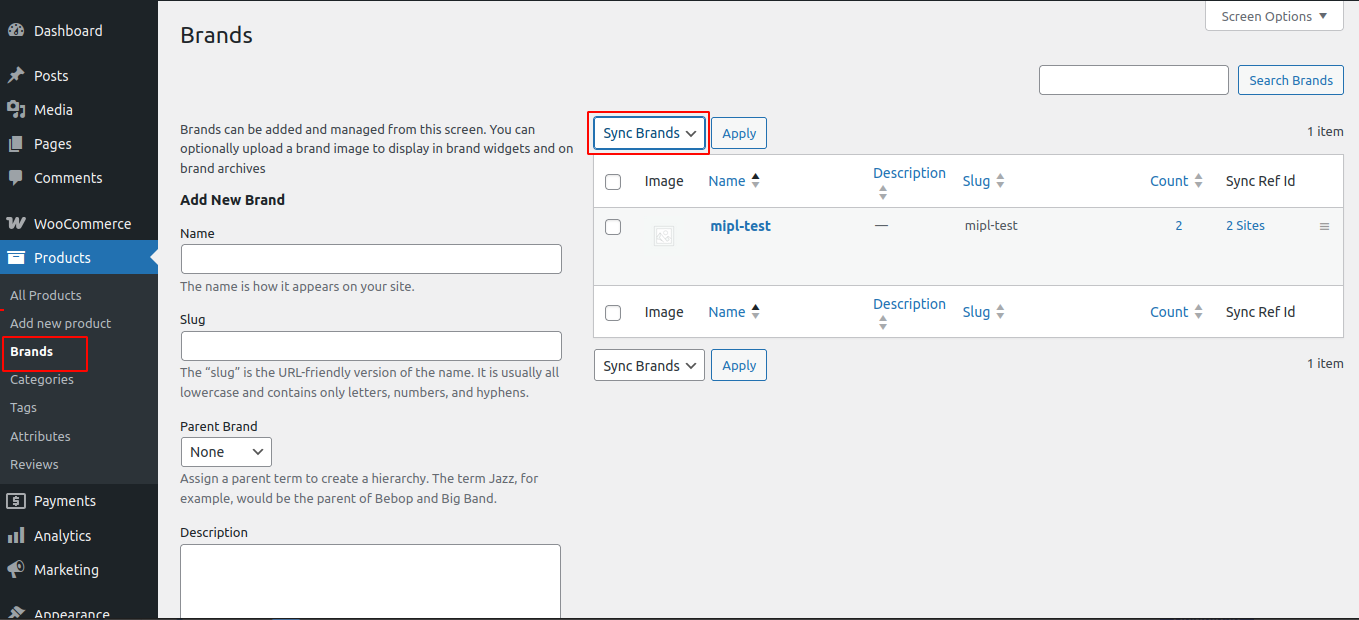
- If the Product/Brands (Sync to Substore) sync setting is enabled, a Sync option will appear in the brand row actions.
- Click Sync to send that brand to the substore.
You can also use the Sync Brands bulk action to sync multiple brands at once:
- Select the brands using the checkboxes.
- Choose Sync Brands from the dropdown.
- Click Apply.
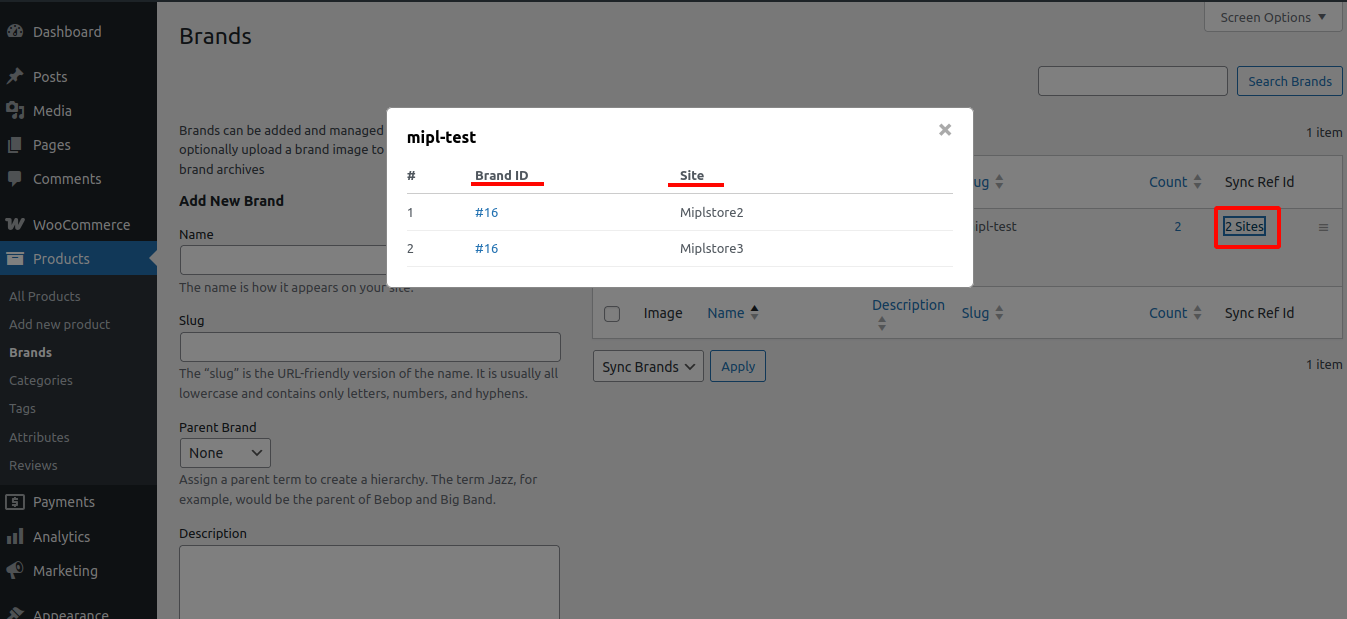
The Sync Ref ID column shows how many substores the brand is synced with (for example, 2 Sites). Clicking this link will open a popup showing the Substore Brand ID and the Substore name.
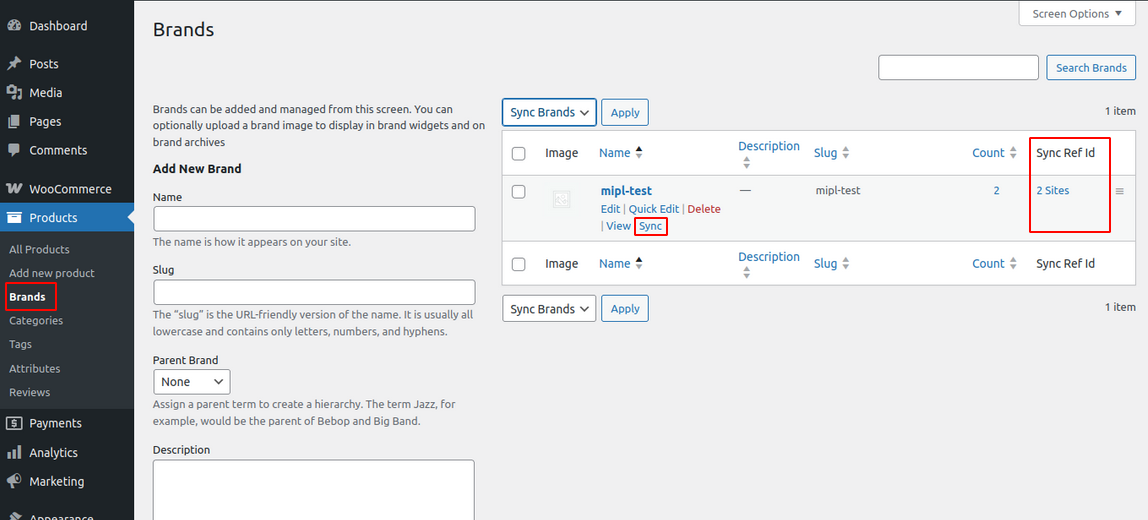
After clicking the Sites link (for example, 2 Sites) in the Sync Ref ID column, a popup window will open showing the synced brand details. In this popup, you can see the Substore Brand ID and the corresponding Substore Name. This helps you easily identify which substores the brand is synced with and view the related brand ID for each store.
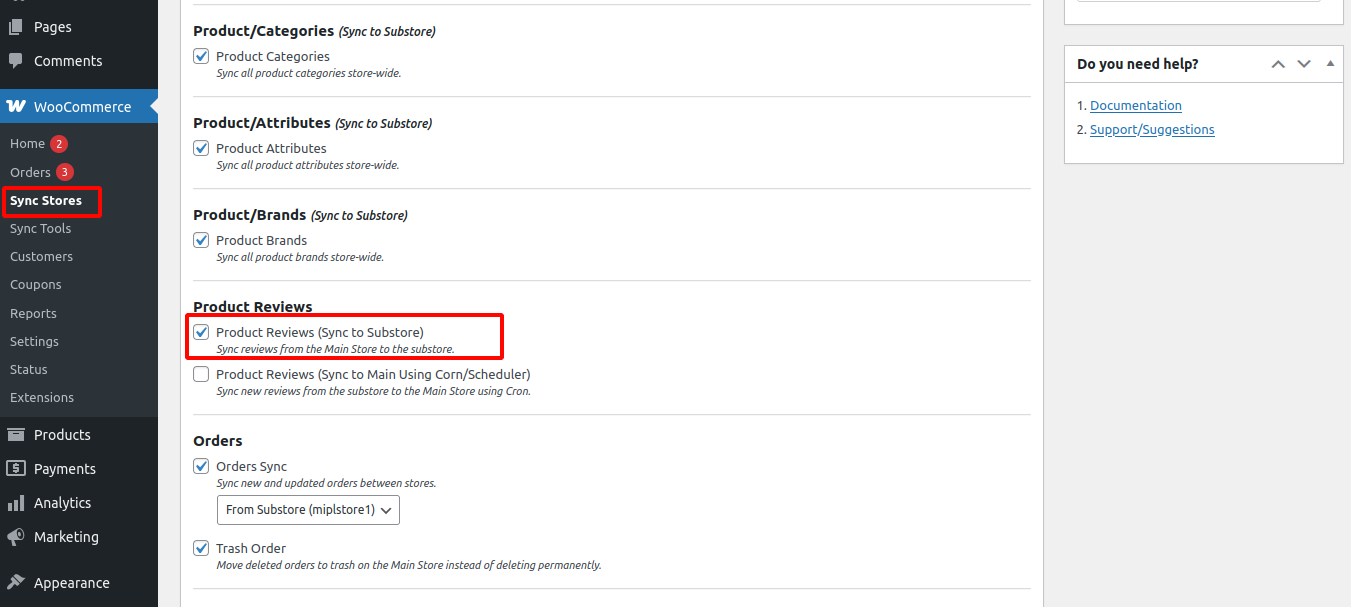
12. Product Reviews (Sync to Substore) : Syncs product reviews from the main store to the sub-store.
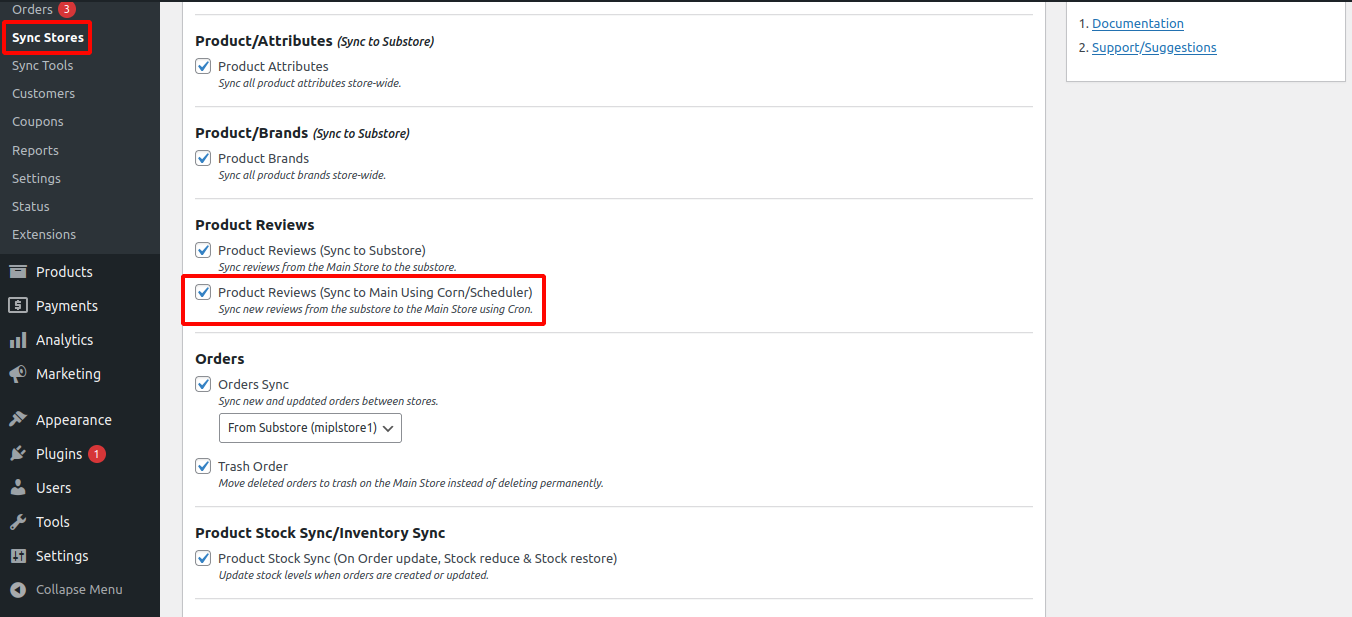
13. Product Reviews (Sync to Main Using Corn/Scheduler) : Syncs product reviews from the sub-store back to the main store using cron.
14. Orders Sync : Automatically syncs orders mainstore to substore and substore to mainstore.
To sync orders between stores, go to WooCommerce → Sync Stores → Edit Store and enable Orders Sync.
When Orders Sync is enabled, new and updated orders will automatically sync between the Main Store and the Substore.
You can choose the sync direction:
- To Substore – Orders from the Main Store will sync to the Substore.
- From Substore – Orders from the Sub Store will sync to the Mainstore.
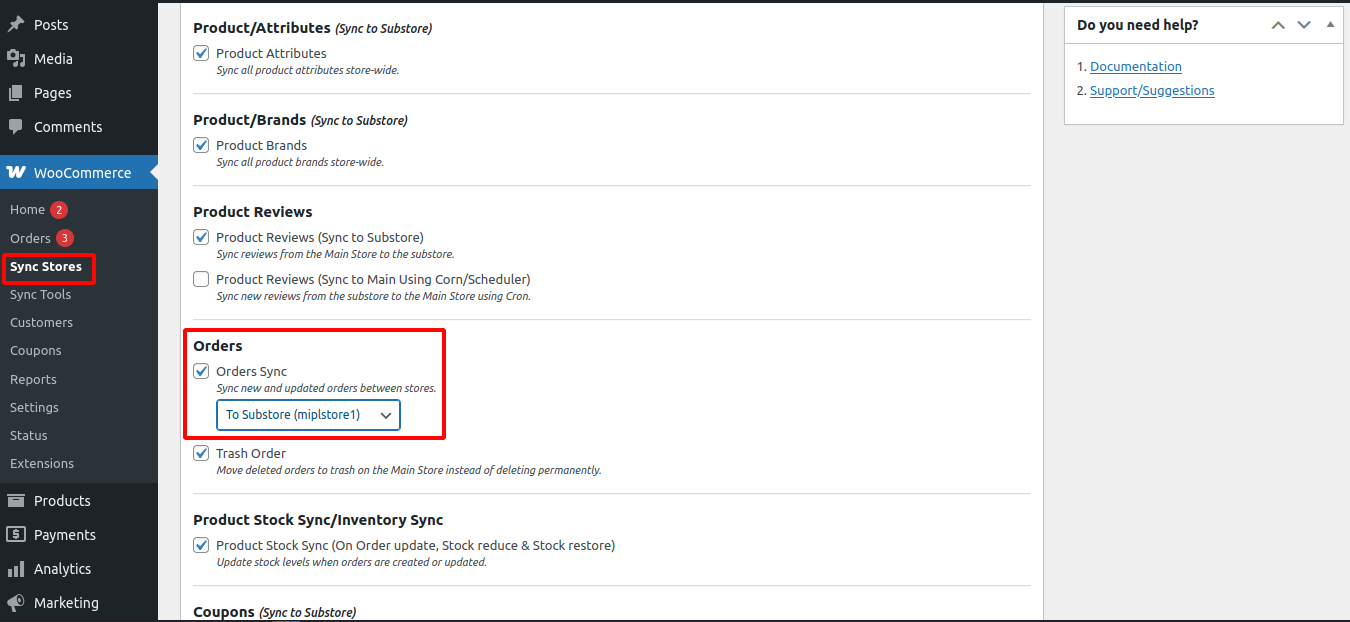
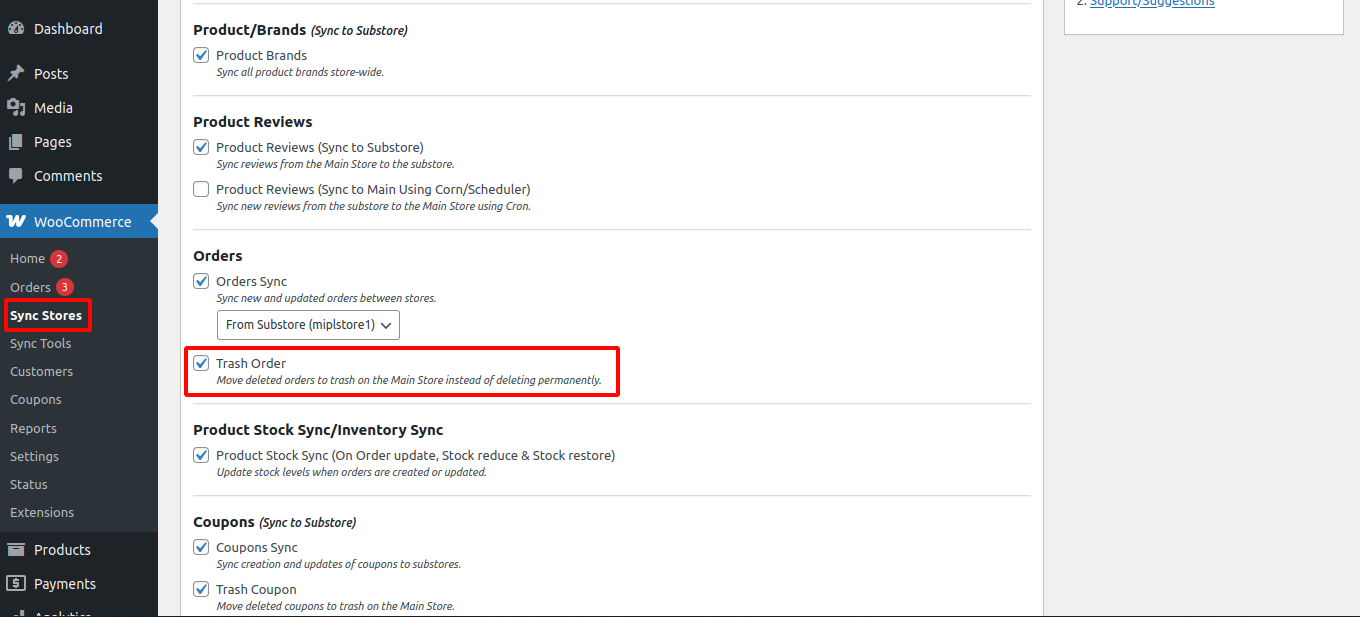
15. Trash Order : Moves deleted orders to trash instead of permanently deleting them.
Go to WooCommerce → Sync Stores → Edit Store, then scroll to Trash Order and check this option.
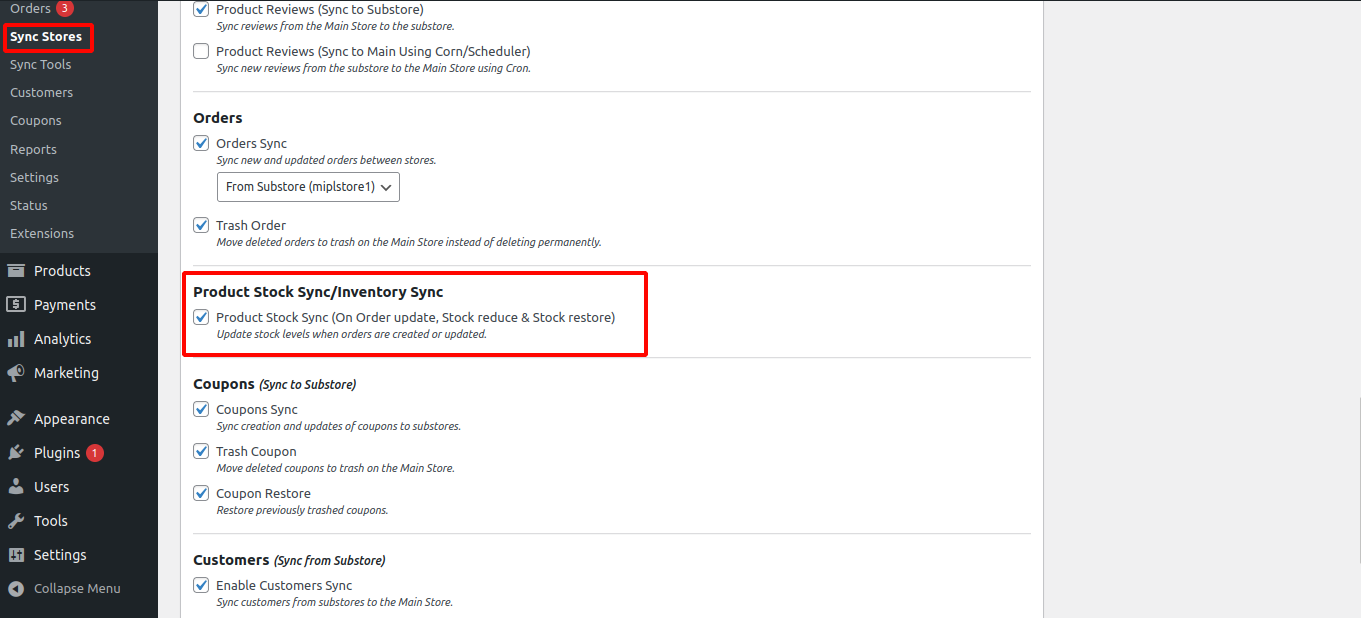
16. Product Stock Sync/Inventory Sync : Automatically updates stock levels when orders are created or updated.
To automatically update stock when an order is created or updated, enable Product Stock Sync (On Order update, Stock reduce & Stock restore).
Go to WooCommerce → Sync Stores → Edit Store, then scroll to Product Stock Sync / Inventory Sync and check this option.
Once enabled, the product stock will automatically decrease when an order is placed and restore if the order is updated or cancelled.
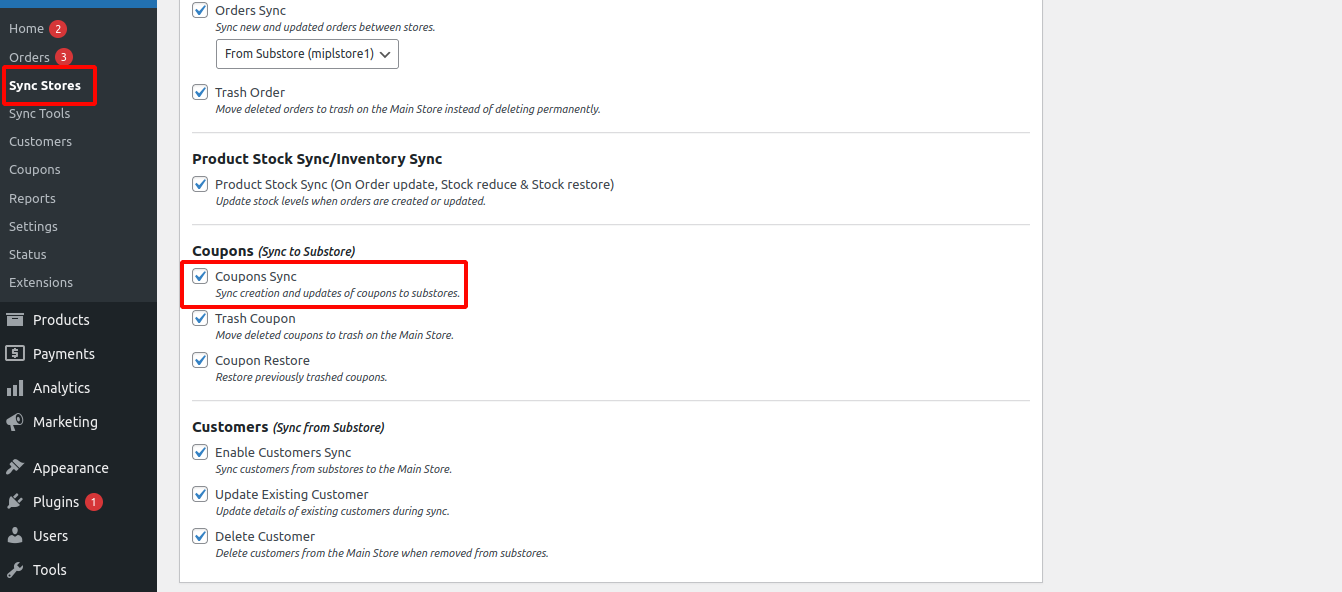
17. Coupons Sync : Syncs coupon creation and updates to the sub-store.
Go to WooCommerce → Sync Stores → Edit Store, then scroll to Coupons Sync and check this option.
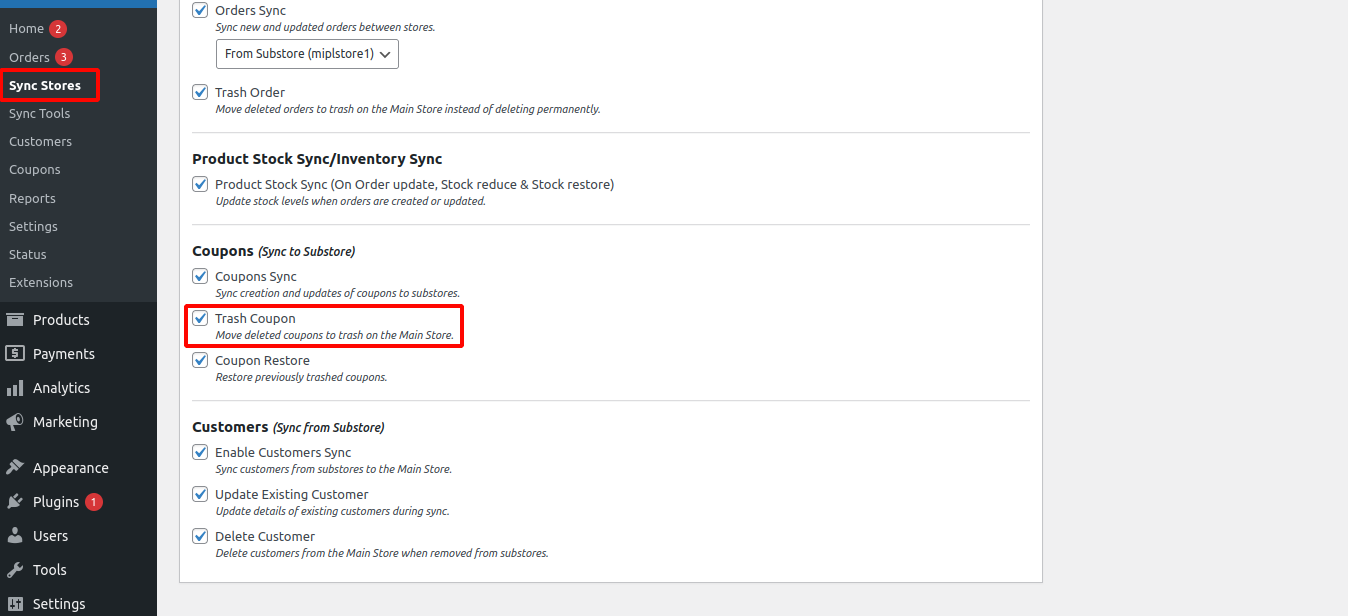
18. Trash Coupon : Moves deleted coupons to trash instead of permanently deleting them.
- To sync customers, go to WooCommerce → Sync Stores → Edit Store.
- Under the Customers (Sync from Substore) section, enable the Enable Trash Coupon option.
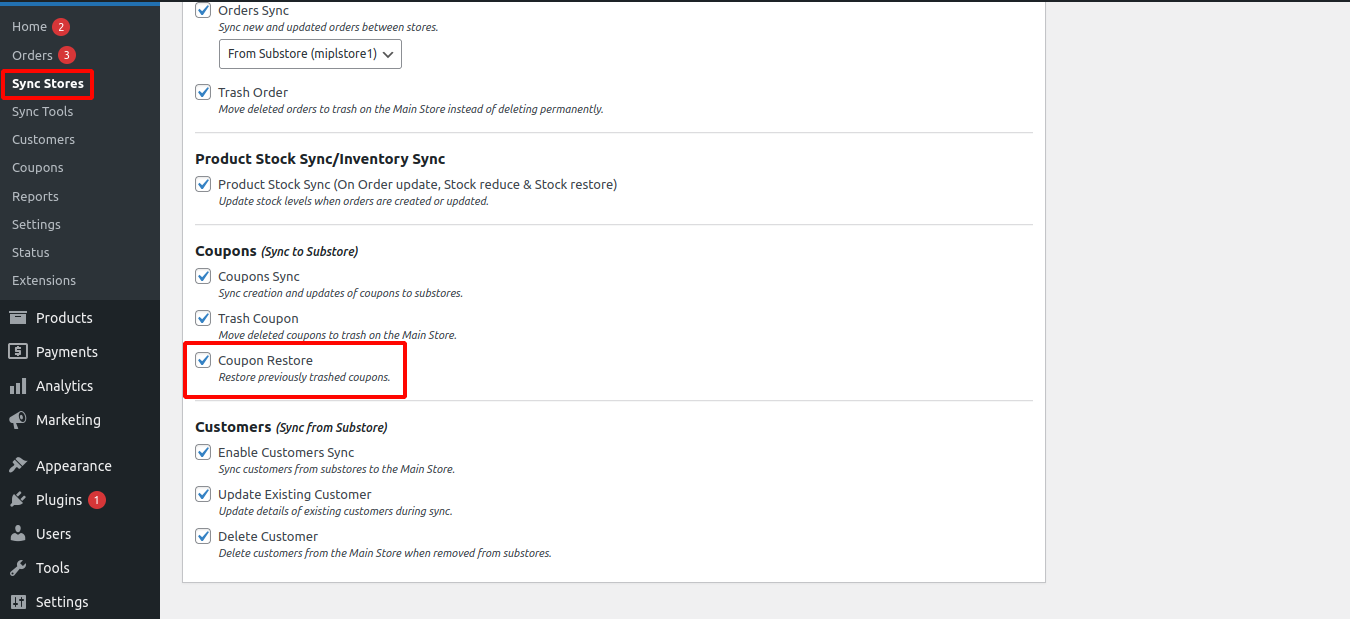
19. Coupon Restore : Restores previously trashed coupons.
To restore coupons, go to WooCommerce → Sync Stores → Edit Store. Under the Coupons (Sync to Substore) section, enable the Coupon Restore option.
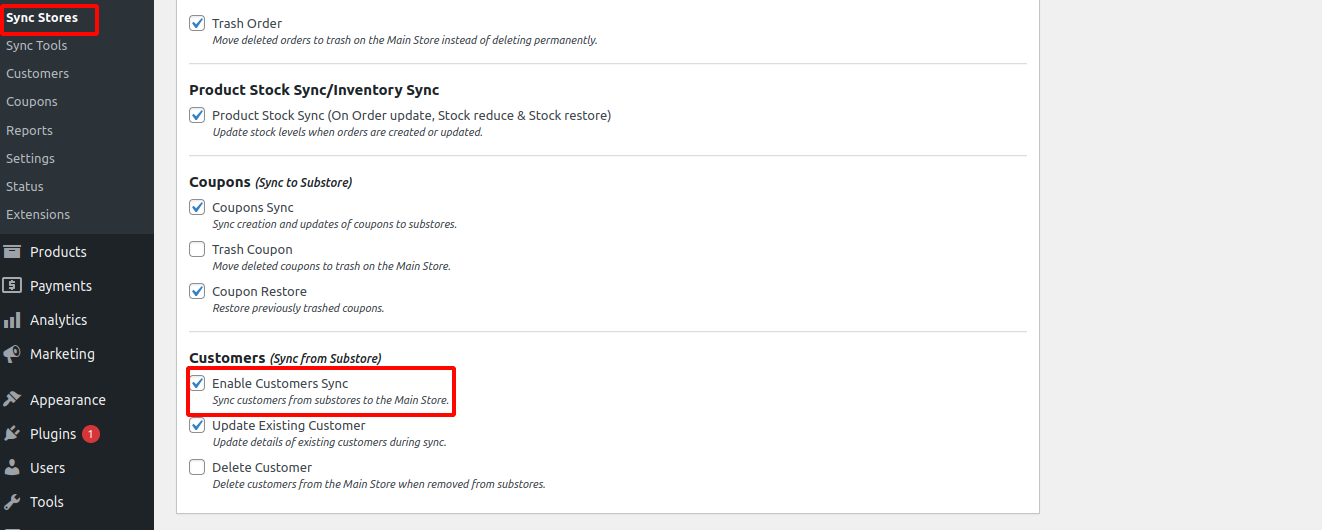
20. Enable Customers Sync : Syncs customers from sub-stores to the main store.
- To sync customers, go to WooCommerce → Sync Stores → Edit Store.
- Under the Customers (Sync from Substore) section, enable the Enable Customers Sync option.
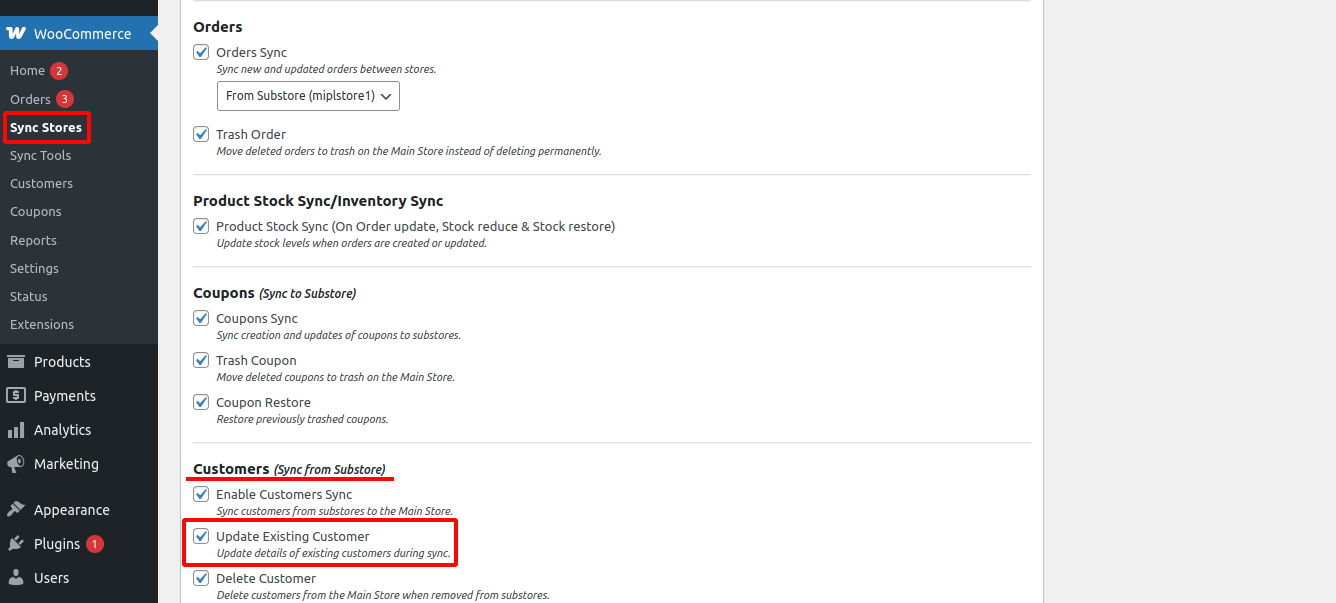
21. Update Existing Customer : Updates existing customer details during sync.
To enable this sync setting, follow these steps: Go to WooCommerce → Sync Stores → Edit Store → settings ->Customers -> Update Existing Customer.
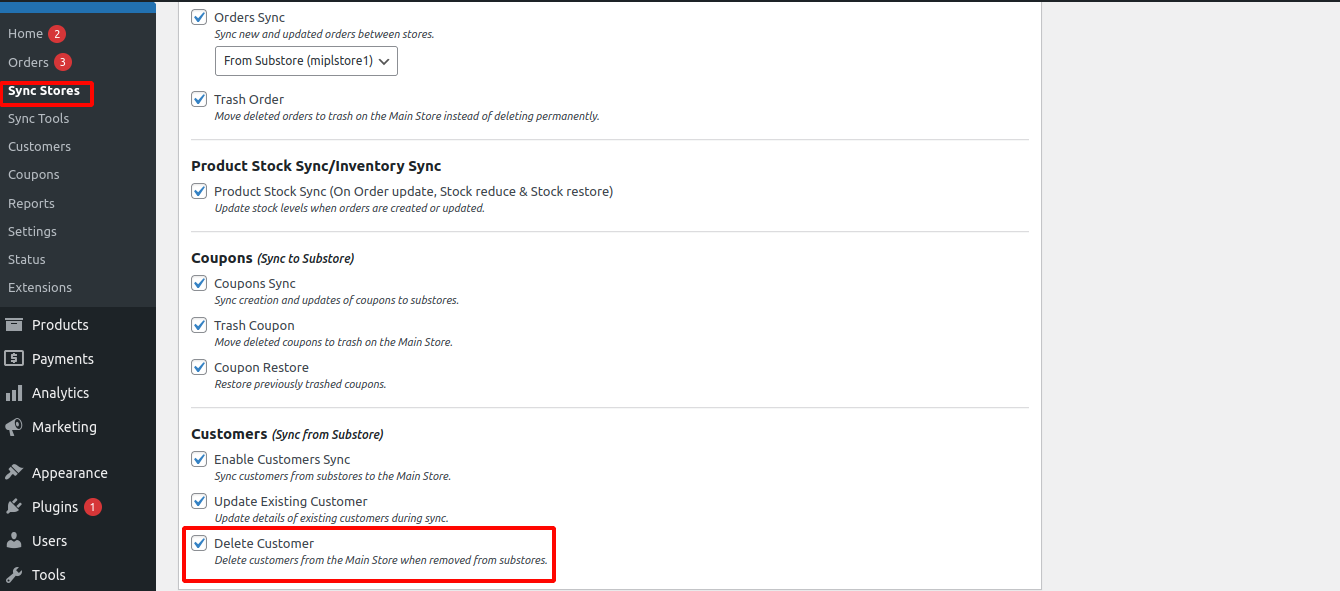
22. Delete Customer : Deletes customers from the main store when removed from sub-stores.
To enable this sync setting, follow these steps: Go to WooCommerce → Sync Stores → Edit Store → settings ->Customers -> Update Existing Customer.
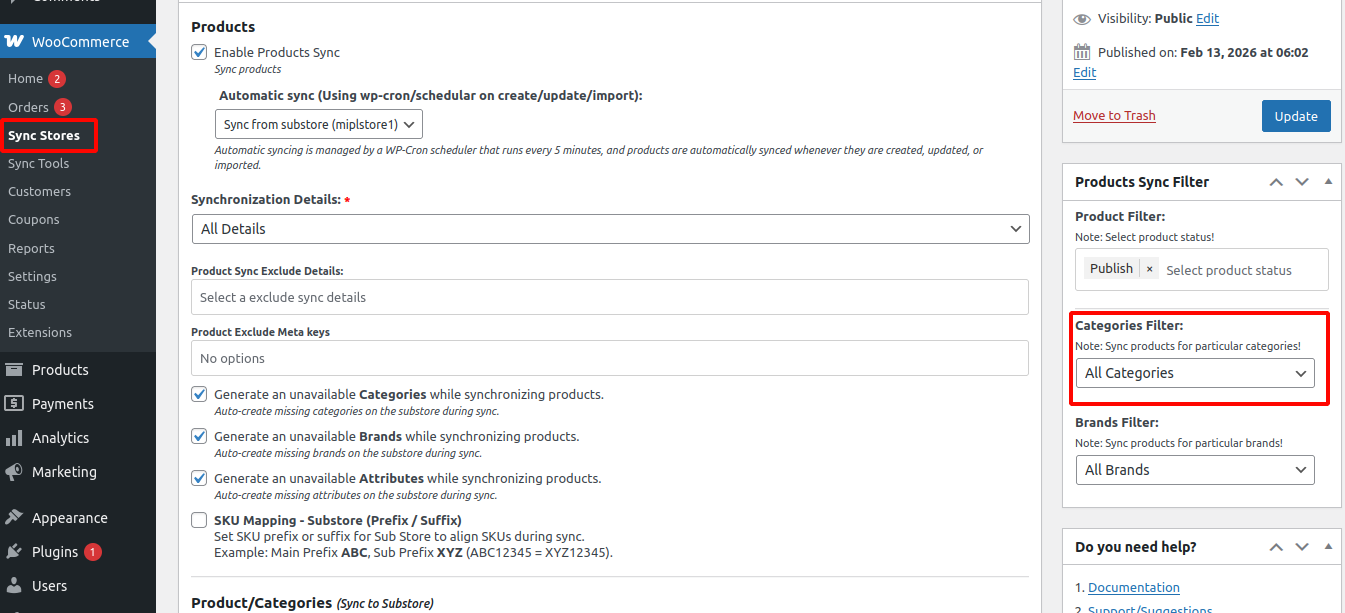
23. Categories Filter : When you select specific categories, only products assigned to those selected categories will be synchronized during product sync.
Products that do not belong to the selected categories will not be synced.
To enable this sync setting, follow these steps: Go to WooCommerce → Sync Stores → Edit Store → settings ->Categories Filter .
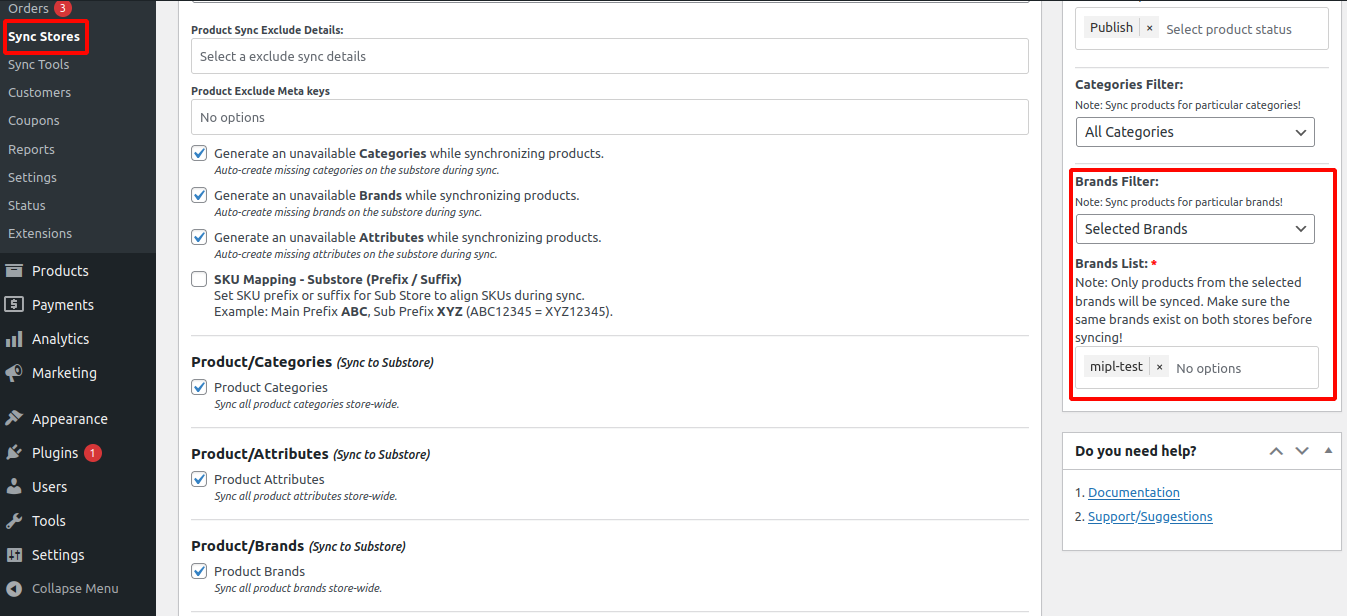
24. Brands Filter : When you select specific brands, only products assigned to those selected brands will be synchronized during product sync.
Products that do not belong to the selected brands will not be synced.
To enable this sync setting, follow these steps: Go to WooCommerce → Sync Stores → Edit Store → settings ->Brands Filter .
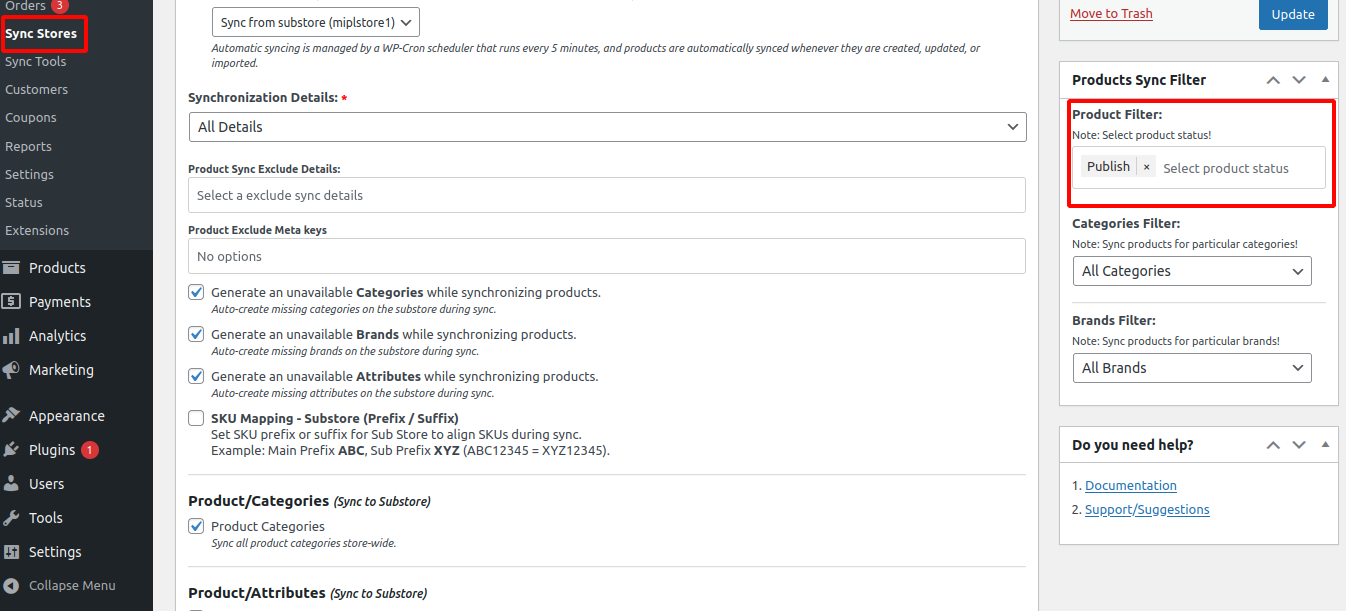
25. Product Filter : Select the product status (e.g., Publish, Draft, Pending).
Only products with the selected status will be synchronized. Products with other statuses will not be synced. By default, Publish status is selected.
To enable this sync setting, follow these steps: Go to WooCommerce → Sync Stores → Edit Store → settings ->Product Filter .
26.Enable Disable substore :If you want to stop syncing data to this store, you can disable the Substore. To enable or disable substore, follow these steps: Go to WooCommerce → Sync Stores → Edit Store → Settings ->Enable ->Disable .
Click the Disable Store button to turn off synchronization for this Substore. Once disabled, no products, coupons, or other data will be synced to this store.
You can enable the store again at any time to resume synchronization.
5. Check Compatibility
Impotant : Ensure all compatibility checks are green before syncing.
- Go to WooCommerce.
- Click on Settings.
- Select Multistore Sync.
- Check Compatibility.
- WordPress Permalink (Should Not Be “Plain”) : Your website should use SEO-friendly URLs (like yourwebsite.com/sample-page) instead of default links with numbers (like ?p=123).This improves search engine visibility and compatibility with most themes and plugins.
- SSL Installed : Your website should have an SSL certificate installed (HTTPS enabled). This keeps data secure, protects visitors, and is required for many modern integrations and payment systems.
- WP-Cron Setup : WP-Cron handles scheduled tasks in WordPress (like backups, emails, and updates).It should be properly configured to ensure automatic tasks run on time. PHP Execution Time (30s)The server should allow scripts to run for at least 30 seconds. This ensures larger tasks (like importing data or updates) can complete without timing out.
- PHP Memory Limit (256M) : The server should allow at least 256 MB of memory for WordPress. This helps prevent errors when using themes, plugins, or processing larger content.
- HTTP Request Time (120s) : The server should allow HTTP requests to run for up to 120 seconds.This ensures smooth communication with external services (APIs, payment gateways, etc.).
- cURL Installed : The server must have cURL enabled. cURL allows WordPress to securely connect to external services and APIs.
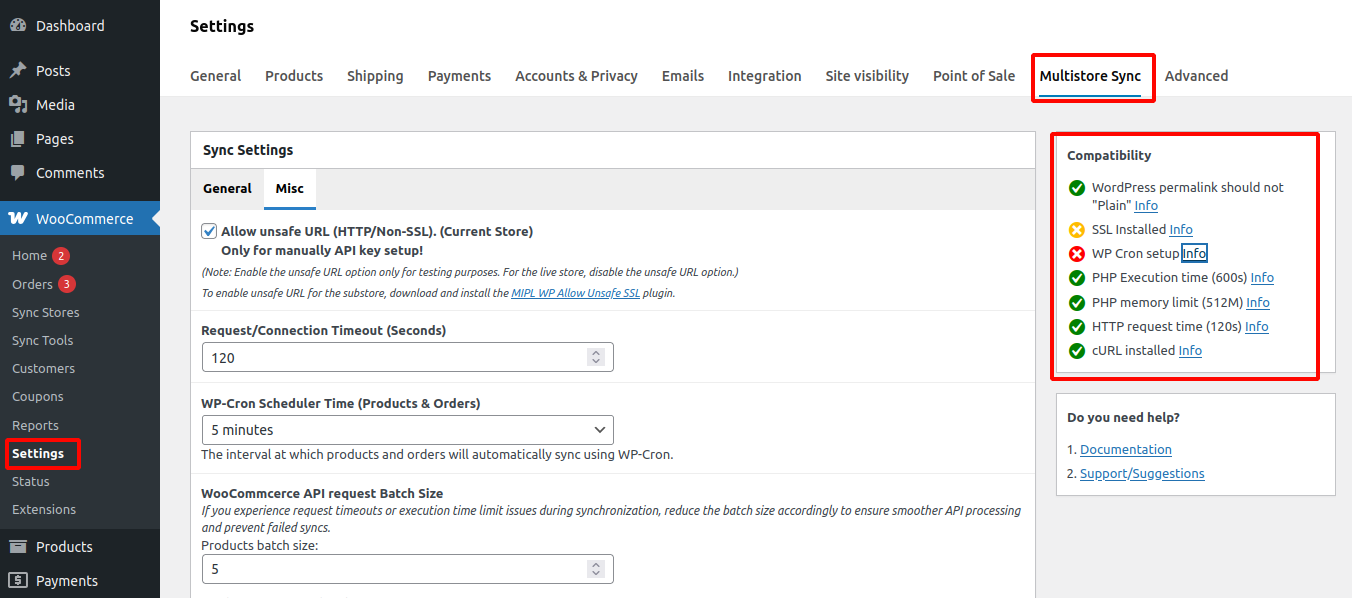
6. Multistore Sync – General Settings
- Go to WooCommerce .
- Select Settings.
- Click on Multistore Sync.
- Under Sync Settings, click the General tab.
1. SKU Mapping – Main Store (Prefix / Suffix) : Adds a prefix or suffix to product SKUs on the main store during synchronization.
2. Disable Products Slug Mapping : This setting should be used only when product slugs differ across stores. For typical use, maintain slug matching for accurate synchronization.
3. Enable Email Notification (On Error) : Sends an email notification when a sync error occurs.
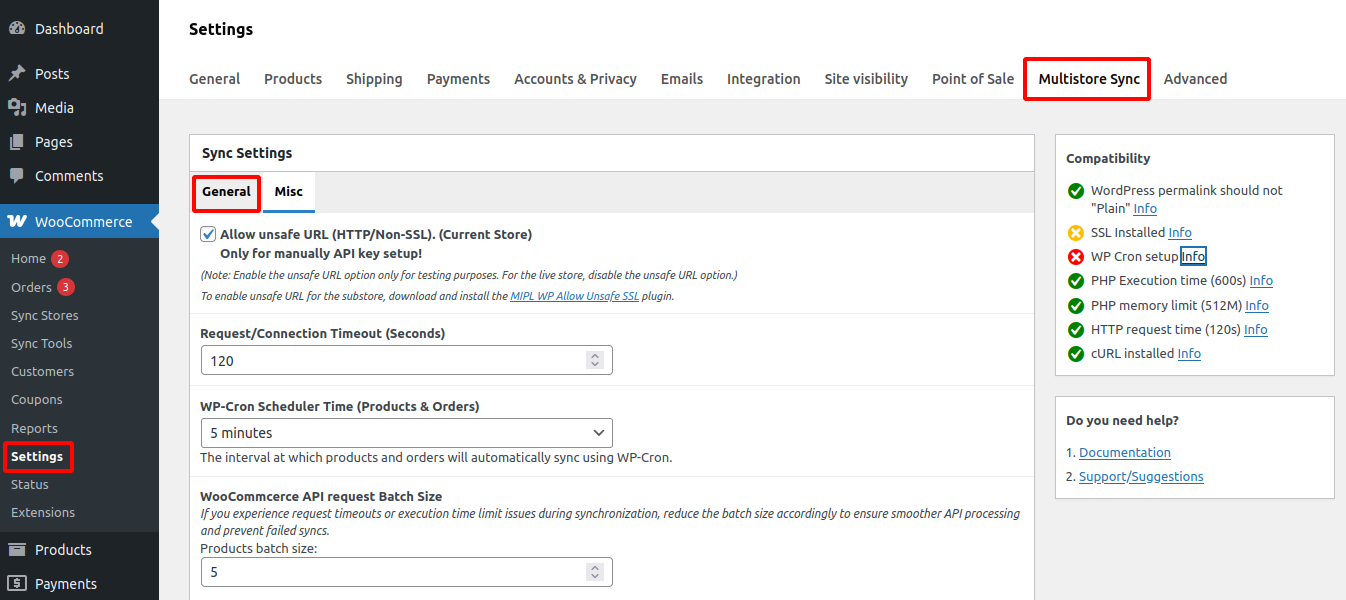
7. Multistore Sync – Misc Settings
- Go to WooCommerce .
- Select Settings.
- Click on Multistore Sync.
- Under Sync Settings, click the Performance & Connection tab.
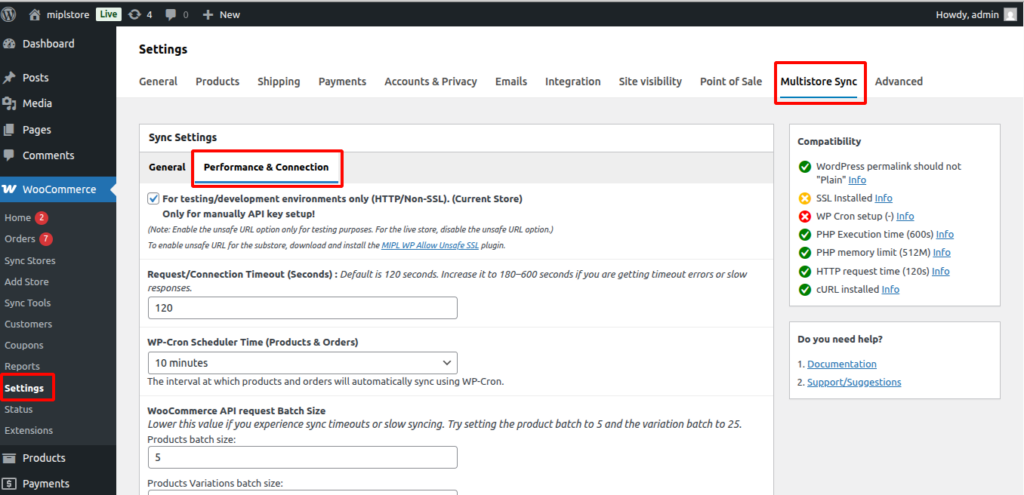
1) Allow Unsafe URL (HTTP / Non-SSL) : Current Store Allows connecting stores that use HTTP instead of HTTPS. This option should be used only for testing or development environments. It is not recommended for live or production stores, as non-SSL connections are not secure and may expose sensitive data during transmission. For production websites, always use HTTPS and keep this option disabled to ensure secure store communication.
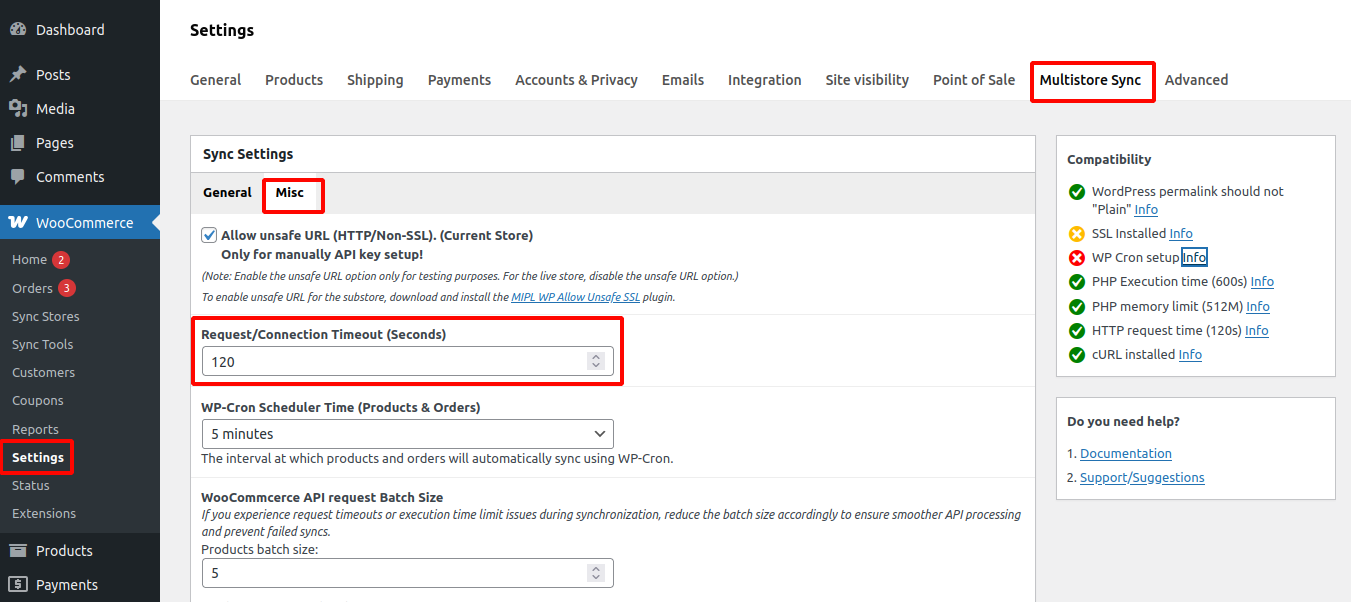
2) Request / Connection Timeout (Seconds) : Sets how long the system waits for a response during sync.This setting controls how long the system waits for the other store to respond during synchronization. The default time is 120 seconds.
If the sync process stops or shows a timeout error, you can increase this value to give it more time to complete—especially when syncing large amounts of data.
- Go to WooCommerce .
- Select Settings.
- Click on Multistore Sync.
- Under Sync Settings, click the Misc tab.
- Request/Connection Timeout(Seconds).
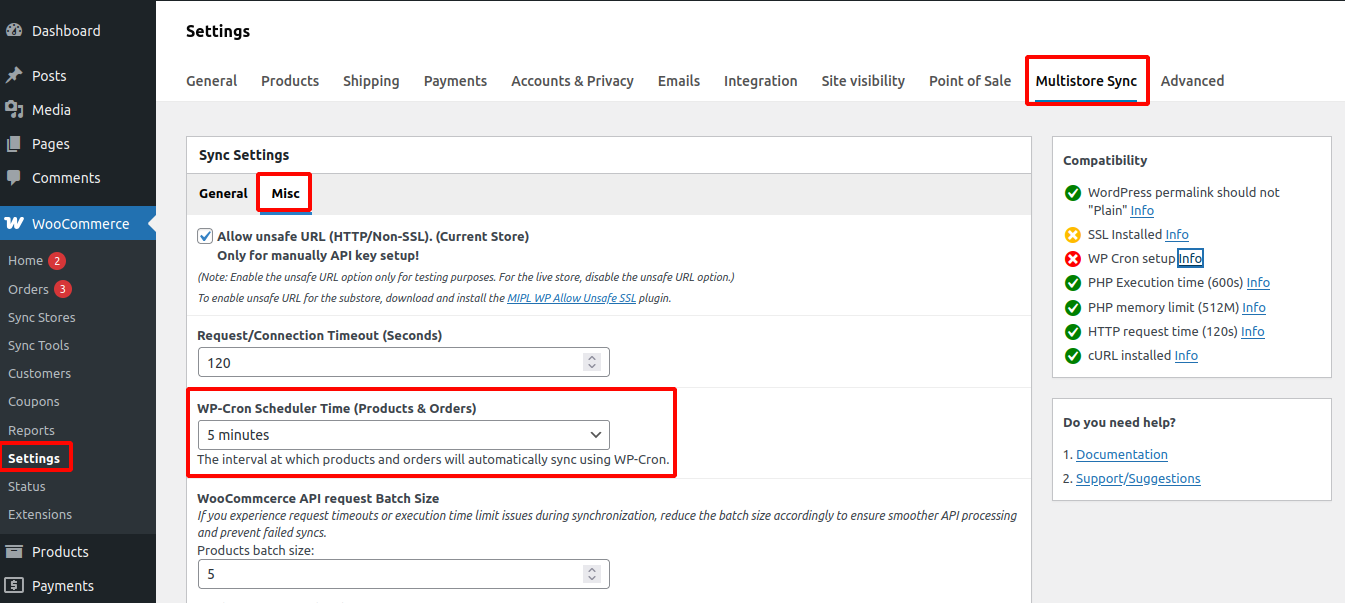
3) WP-Cron Scheduler Time (Products & Orders) : This setting controls how often products and orders are automatically synchronized between stores using WP-Cron. You can choose the time interval for automatic syncing (for example: every 5 minutes, 15 minutes, hourly, etc.). Shorter intervals will sync data more frequently but may increase server load.
It is recommended to choose a balanced interval based on your store traffic and server performance.
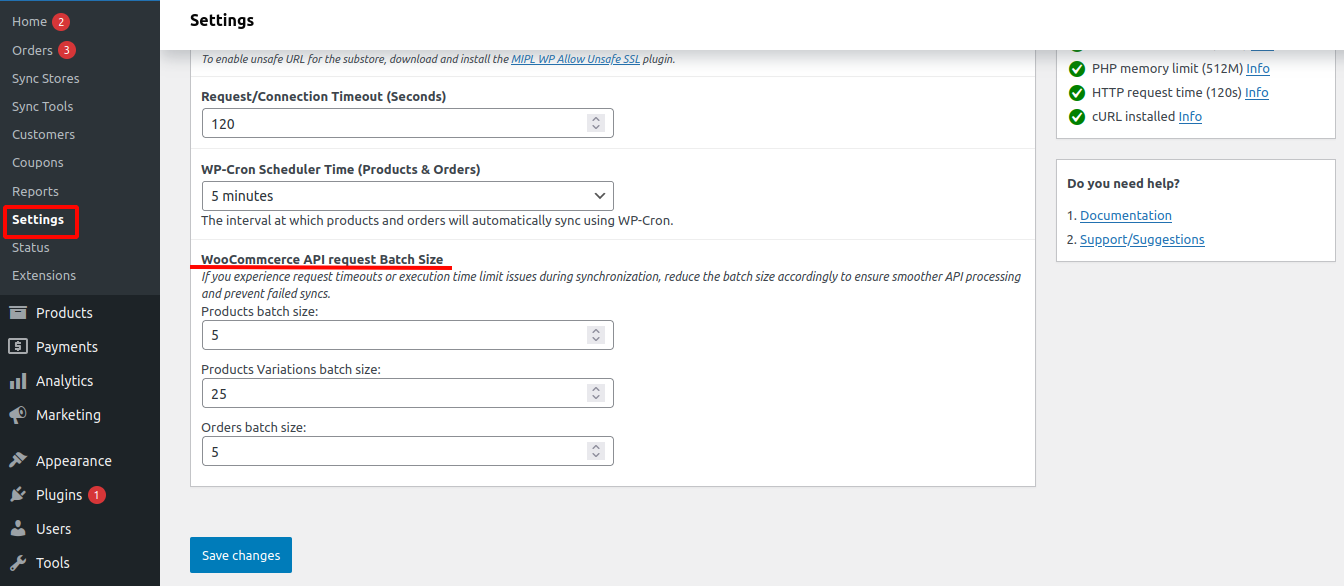
4) WooCommerce API Request Batch Size : Controls how much data is synced per API request.
- Go to WooCommerce .
- Select Settings.
- Click on Multistore Sync.
- Under Sync Settings, click the Misc tab.
- WooCommerece API request Batch Size.
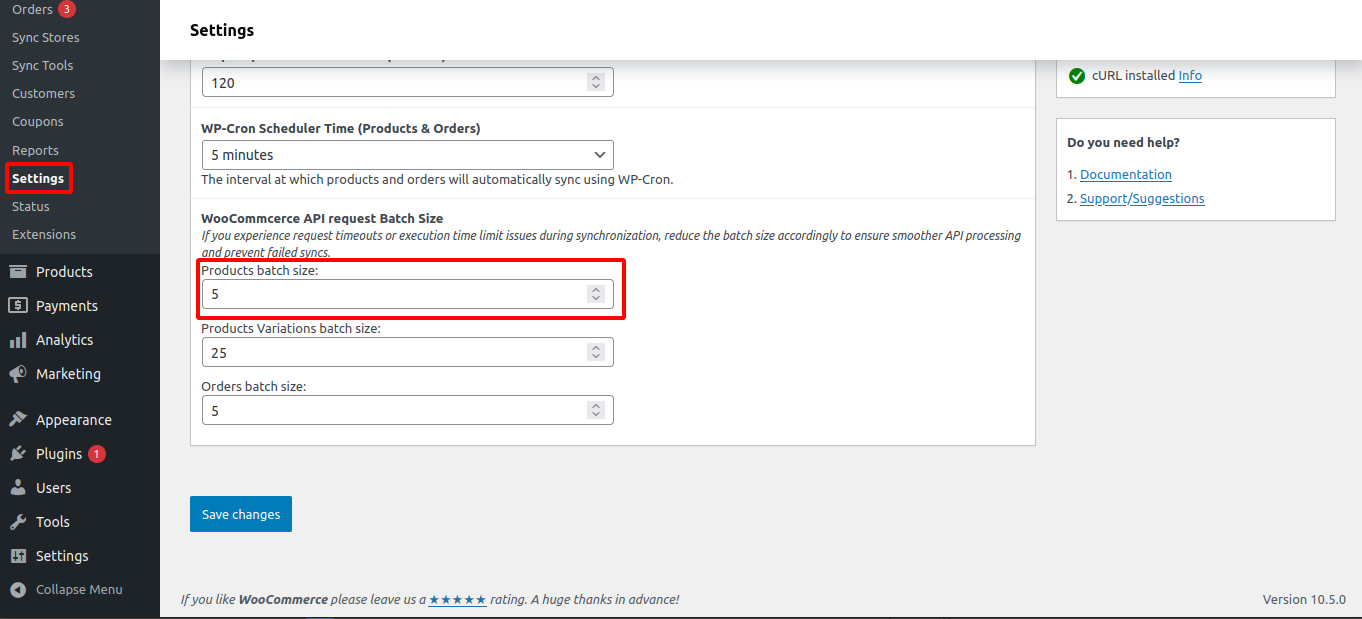
5) Products Batch Size : Number of products processed per request.
- Go to WooCommerce .
- Select Settings.
- Click on Multistore Sync.
- Under Sync Settings, click the Misc tab.
- product batch size.
6) Product Variations Batch Size : Number of variations processed per request.
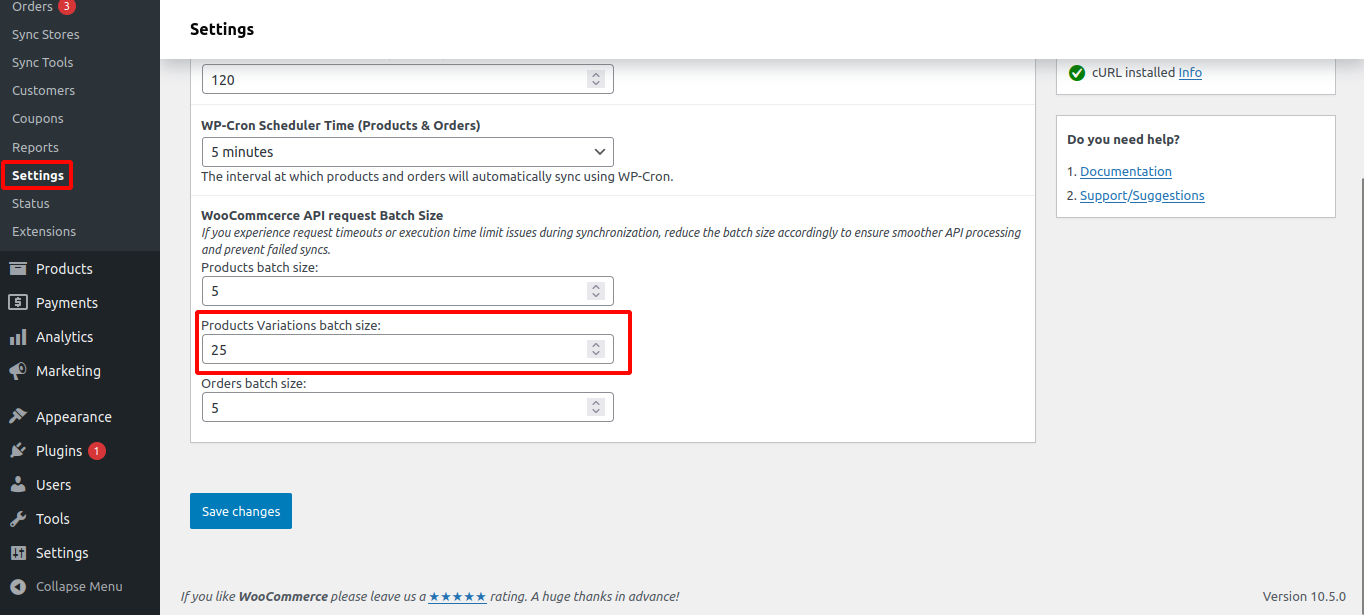
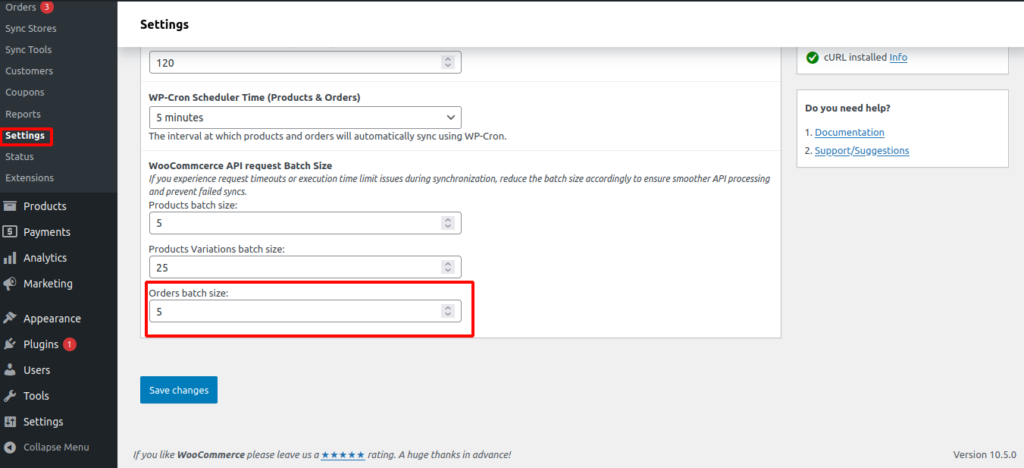
7) Orders Batch Size : Number of orders processed per request. Smaller values improve stability on slow servers . Reduce batch size if you face timeout or failed sync issues.
Product Synchronization
1. Syncing from Main Store to Sub-Stores
Step 1. Sync via Product Edit Page :
Open a product for editing. After making updates, click the Sync button to push changes to substores. After completing the setup and connect the sub-stores, you can start syncing products between the main store and substores.
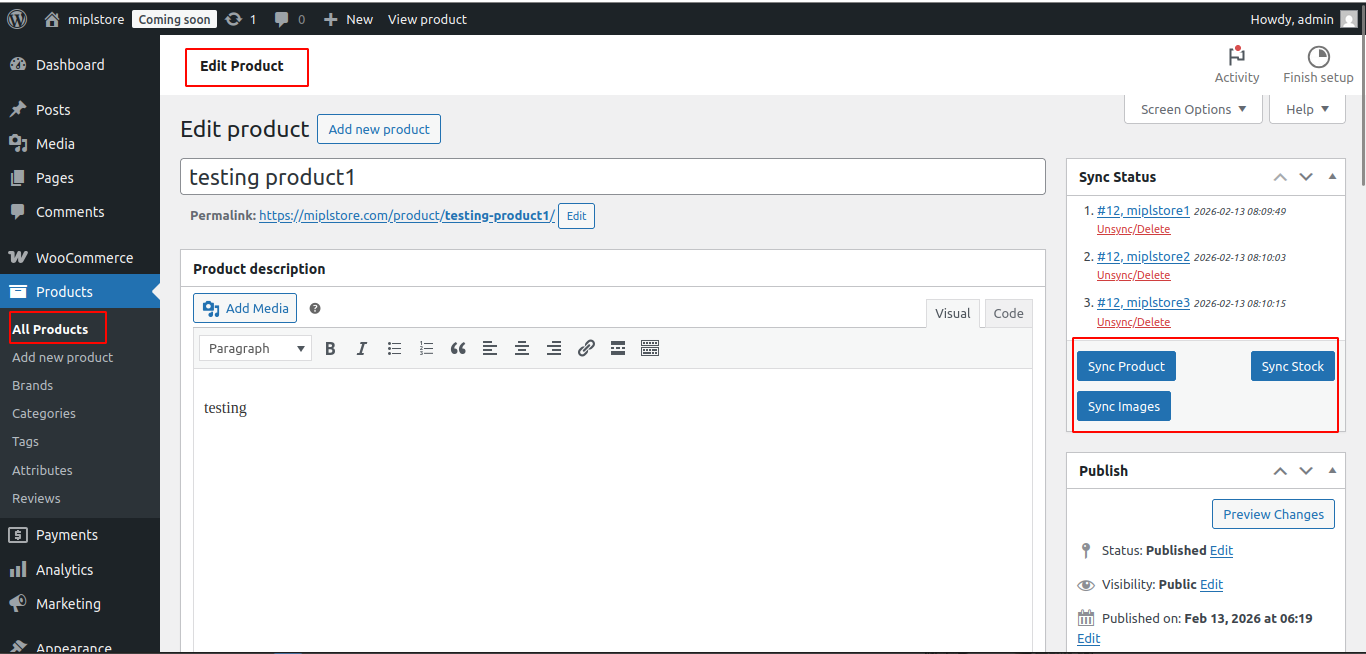
- Go to : Products → All Products → Edit Product
- Sync Product – product data sync.
- Sync Stock – Manually syncs only the product stock quantity.
- Sync Images – Manually syncs product images to sub-stores.
After syncing the product, the Main Store can be viewed in two ways.
Method1 : After syncing a product, you can view the Sync Status section. In the Sync Status, you will see:
- Reference ID – This is the Substore Product ID. You can click this ID to open and view the product directly in the substore.
- Substore name – This is the name of the Substore where the product is synced.
- Last synced date and time
You can use the Unsync/Delete button to remove the synced product from the substore.
- Unsync /Delete – This will permanently delete the synced product from the substore.
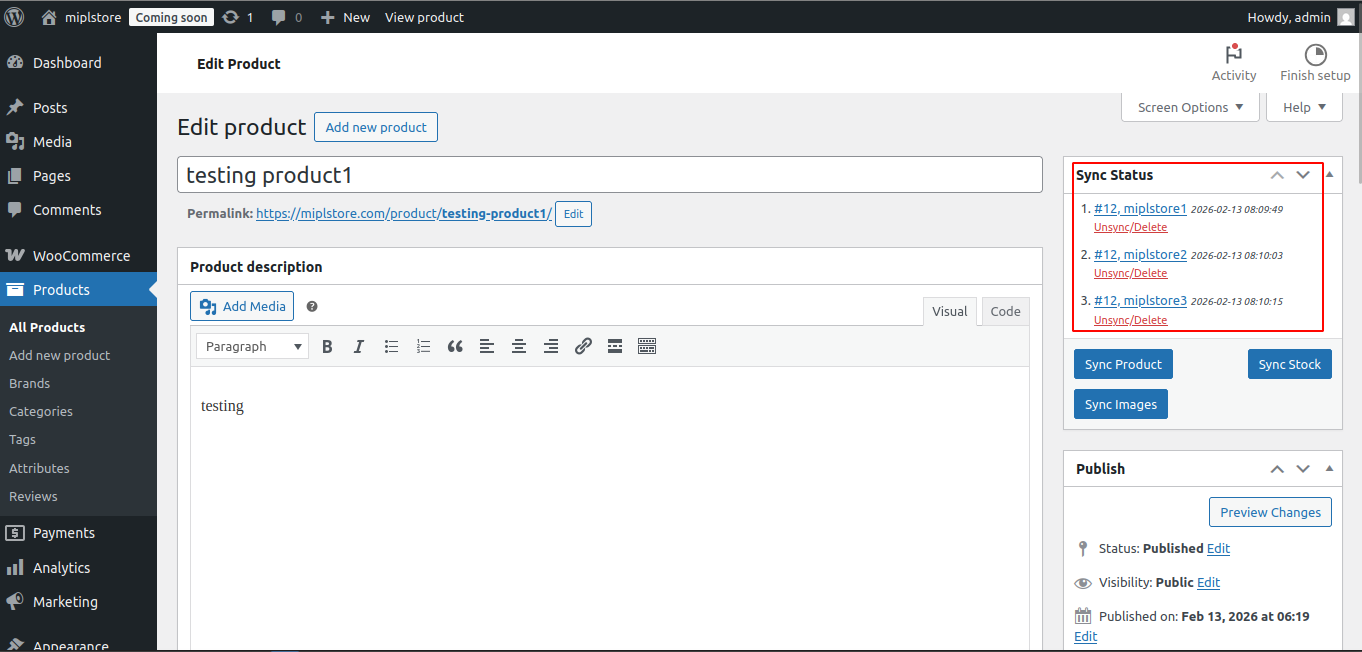
After syncing a product, you can view the Sync Status section. In the Sync Status, you will see:
Method2 :
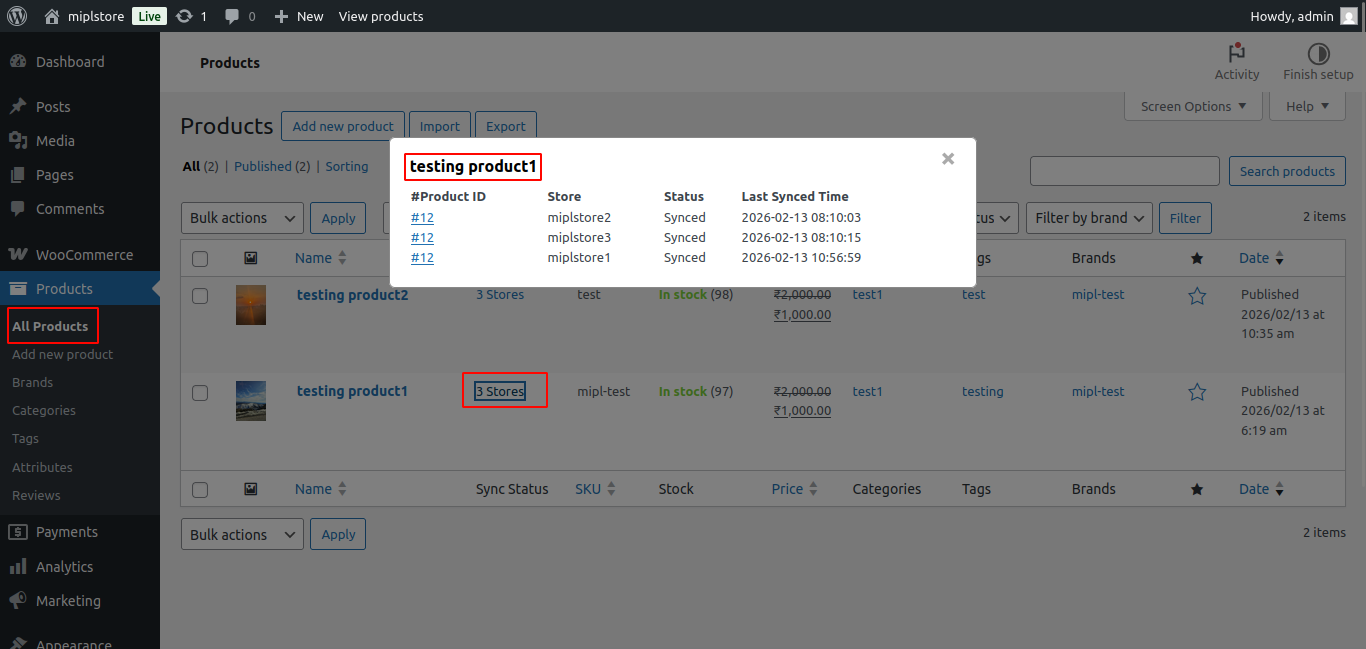
- Go to Products → All Products.
- In the product list, check the Sync Status column.
- If the product is synced, you will see the number of stores (for example, 3 Stores).
- Click on the Stores link.
- A popup window will open.
In the Popup, You Can See:
- Product ID – This is the Substore Product ID. You can click this ID to open and view the product directly in the substore.
- Store Name
- Sync Status (e.g., Synced)
- Last Synced Date and Time
Step 2. Bulk Sync Multiple Products :
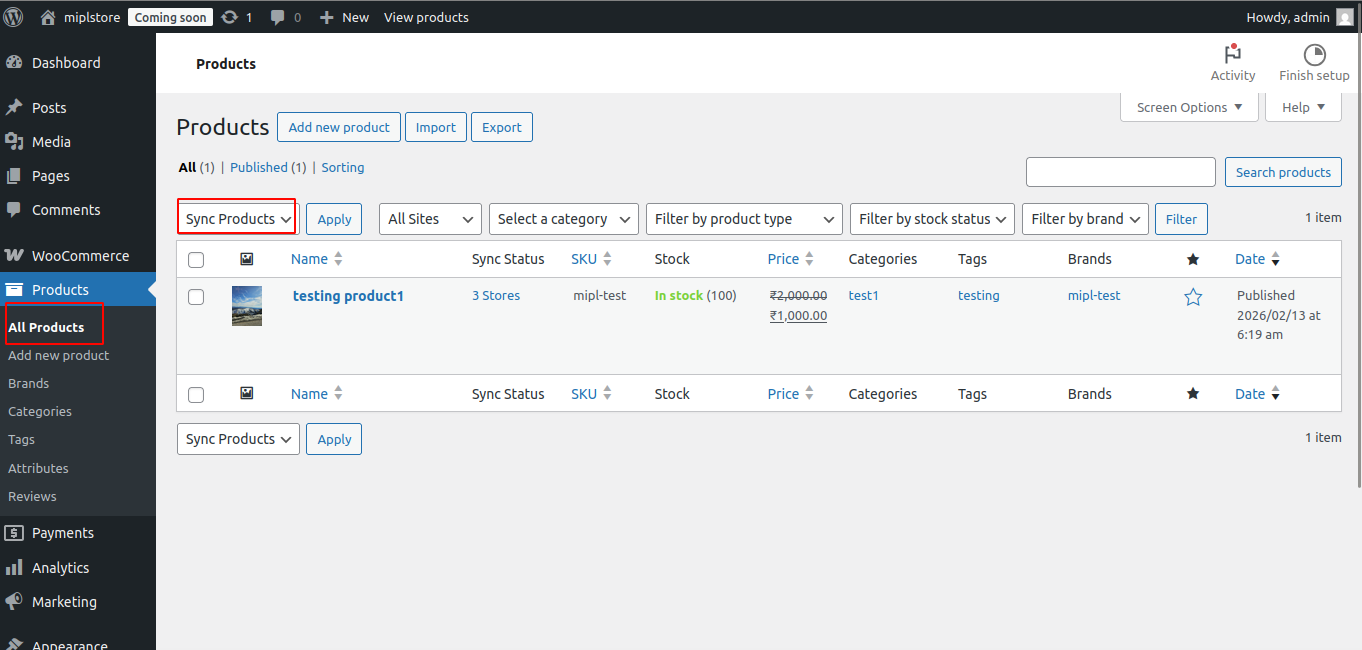
Select multiple products and choose Bulk Sync to synchronize them across multiple substores at once.
- Go to Main Store → Products → All Products
- Select multiple products
- Choose Bulk Sync – MultiStore Sync
- Select the Sync Products
- Click Apply
Step 3. Product Bulk Sync to Particular Stores – MultiStore Sync
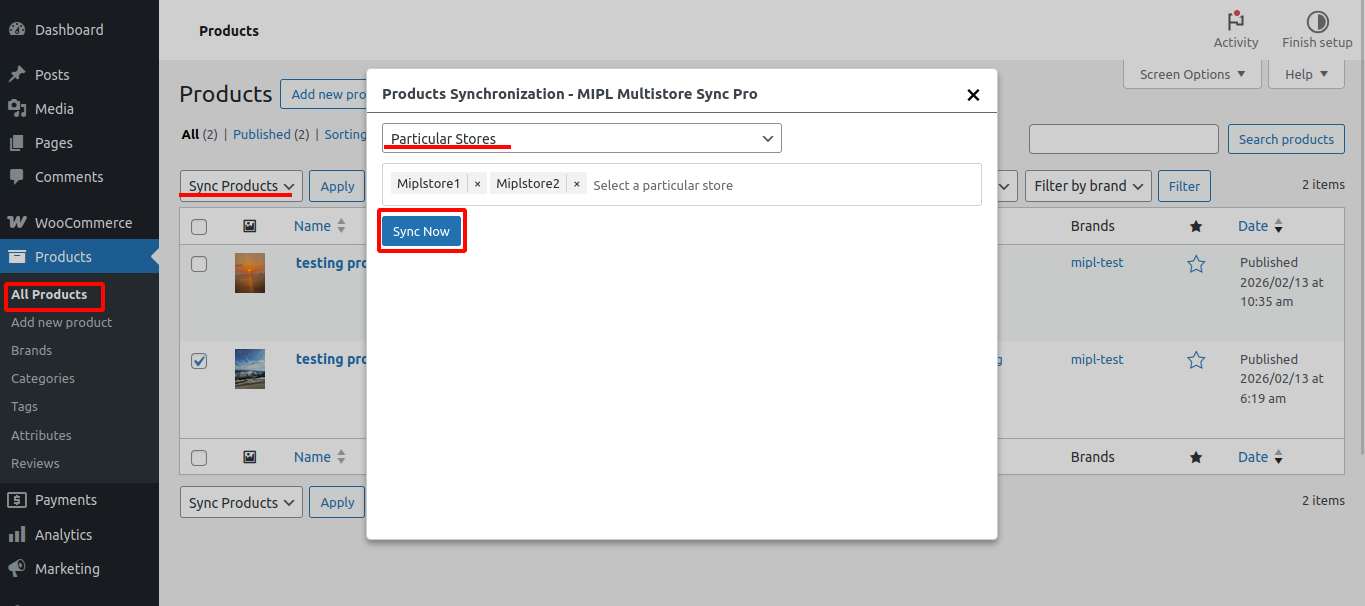
After clicking the Sync button, a pop-up will appear where you can select specific sub-stores or sync to all available stores.
Select multiple products and choose Bulk Sync to synchronize them across multiple substores at once.
- Go to Main Store → Products → All Products
- Select multiple products
- Choose Bulk Sync – Sync Products
- Select the Sync Products
- Click Apply
- Open Popup -> Select particular Stores ->Click Sync Now.
Step 4. Product Bulk Sync to All Stores – MultiStore Sync
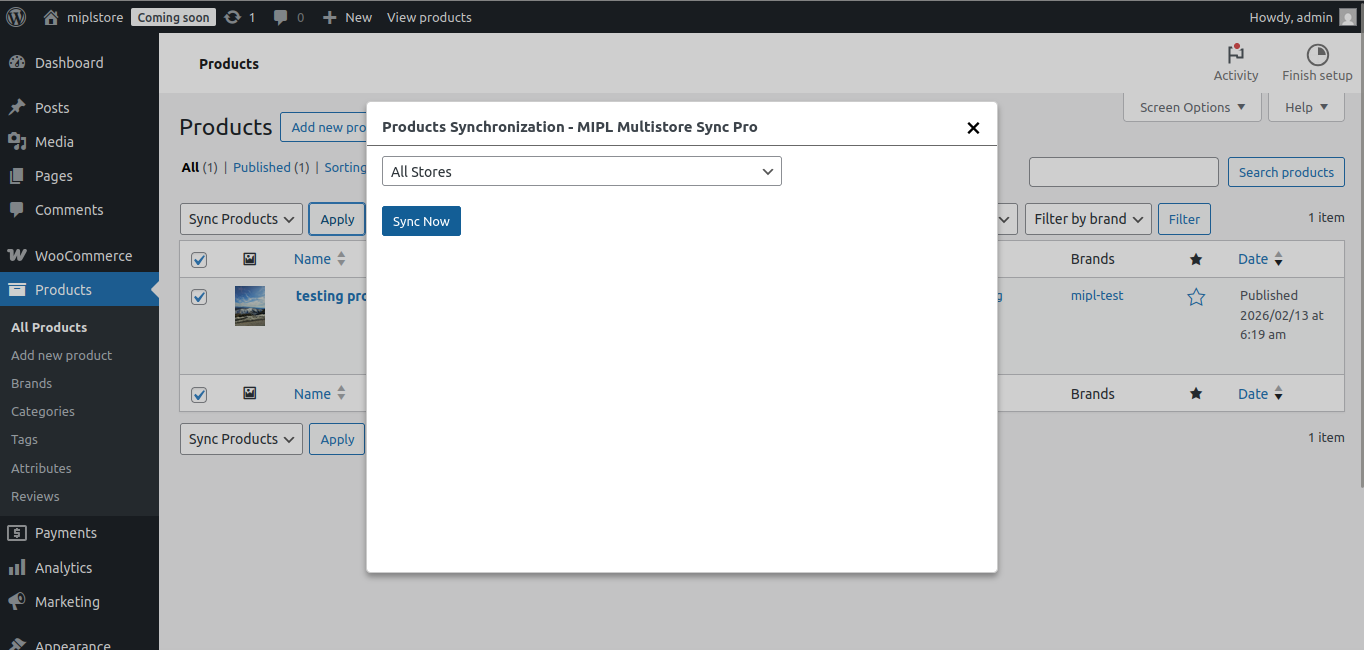
- Go to Main Store → Products → All Products
- Select multiple products
- Choose Bulk Sync – Sync Products
- Select theSync Products
- Click Apply
- Open Popup -> Select All Stores ->Click Sync Now.
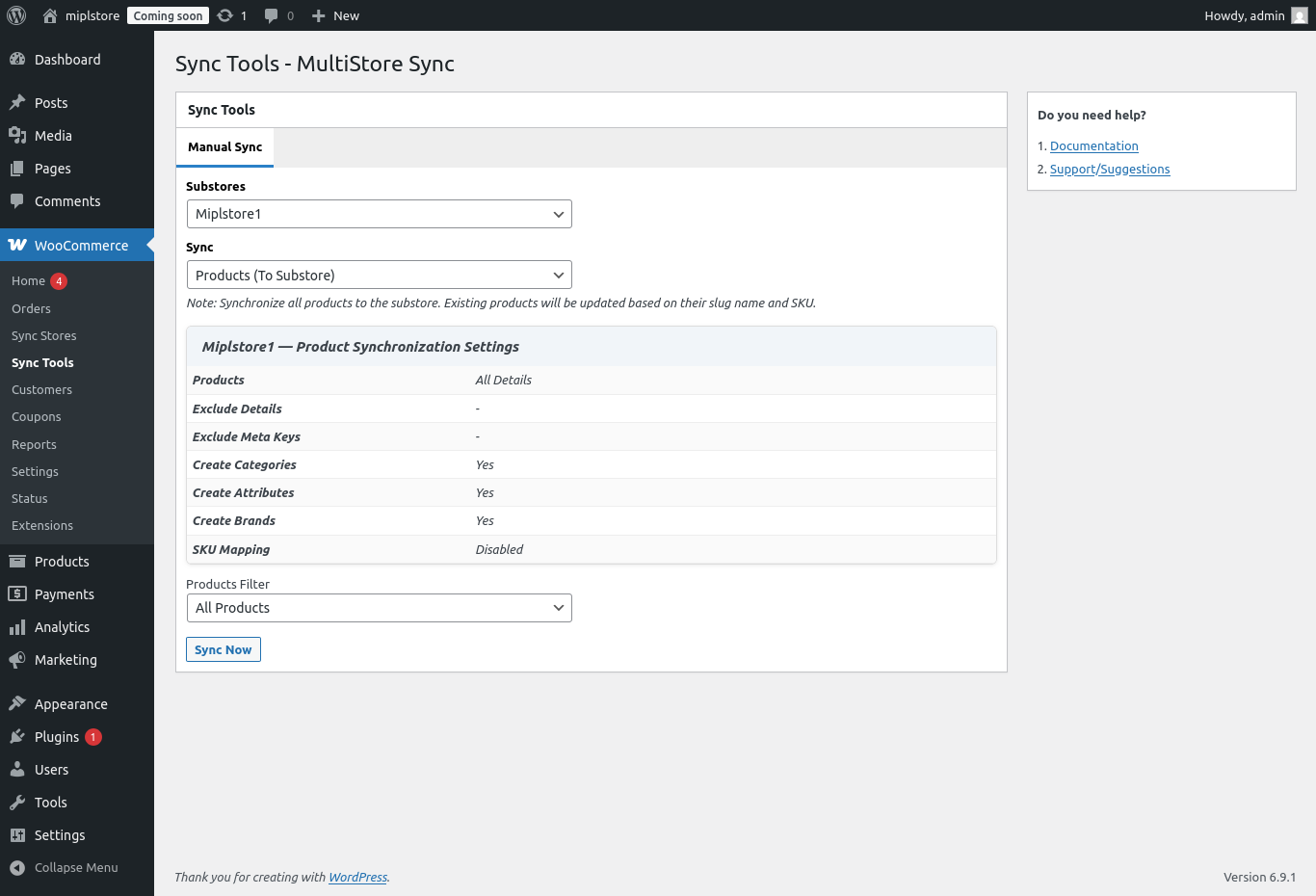
Step 5. Manually sync all products from the main store to the sub-store
- Go to:
Main Store → WooCommerce → Sync Tools - Click Manual Sync
- Select:
- Sub-Store
- Products (To Substore)
- Start Sync
This will sync all products from Main Store to selected Sub-Store.
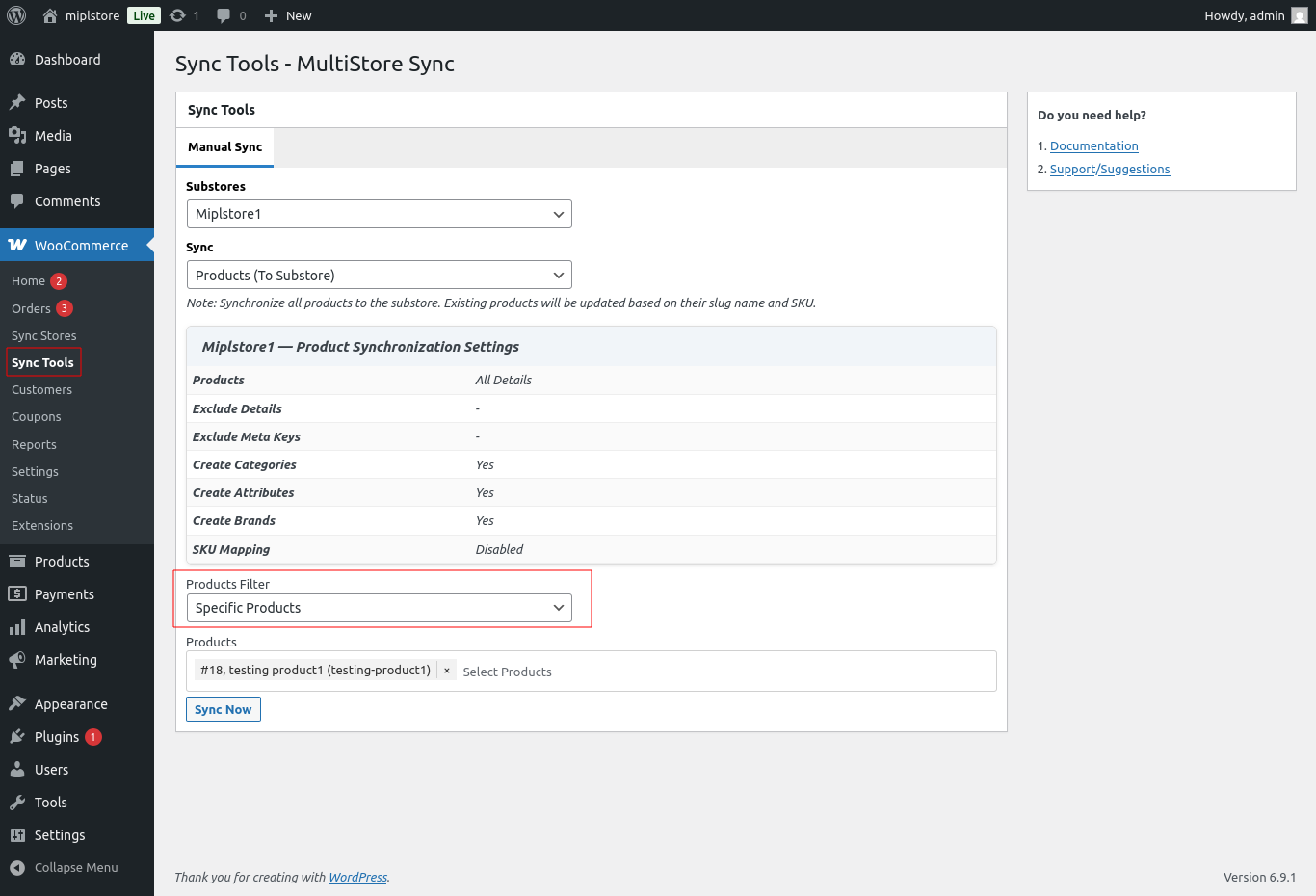
Step 6. Manually sync Specific products from the main store to the sub-store
- To manually sync a specific product, go to WooCommerce → Sync Tools.
- Select the substore from the dropdown, then choose Products (To Substore) in the Sync option.
- Under Products Filter, select Specific Products, choose the product(s) you want to sync, and then click the Sync Now button.
This will sync only the selected product(s) to the chosen substore.
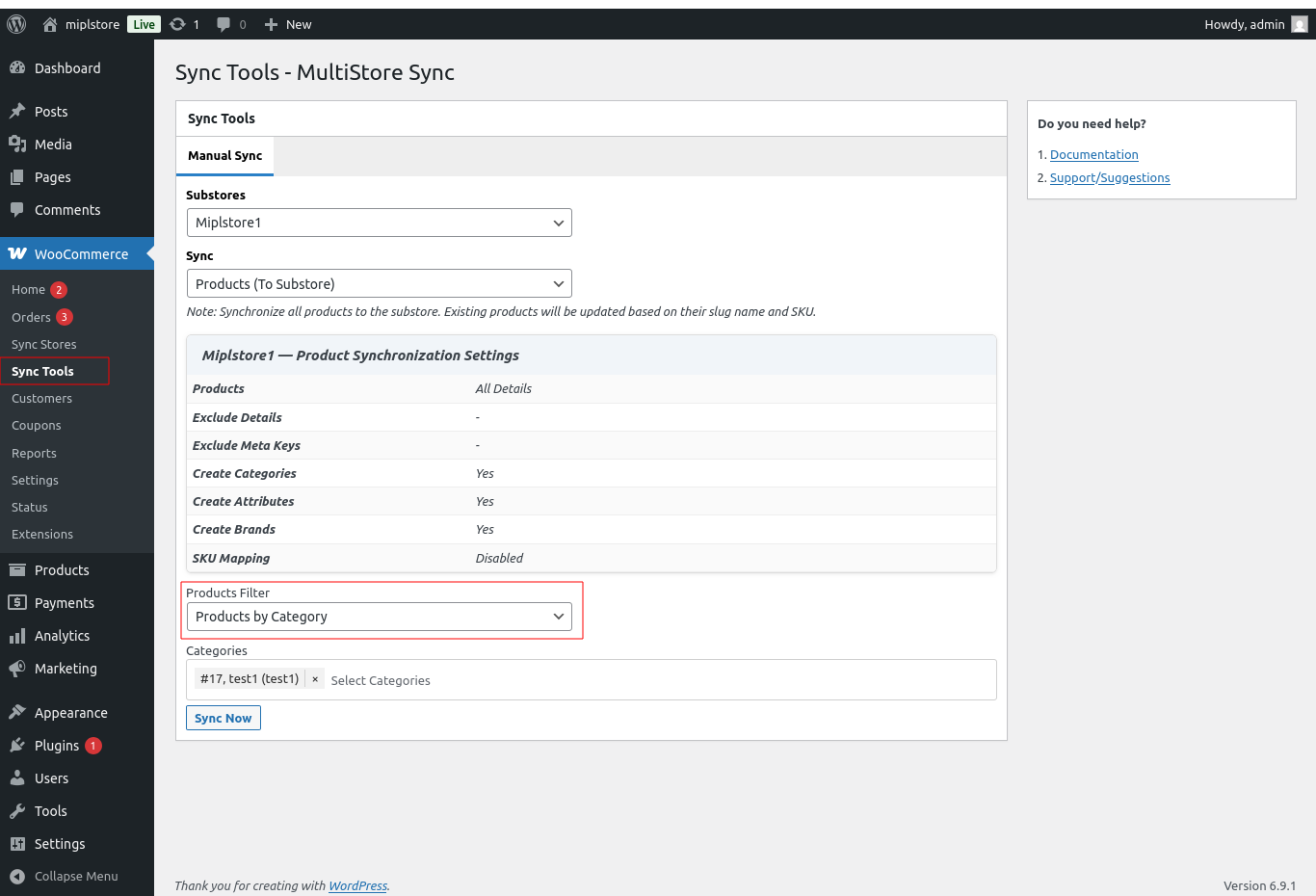
Step 7. Manually sync Specific category from the main store to the sub-store
- To manually sync a specific product, go to WooCommerce → Sync Tools.
- Select the substore from the dropdown, then choose Products (To Substore) in the Sync option.
- Under Products Filter, select Product by category, choose the categories you want to sync, and then click the Sync Now button.
This will sync only the selected categories to the chosen substore.
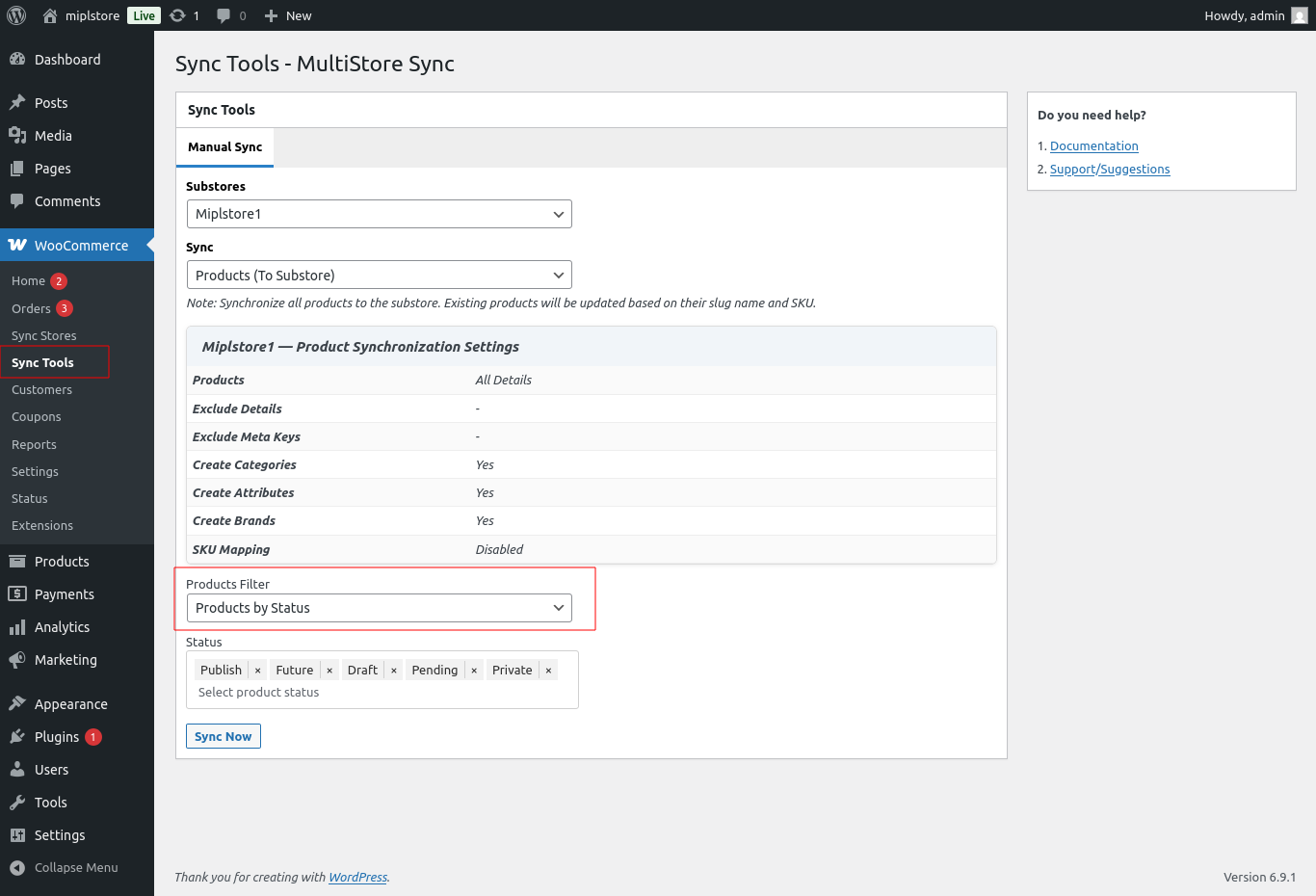
Step 8. Manually sync Specific product status from the main store to the sub-store
- To manually sync a specific product, go to WooCommerce → Sync Tools.
- Select the substore from the dropdown, then choose Products (To Substore) in the Sync option.
- Under Products Filter, select Product by status, choose the status you want to sync, and then click the Sync Now button.
- This will sync only the selected categories to the chosen substore.
Monitor Sync Logs
- Click on WooCommerce in the left-hand menu.
- Select Status.
- Click on the Multistore Sync Logs tab.
- Enable Log
The Multistore Sync Logs section allows you to track, review, and troubleshoot all synchronization processes between the Main Store and Sub-Stores. This is especially useful for identifying sync errors, verifying successful transfers, and debugging issues.
After syncing a product, the system records the activity in the Multistore Sync Logs section. In this log, you can see the Main Store Product ID and the Substore Product ID, along with the sync time, message, and status (such as Success). This helps you track which product was synced, between which stores, and whether the synchronization was completed successfully.
Note : If there is any issue during synchronization, check the Sync Logs to see the error details.
Enable Log : Turns logging on or off.
- When enabled, all sync activities are recorded
- Recommended for troubleshooting and testing
- Both successful and failed sync attempts are saved.
Auto Delete Log : Automatically deletes old log files.
1. How to View Synced Products in the Substore
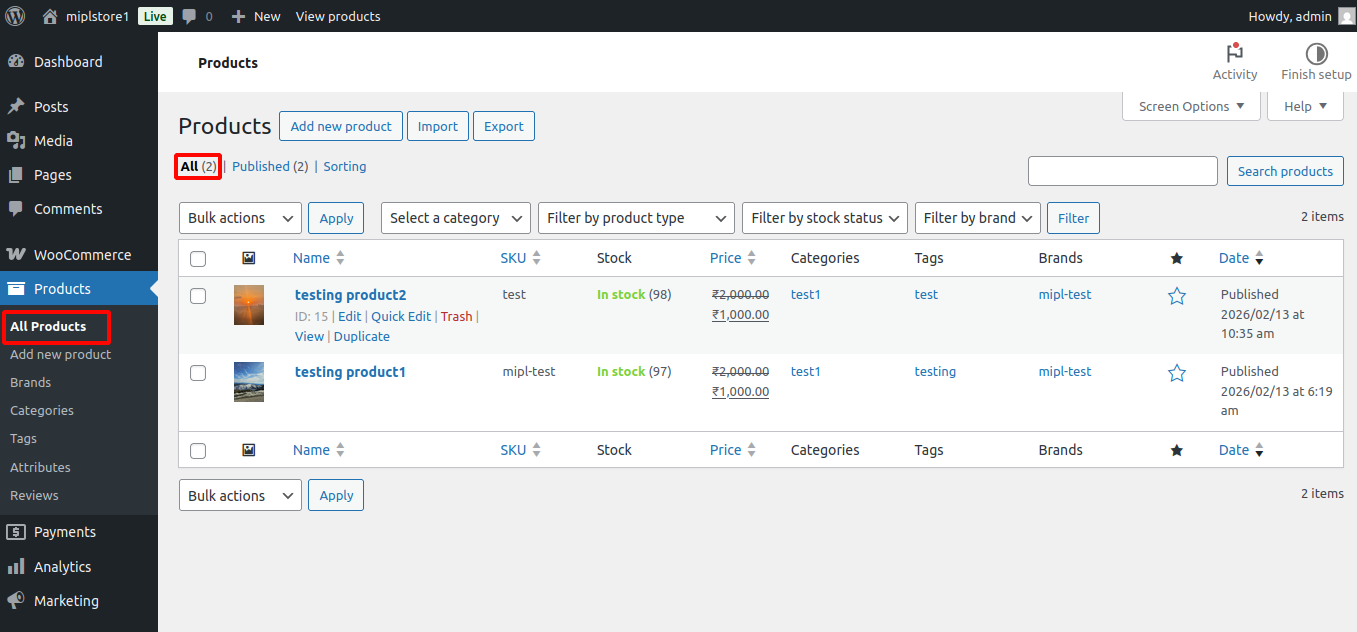
After syncing products from the Main Store → Substore, follow these steps to verify the synced products:
Step 1: Log in to the Substore
- Open the Substore URL (the one configured in Sync Stores).
- Log in to the Substore WordPress Admin Dashboard.
Step 2: Go to Products
- Navigate to : WooCommerce → Products
OR
Products → All Products
Step 3: Check the Product List
- You will see the synced products listed there.
- You can:
- Search by product name
- Search by SKU
2. Syncing from Sub-Stores to Main Store
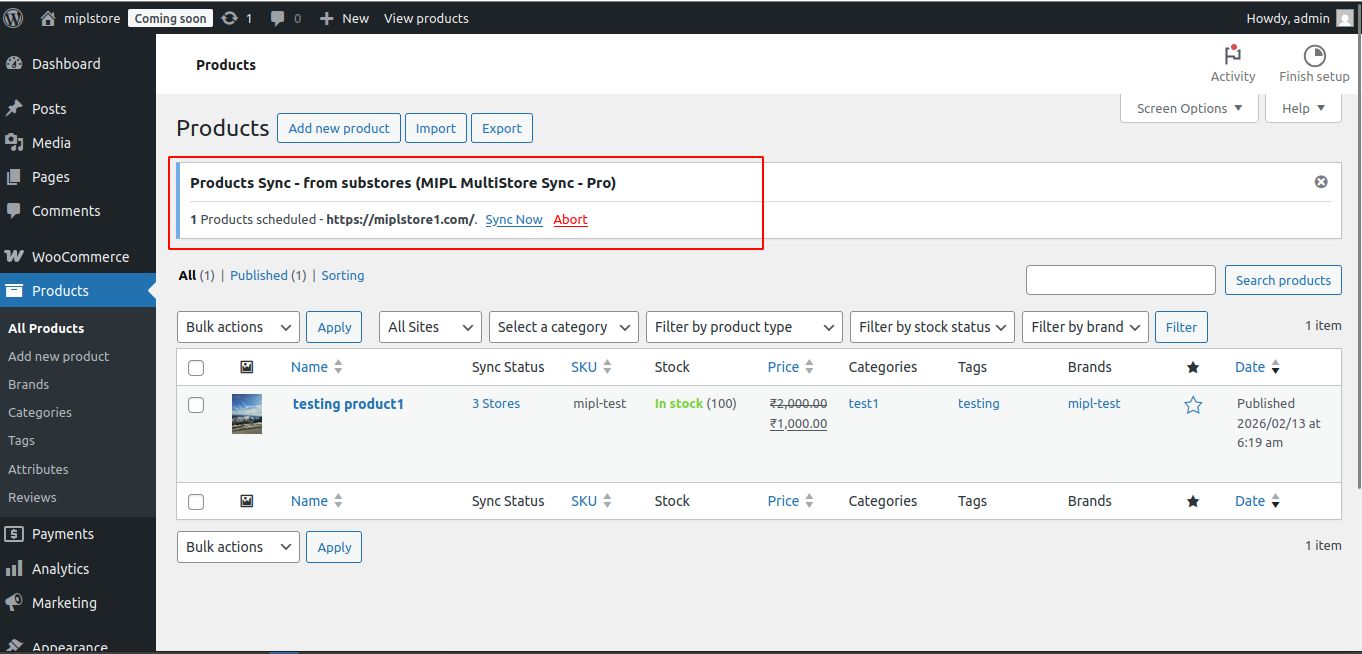
This process is automated. When a product is updated on a substore, the changes will automatically sync to the main store via a scheduled process.
Alternatively, a notification will appear in the main store’s admin panel, informing you that a specific substores product has been updated, allowing you to manually sync the changes.
Note: Ensure that sync settings are enabled for the process to work smoothly.
Step 1. Automatic sync products substore to mainstore
Enable setting :
- Go to WooCommerce → Sync Stores on the Main Store.
- Click Edit on the connected Sub-Store.
- Enable the option Enable Products Sync.
- In the sync direction setting, select Sync from sub-tore.
- Click Save Settings.
Step 2. Manually sync all products from the sub store to the main-store
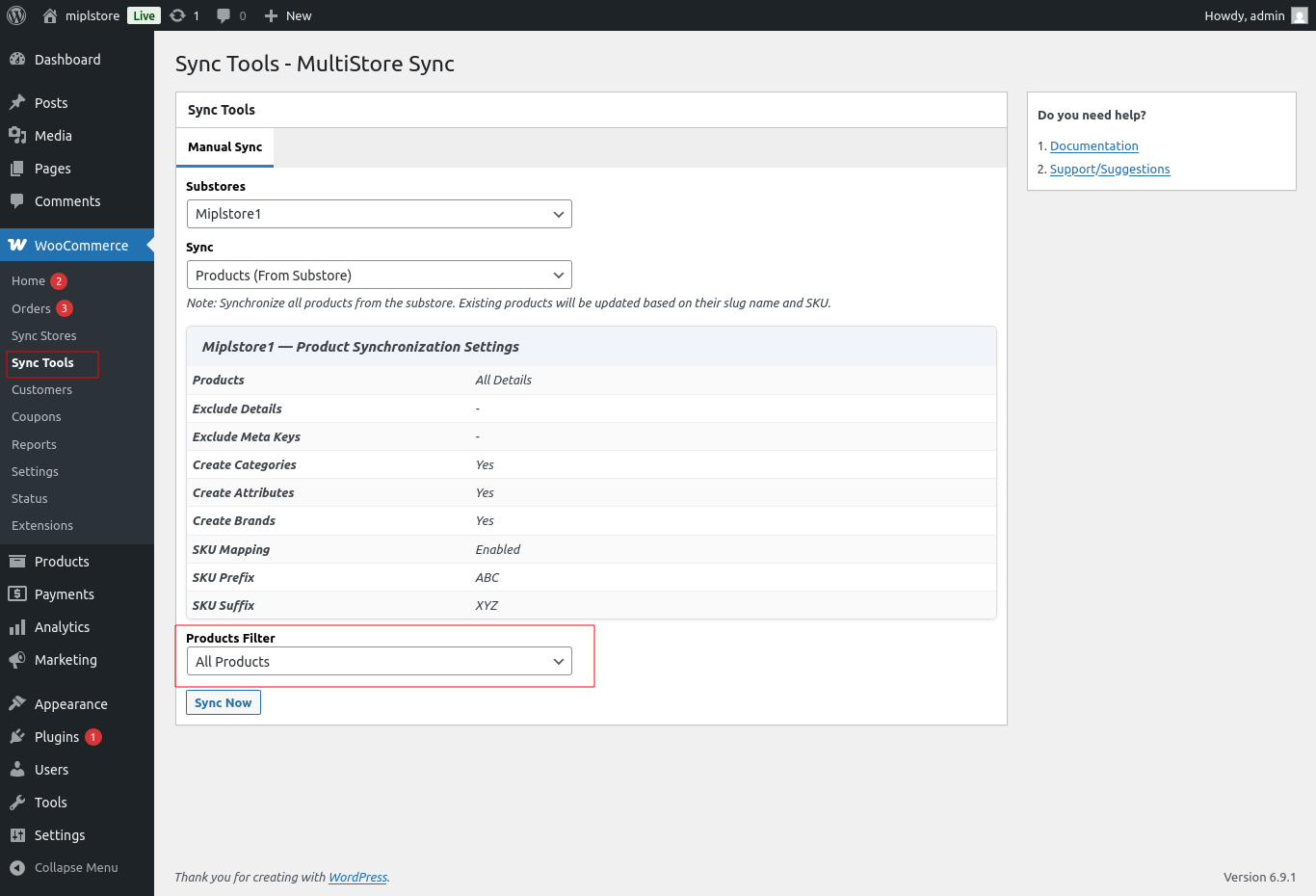
- Go to:
Main Store → WooCommerce → Sync Tools - Click Manual Sync
- Select:
- Sub-Store
- Products (From Substore)
- Start Sync
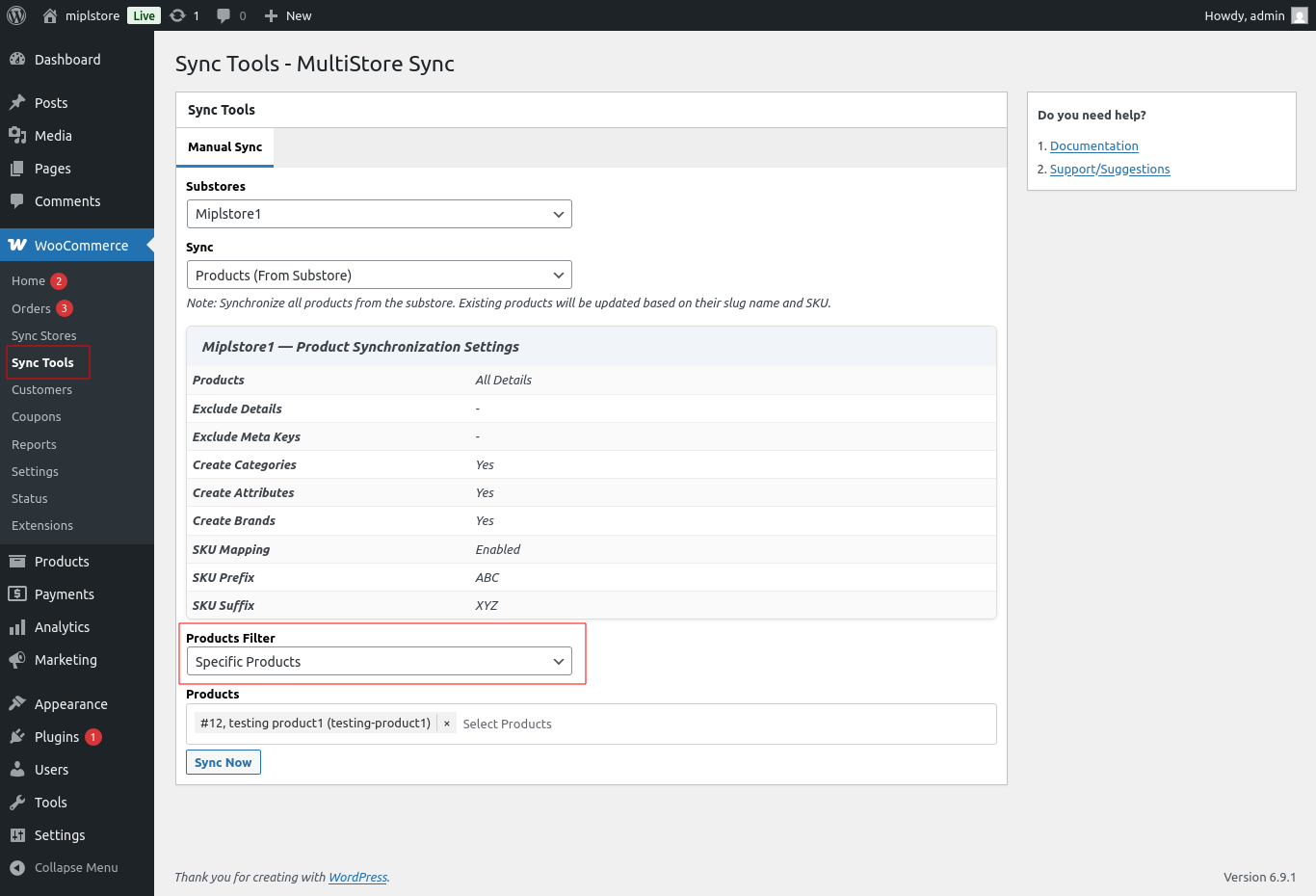
Step 3. Manually sync Specific products from the sub store to the main-store
- To manually sync a specific product, go to WooCommerce → Sync Tools.
- Select the substore from the dropdown, then choose Products (From Substore) in the Sync option.
- Under Products Filter, select Specific Products, choose the product(s) you want to sync, and then click the Sync Now button.
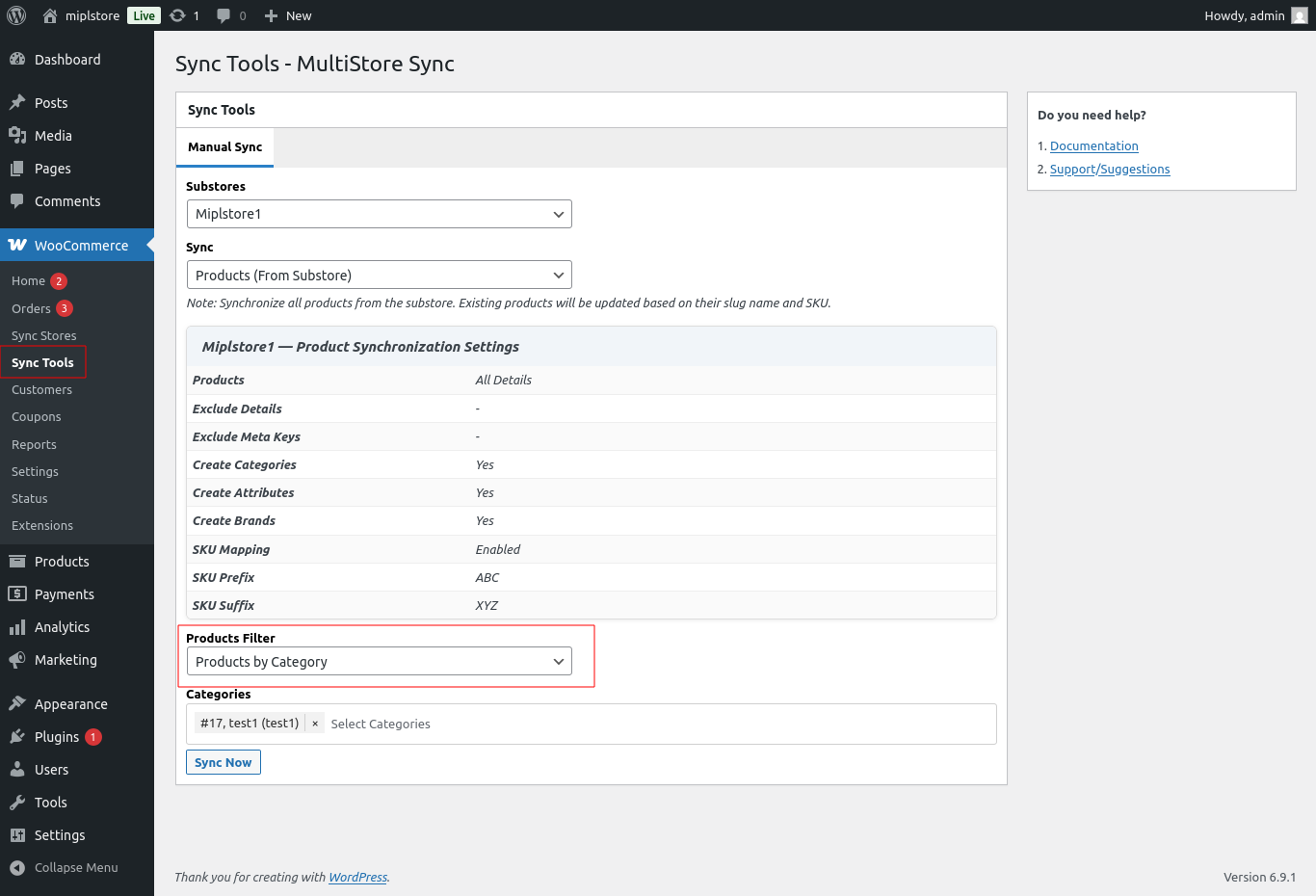
Step 4. Manually sync Specific category from the sub store to the main-store
- To manually sync a specific product, go to WooCommerce → Sync Tools.
- Select the substore from the dropdown, then choose Products (From Substore) in the Sync option.
- Under Products Filter, select Product by category, choose the categories you want to sync, and then click the Sync Now button.
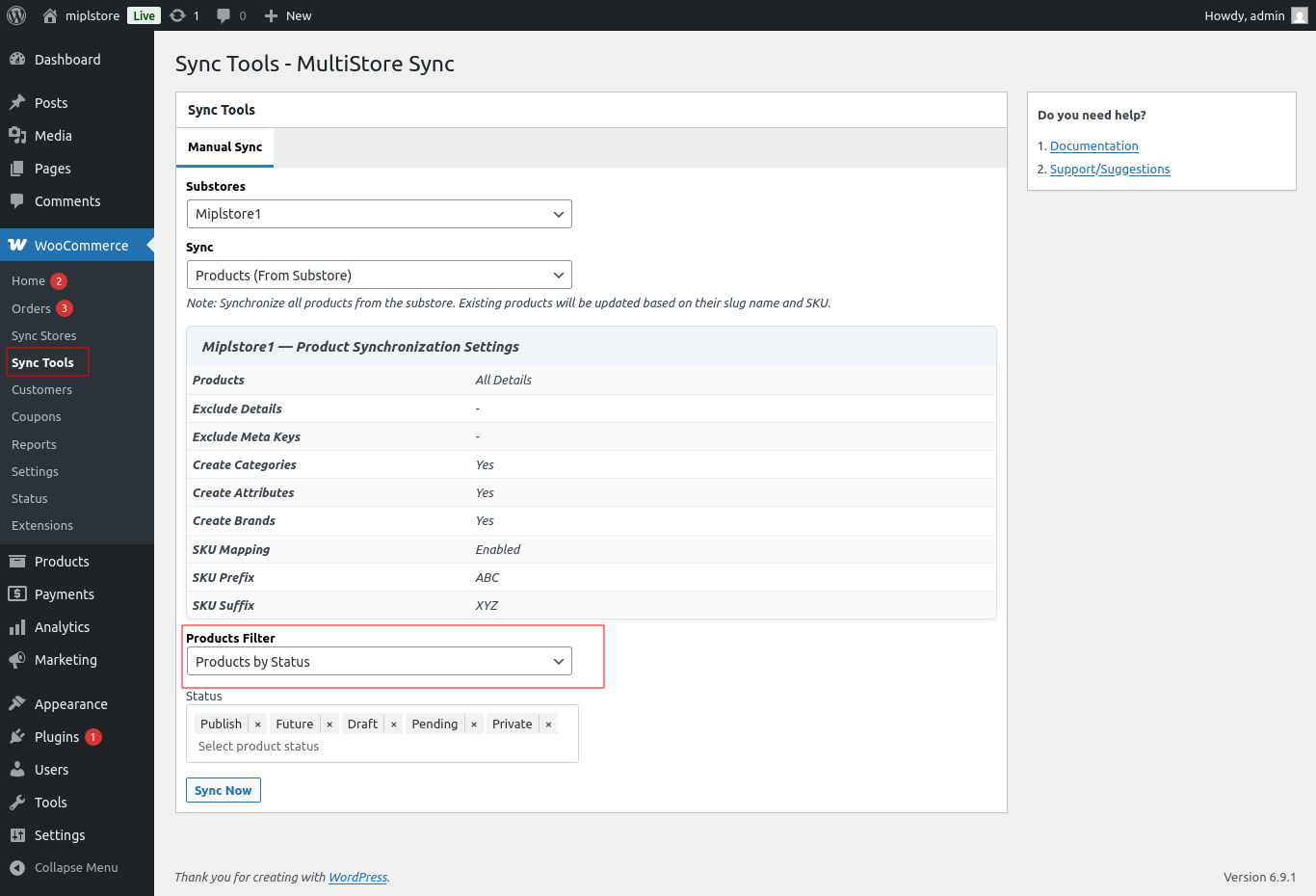
Step 5. Manually sync Specific product status from the sub store to the main-store
- To manually sync a specific product, go to WooCommerce → Sync Tools.
- Select the substore from the dropdown, then choose Products (From Substore) in the Sync option.
- Under Products Filter, select Product by status, choose the status you want to sync, and then click the Sync Now button.
Order Synchronization
1. Order Synchronization from Main Store to Sub-Store
Order synchronization is bidirectional — orders can be synced both from the main store to the substores and from the substores to the main store, based on the synchronization settings or through manual sync.
We have implemented a scheduler-based order synchronization process that automatically creates newly placed orders from the main store on the substores every 5 minutes. Additionally, a Sync Order button is available in the admin screen to instantly sync orders to the substores.
Automated Sync Process
- The system automatically runs a sync every 5 minutes.
- Only newly created orders are automatically synced to the sub-stores.
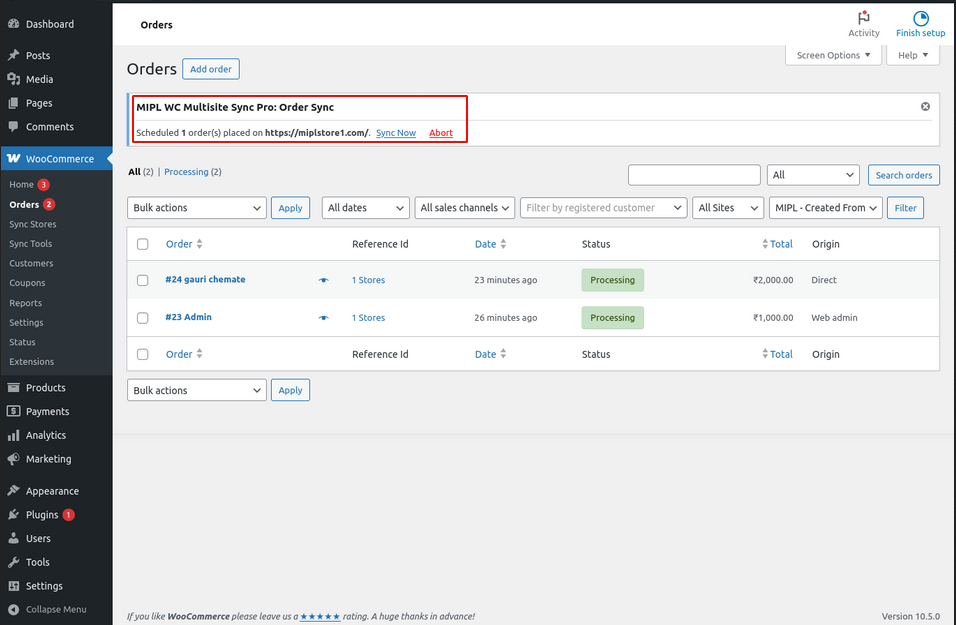
- A notification in the admin panel displays the number of pending orders that need to be synced.
- Go to the Order Listing section on the main store.
- Check the notification to see the number of orders pending synchronization.
- Click on the “Sync Now” button to trigger an immediate sync.
- The system will retrieve all pending orders and update them on the substores instantly.
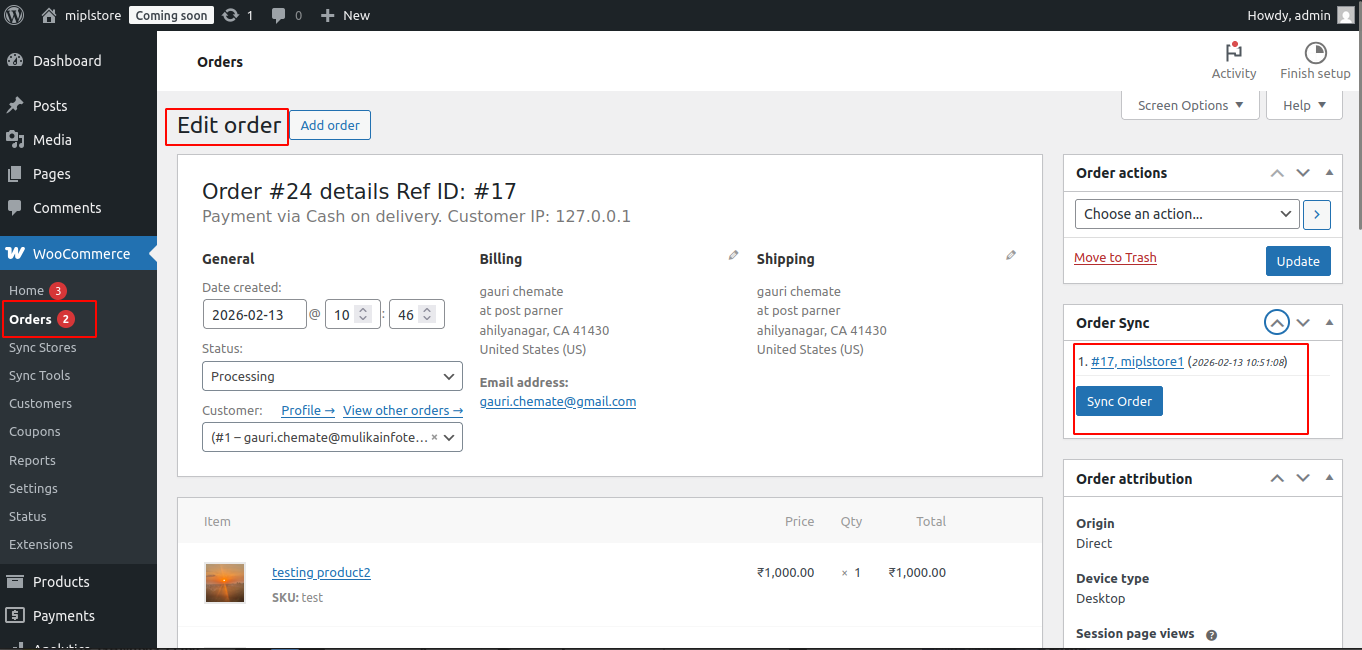
- A Sync Order button is also available on the order edit screen. Clicking this button will instantly synchronize the selected order.
Enable Auto Sync Setting :
- Go to WooCommerce → Sync Stores on the Main Store.
- Click Edit on the connected Sub-Store.
- Enable the option Order Sync.
- In the sync direction setting, select To Sub-Store.
- Click Save Settings.
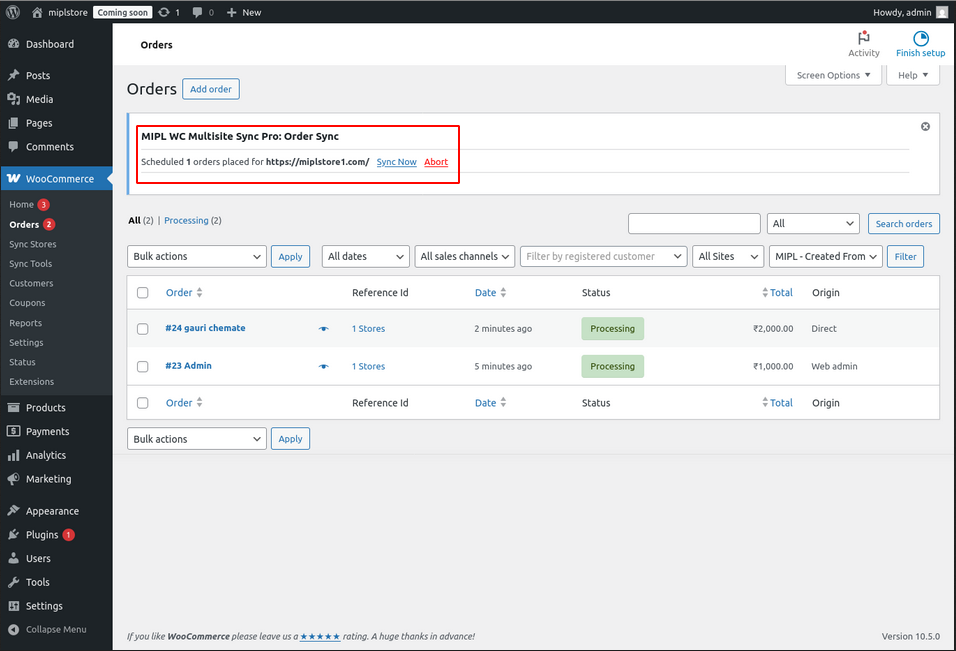
Now, when an order is created or updated on the Main-Store, it will automatically sync to the Sub Store.
You will see a notice like:
“Scheduled order(s) placed on [Sub-Store URL]”
This confirms that the order is scheduled for synchronization.
Use this button to manually synchronize the current order between stores:
- Go to WooCommerce → Orders.
- show the order list.
- Click Edit on the specific order you want to sync.
- On the order edit page, click the Sync Order button.The order will sync from the Main Store to the Sub-Store.
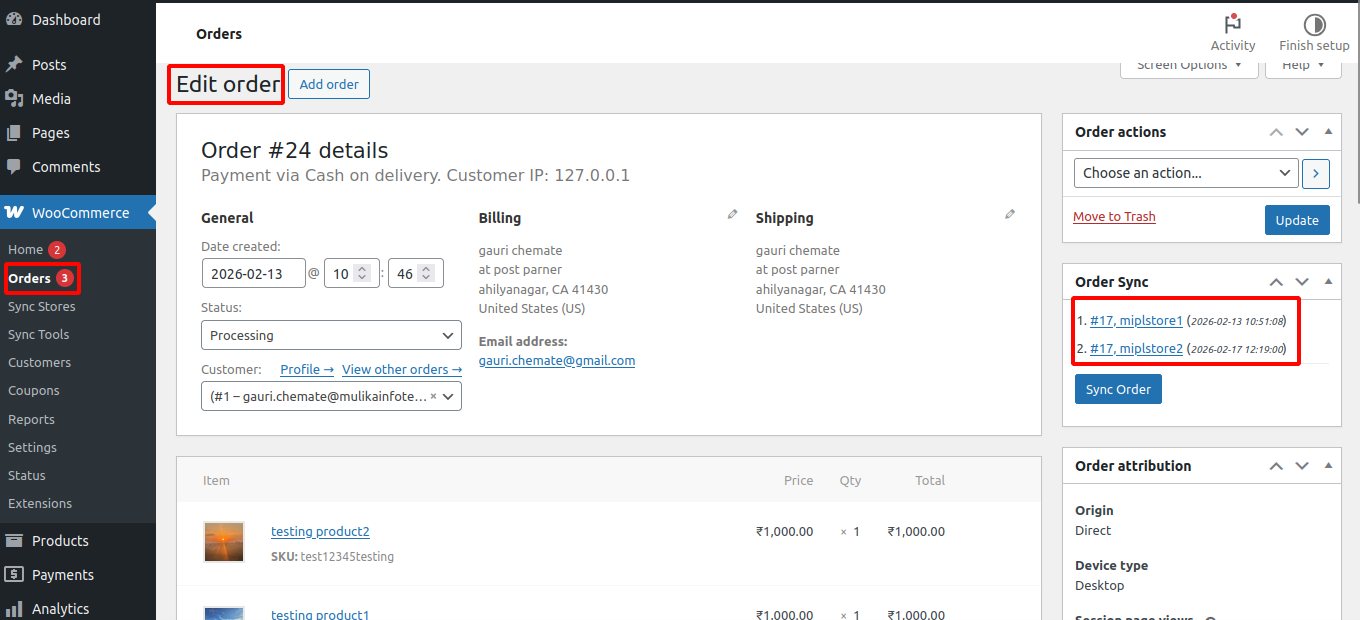
How to View Order Sync in the Main Store
In the Order Sync section, you can see where the order has been synced.
- Ref ID – This is the order ID in the Substore.
- Substore – This is the name of the Substore where the order is synced.
You can click on the Ref ID or the Substore name to be redirected directly to that order in the respective Substore.
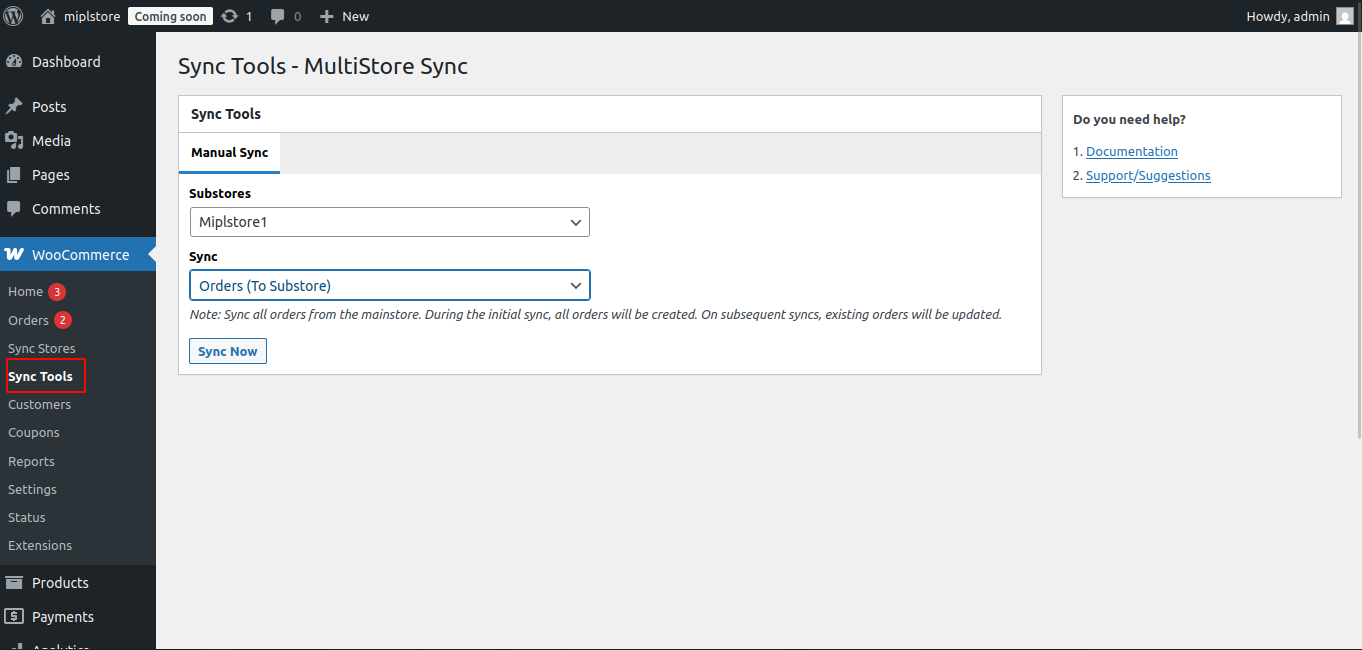
Manual Order Synchronization (Main Store → Substore)
- Go to: WooCommerce → Sync Tools
- Click on the Manual Sync tab
- Select Substores
- Select the substore you want to sync to
- In the Sync dropdown, select:
Orders (To Substore). - Click the Sync Now button.
2. Order Synchronization from Sub-Store to Main Store
Enable setting
- Go to WooCommerce → Sync Stores on the Main Store.
- Click Edit on the connected Sub-Store.
- Enable the option Order Sync.
- In the sync direction setting, select From Sub-Store.
- Click Save Settings.
Now, when an order is created or updated on the Sub-Store, it will automatically sync to the Main Store.
You will see a notice like:
“Scheduled order(s) placed on [Sub-Store URL]”
This confirm that the order is scheduled for synchronization.
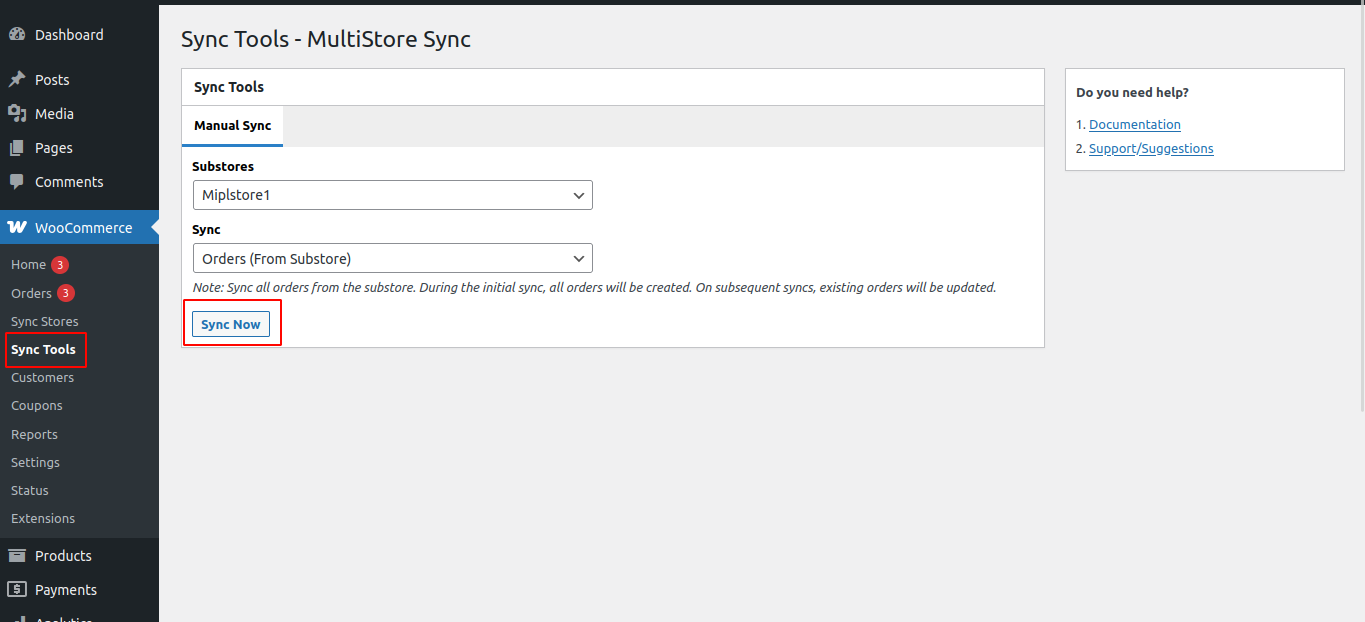
Manually sync orders from substore
- Go to:
Main Store → WooCommerce → Sync Tools - Click Manual Sync
- Select:
- Sub-Store
- Orders (From Substore)
- Start
Coupons Synchronization
Enable coupons setting from :
- Go to WooCommerce → Sync Stores.
- Click Edit on the substore you want to configure.
- Locate the Enable Coupons Sync setting.
- Check/Enable the Coupons Sync option.
- Save or Update the store settings.
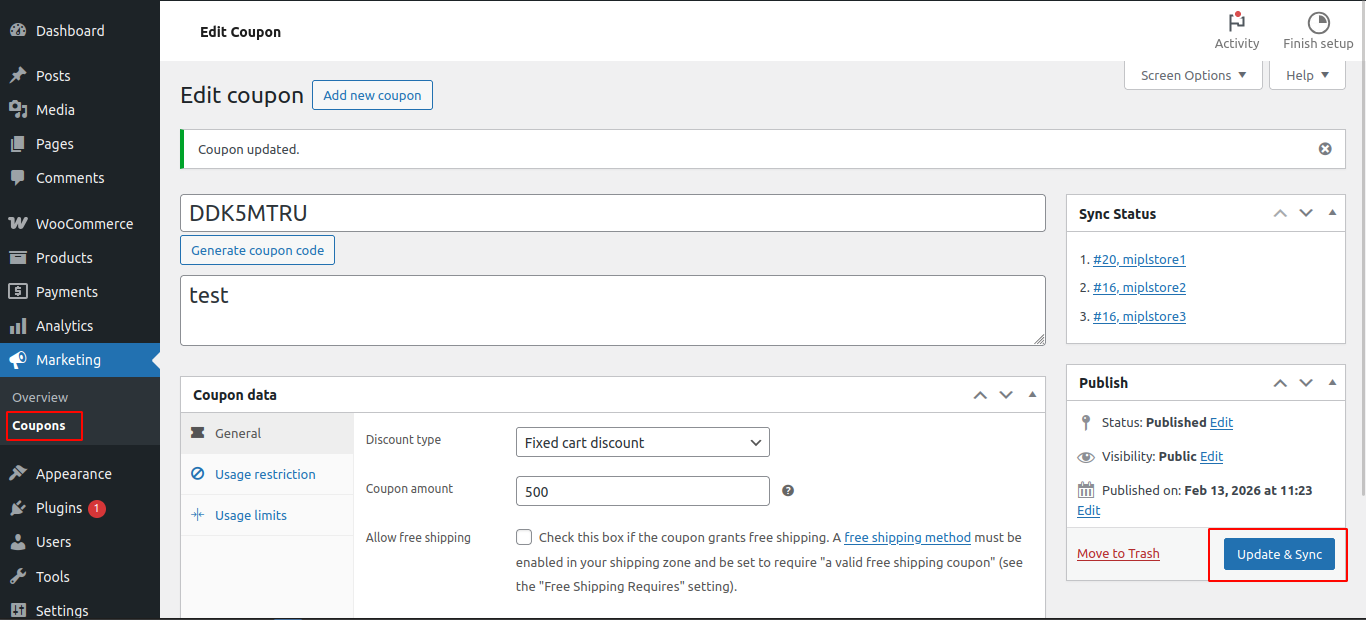
- Go to Marketing → Coupons.
- Click Add new coupon (or edit an existing coupon).
- Click Update & Sync.
The Update & Sync button saves the coupon and immediately synchronizes it from the main store to all connected sub-stores.
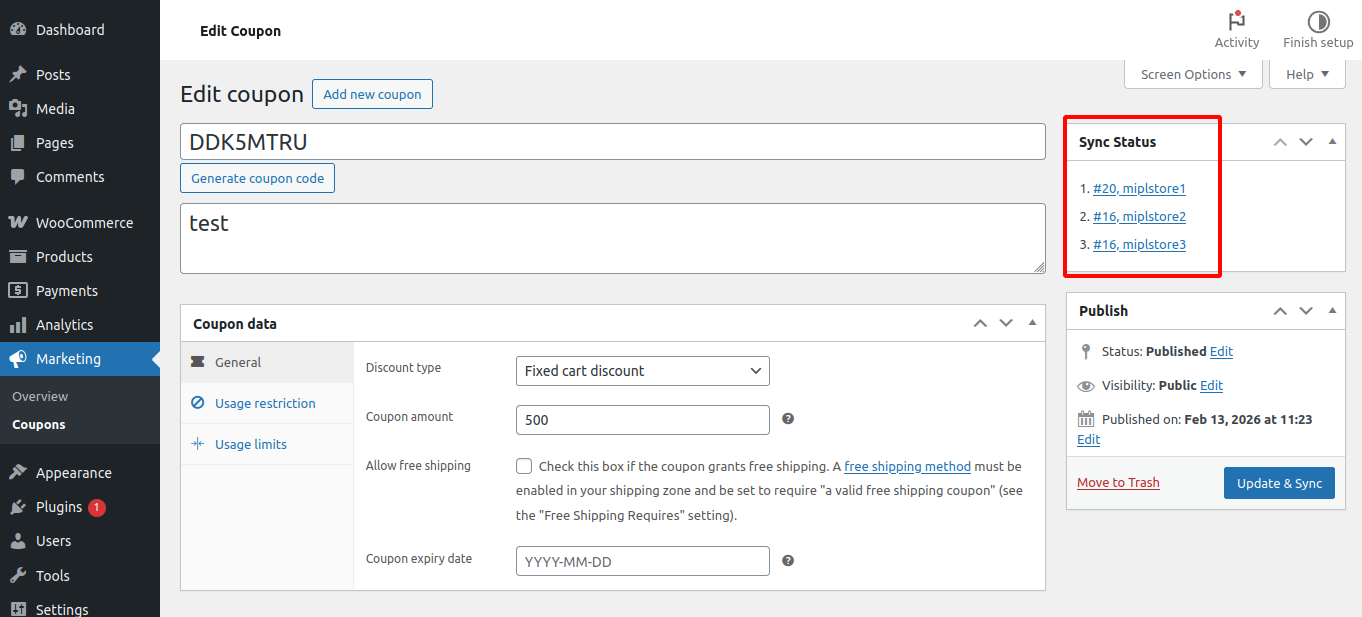
After syncing the coupon, the Sync Status will be displayed in the Main Store.
In the Sync Status section, you will see:
- ID – This is the Substore ID.
- Store – This is the name of the Substore.
You can click on the Reference ID to be redirected directly to the corresponding Substore.
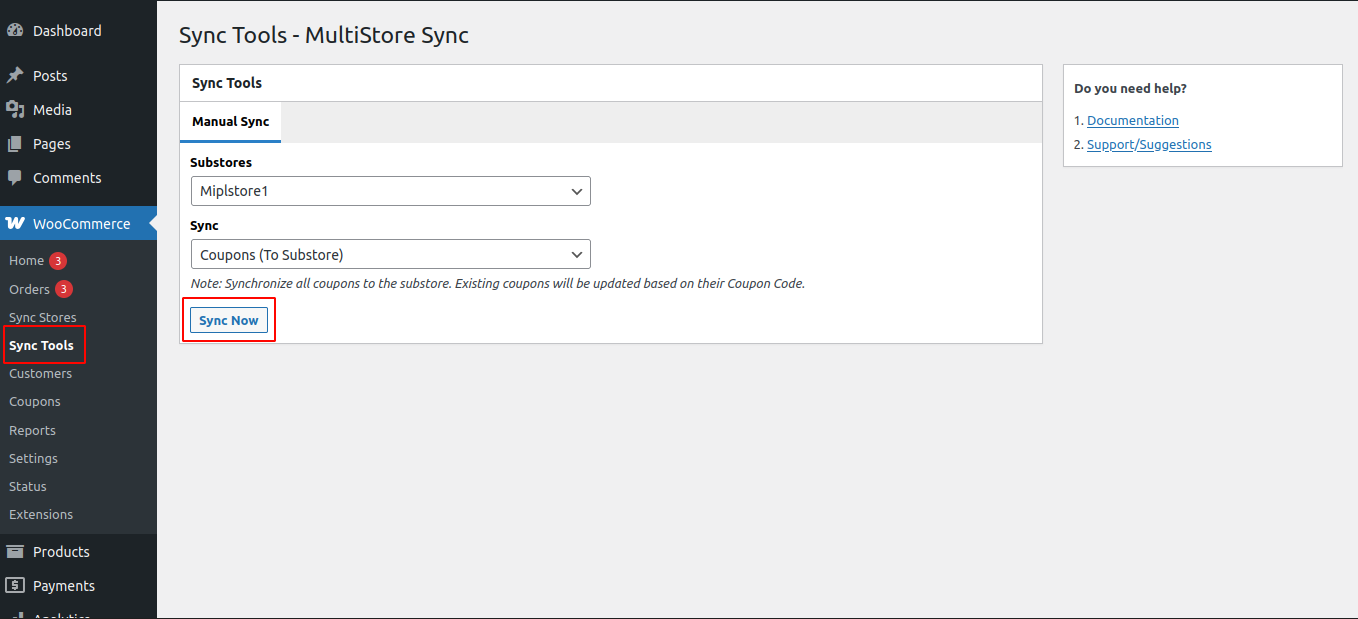
Manually sync all coupons from the main store to the selected sub-store.
- Go to:
Main Store → WooCommerce → Sync Tools - Click Manual Sync
- Select:
- Sub-Store
- Coupons (To Substore)
- Start
Customers Synchronization
- To sync customers , go to WooCommerce → Sync Stores → Edit Store → Settings.
- Enable the Enable Customers Sync option.
- Select Customers (Sync from Substore) to sync customers from the substore to the Main Store.
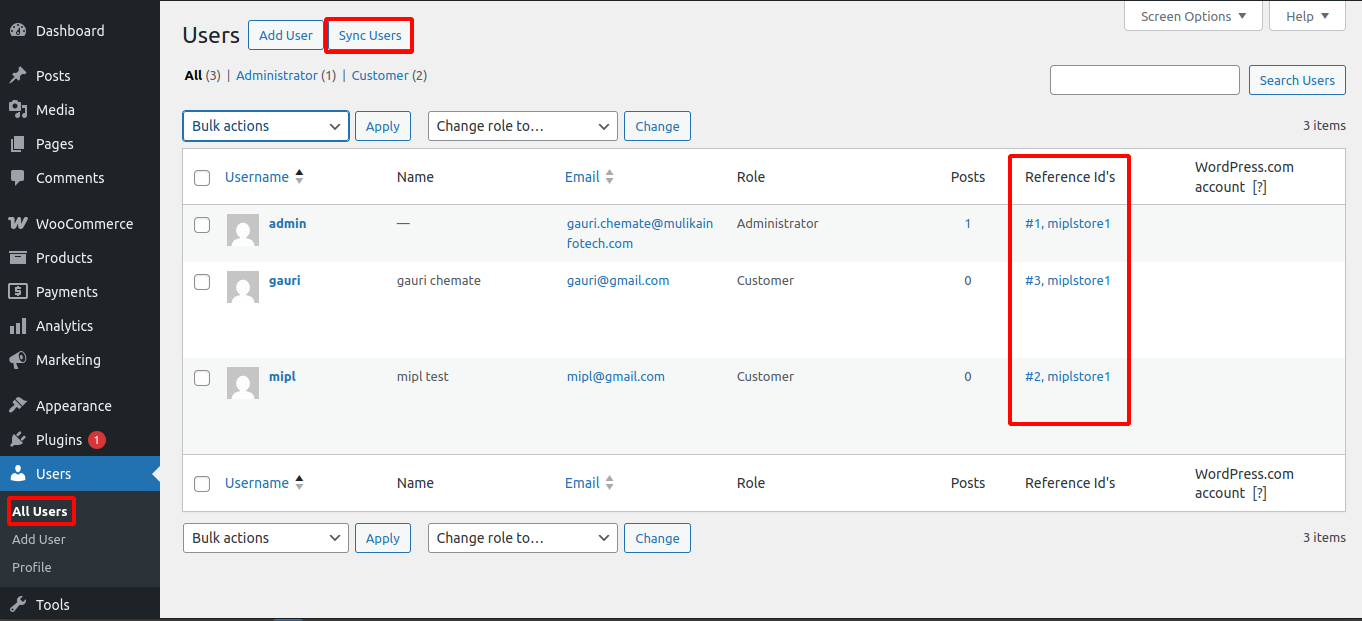
Go to Users → All Users to view the user list.
At the top of the page, you will see the Sync Users button. Click this button to sync users from the Substore to the Main Store.
This Reference ID shows:
- The user’s ID in the connected substore.
- Which store the user is synced with.
You can click the Reference ID to directly open and view that user in the linked substore.
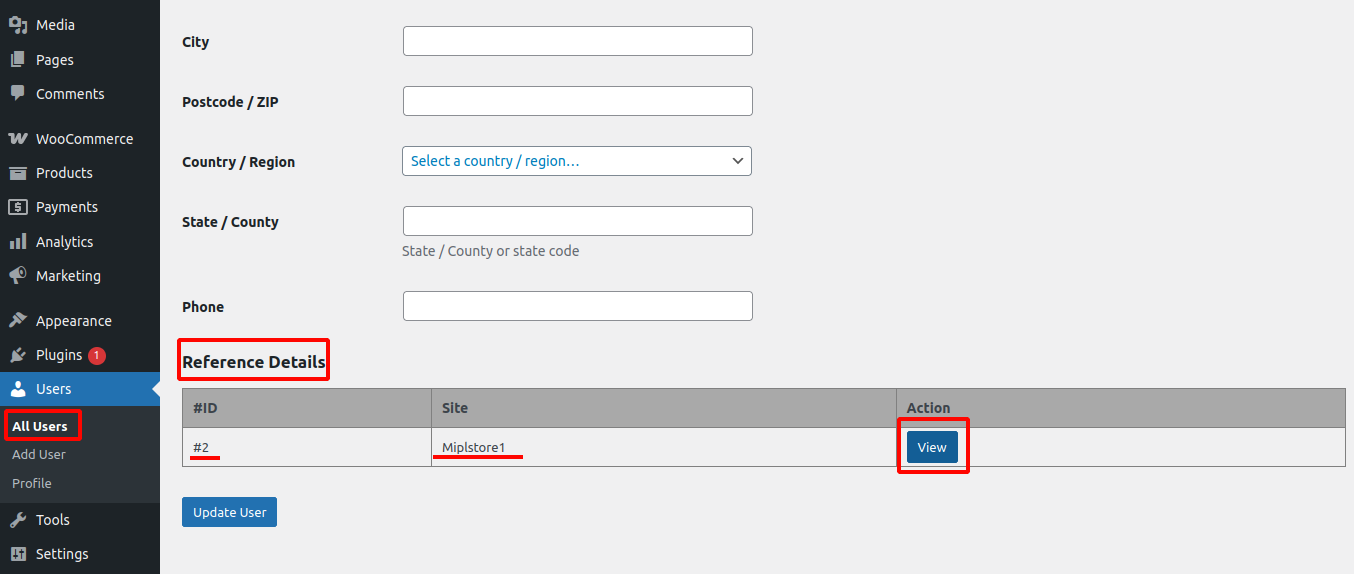
Go to Users → All Users and click on a specific user to edit their details.
On the user edit page, you will see the Reference Details section. This section displays the following information:
- ID – The reference user ID
- Site – The connected substore name
- Action – A View button
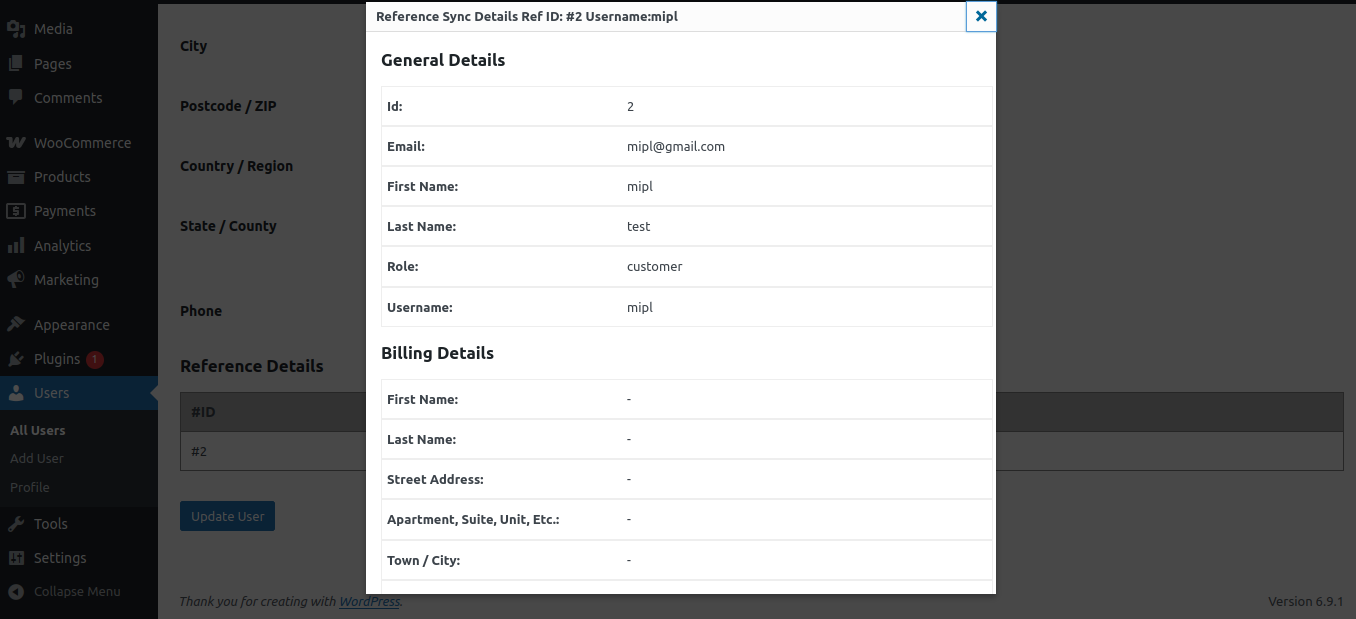
Click the View button to see the reference details of that user from the connected substore.
After making any changes, click Update User to save the updates.
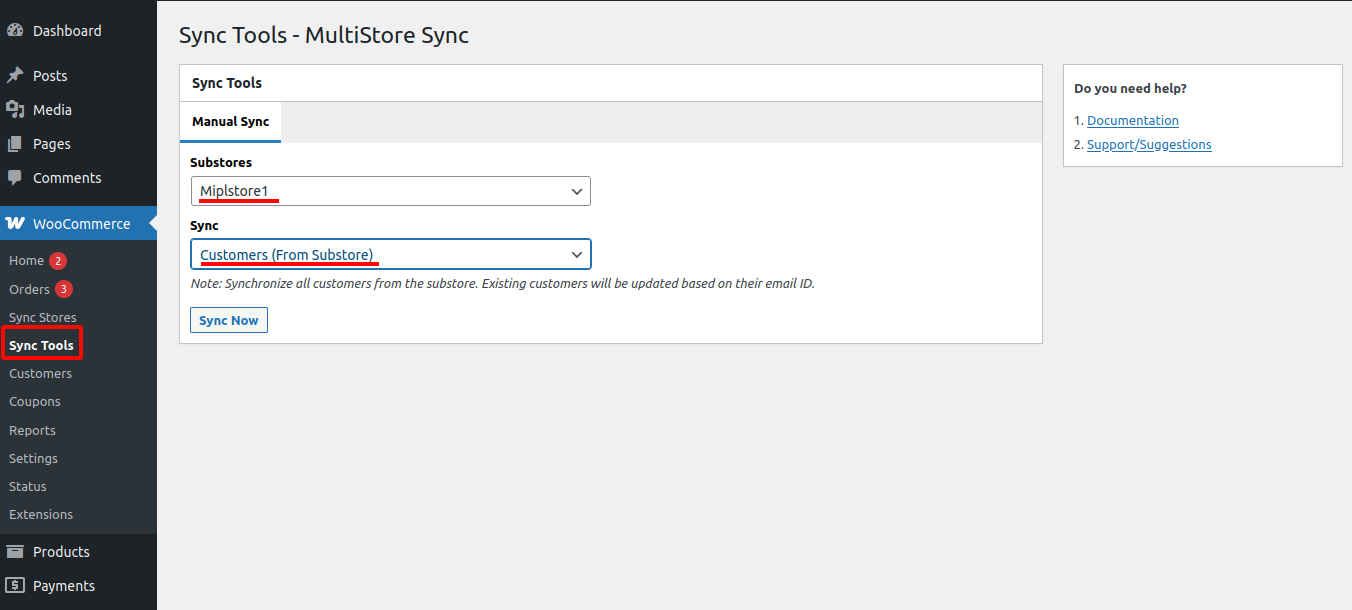
To sync customers manually:
Go to WooCommerce → Sync Tools.
Select the required Substore from the dropdown.
In the Sync option, choose Customers (From Substore).
Then click Sync Now to start syncing customers from the substore to the main store.
Troubleshooting
For troubleshooting sync-related issues and monitoring sync status, logs are generated under:
WooCommerce > Status >Multistore Sync Logs.
These logs can help you identify and resolve any problems that arise during the synchronization process.
You can check compatibility by going to WooCommerce → Settings → Multistore Sync → Compatibility.
Common issues and fixes :
1) Why is the Store Connection Failing?
Possible Reasons:
- Incorrect Sub-Store URL
- Invalid Consumer Key or Consumer Secret
- REST API permissions not set to Read/Write
- SSL certificate issue.
Solution:
- Verify the Sub-Store URL is correct and accessible.
- Double-check the Consumer Key and Consumer Secret.
- Ensure REST API permissions are set to Read/Write.
Frequently Asked Questions (FAQ)
1. Does this plugin sync virtual and downloadable products?
Yes. The plugin fully supports synchronization of virtual and downloadable products across connected stores.
2. If products have different names but the same SKU, will they sync?
Yes. Products are matched and synced based on SKU, even if the product names are different across stores.
3. Is everything done automatically?
Yes. Synchronization can run automatically using the scheduler. Manual sync and sync buttons are also available if needed.
4. Does the plugin work with Advanced Custom Fields (ACF)?
Yes, the plugin supports syncing data created with Advanced Custom Fields (ACF) and also syncs all product meta fields, including custom fields added to products.
5. Can I sync only specific brand products?
Yes. You can configure the plugin to sync only selected brands instead of all products.
6. Can I sync only specific category products?
Yes. You can limit synchronization to specific product categories using the available sync settings.
7. Can I sync products from sub-store to main store?
Yes. The plugin supports two-way synchronization based on the enabled settings.
8. Can I manually sync all products at once?
Yes. You can use the Manual Sync option under WooCommerce → Sync Tools to sync all products.
9. Is the plugin suitable for large multi-store networks?
Yes. The plugin is optimized and tested to support 100+ connected stores, depending on server capacity.